
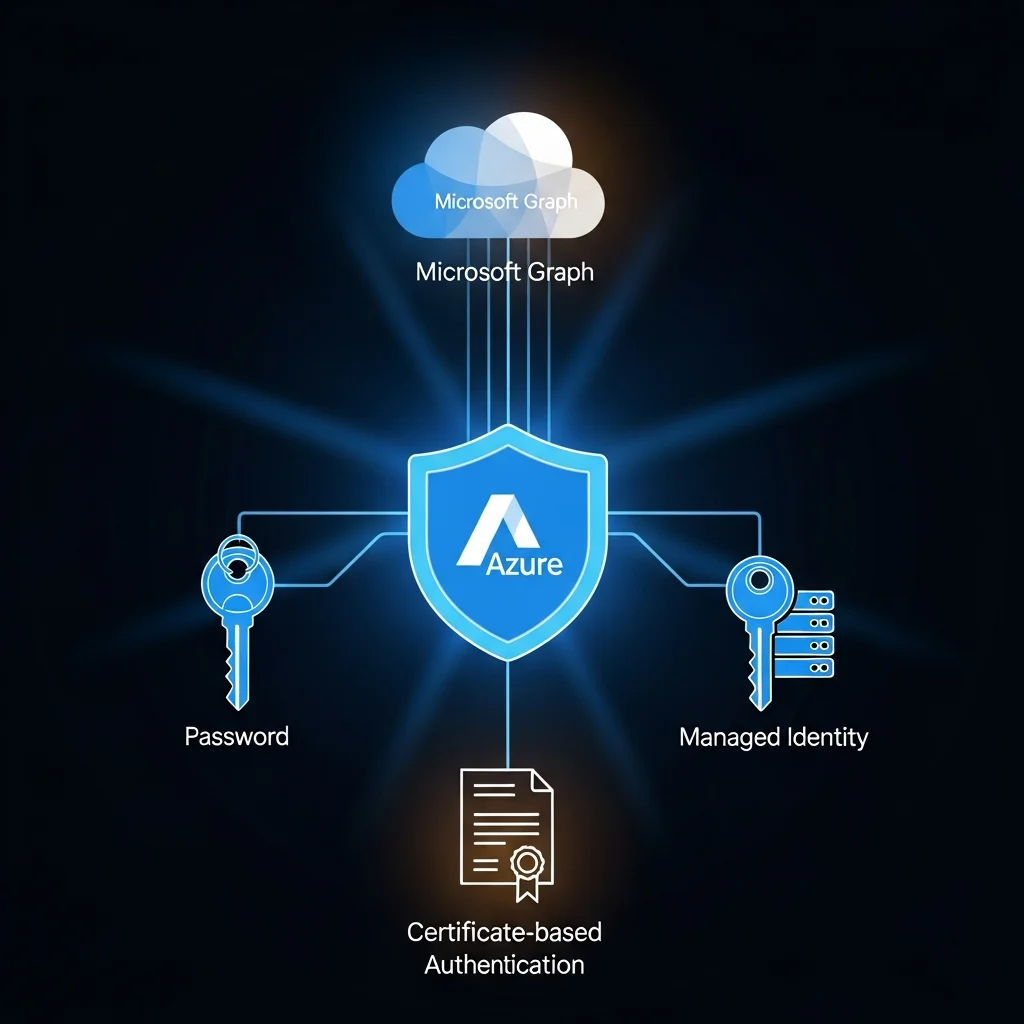
The biggest source of pain when scripting against Microsoft Graph in 2026 is not the API — it is figuring out which authentication mode you should use, how to set up the app registration, what scope to grant, and whether the script will work in your CI runner without any plain-text secrets in the repo. This guide answers all of those, in order, with the actual portal clicks and the actual PowerShell.
You will end up with a clean app registration that authenticates with a certificate, a managed identity for Azure-hosted scripts, and a clear answer to the "which scopes" question. Free PDF cheat sheet at the end.
Table of Contents
The six auth modes — and which to pick
| Mode | When to use | Security |
|---|---|---|
| Interactive (delegated) | Day-to-day admin from your workstation | Good (MFA on the user) |
| Device code flow | Headless devices that need a one-time auth | Good |
| Client secret | Quick prototypes, lab | Weak (secret leaks) |
| Certificate | Production unattended on Windows / Linux | Strong |
| Managed Identity | Azure-hosted apps, Azure Functions, runbooks | Strongest |
| Workload Identity Federation | GitHub Actions / GitLab CI / external IdP | Strong (no static secrets) |
Pick the strongest one your environment supports. In 2026, Managed Identity inside Azure and Workload Identity Federation outside it should be the defaults.
Create the app registration
- Sign in to entra.microsoft.com as an admin.
- Identity → Applications → App registrations → New registration.
- Name: e.g.
graph-userprovisioning-prod. - Supported account types: usually "Accounts in this organizational directory only".
- Redirect URI: leave blank for unattended app, or
http://localhostfor interactive. - Register.
Note the Application (client) ID and Directory (tenant) ID from the Overview page.
Grant API permissions
- Inside the app registration, API permissions → Add a permission → Microsoft Graph.
- Pick Application permissions for unattended scripts (or Delegated for interactive).
- Add only the scopes you need.
User.Read.All, notDirectory.ReadWrite.All, unless you genuinely need the broader one. - Click Grant admin consent for <tenant> at the top — without this step the permissions are listed but inactive.
Client secret
Quick to set up, weak in production. Acceptable for an isolated lab tenant.
- App registration → Certificates & secrets → New client secret.
- Pick the shortest reasonable expiration (max 24 months).
- Copy the Value immediately — you will never see it again.
$secret = ConvertTo-SecureString $env:GRAPH_SECRET -AsPlainText -Force
$cred   = [pscredential]::new($clientId, $secret)
Connect-MgGraph -TenantId $tenantId -ClientSecretCredential $cred
Certificate (recommended)
The certificate's private key never leaves the machine. The portal stores only the public key. Compromise of the key requires compromise of the host. This is the right answer for any unattended workload outside Azure.
Generate a self-signed cert (for non-public app):
$cert = New-SelfSignedCertificate `
    -Subject "CN=graph-userprovisioning-prod" `
    -CertStoreLocation "Cert:\CurrentUser\My" `
    -KeyExportPolicy Exportable `
    -KeySpec Signature -KeyLength 2048 -HashAlgorithm SHA256 `
    -NotAfter (Get-Date).AddYears(2)

$thumb = $cert.Thumbprint

# Export the public part for upload
Export-Certificate -Cert $cert -FilePath .\graph-app.cer
Upload graph-app.cer to the app registration: Certificates & secrets → Certificates → Upload. Then connect with the thumbprint:
Connect-MgGraph -TenantId $tenantId -ClientId $clientId -CertificateThumbprint $thumbManaged Identity (Azure-hosted)
If your script runs in Azure (App Service, Function, VM, Automation), enable a Managed Identity on the resource and skip secrets entirely:
# Inside an Azure resource with a system-assigned identity
Connect-MgGraph -Identity

# Or with a user-assigned identity by client id
Connect-MgGraph -Identity -ClientId ""
Grant the managed identity Graph application permissions via PowerShell or via the portal (Enterprise applications → All applications → find your MI → Permissions). Microsoft Graph permissions for Managed Identities cannot be granted through the regular App registration UI — you must use a script to add them.
Workload Identity Federation (GitHub Actions, etc.)
Use this when your CI runner sits outside Azure but you do not want to store a secret. The runner's OIDC token is exchanged for an Entra ID token federated to your app registration.
- App registration → Certificates & secrets → Federated credentials → Add credential.
- Pick the scenario (GitHub Actions, Kubernetes, generic OIDC).
- Enter the issuer (e.g.
https://token.actions.githubusercontent.com) and the subject (repo:org/repo:ref:refs/heads/main).
From the GitHub workflow:
jobs:
  provision:
    runs-on: ubuntu-latest
    permissions: { id-token: write, contents: read }
    steps:
      - uses: azure/login@v2
        with:
          client-id: ${{ secrets.AZURE_CLIENT_ID }}
          tenant-id: ${{ secrets.AZURE_TENANT_ID }}
          subscription-id: ${{ secrets.AZURE_SUBSCRIPTION_ID }}
      - run: |
          pwsh -c "Import-Module Microsoft.Graph; Connect-MgGraph -AccessToken (Get-AzAccessToken -ResourceUrl https://graph.microsoft.com).Token; Get-MgUser -Top 5"
Zero secrets in the repo, full Graph access, every login attributable.
Admin consent and tenant-wide grant
Application permissions always require admin consent. Either click "Grant admin consent" in the portal, or send an admin a tenant-wide consent URL:
https://login.microsoftonline.com/<tenantId>/adminconsent?client_id=<clientId>For delegated permissions, the user can consent for themselves on first login unless your tenant is configured to require admin consent for all apps.
Common errors
"Insufficient privileges to complete the operation"
The required scope is granted but admin consent has not been clicked, or the consent was for a different scope than the call needs.
"AADSTS7000215: Invalid client secret"
The secret value is wrong, or you copied the secret ID instead of the value. They look similar in the portal.
"AADSTS70021: No matching federated identity record found"
The GitHub subject on the federated credential does not match the workflow's actual iss/sub claim. Re-check the branch name in the subject.
"The certificate is not valid"
Either the cert expired, or PowerShell is loading a cert from the wrong store. Verify with Get-ChildItem Cert:\CurrentUser\My\$thumb.
Cheat sheet
The whole auth matrix + the connect commands on a single PDF: Graph API Authentication Cheat Sheet.
FAQ
Can I share one app registration across multiple tenants?
Yes — set "Supported account types" to multitenant when you register. Each customer admin then consents once for their tenant.
What is the difference between Application and Delegated permissions?
Application permissions = the app acts as itself, with no signed-in user (use for unattended scripts). Delegated permissions = the app acts on behalf of a signed-in user (use for interactive). Both are configured separately on the same app registration.
Should I rotate client secrets?
Yes — every 6 to 12 months, ideally automated. Better: skip secrets entirely with certificates or Managed Identity.
How do I see who consented to my app and what they granted?
Entra portal → Enterprise applications → your app → Permissions. Shows the consented scopes and (for delegated) the per-user consent.
Can a Managed Identity have delegated permissions?
No — Managed Identities only support Application permissions. There is no signed-in user.
Can I use Microsoft Graph from a script that signs in with my personal Microsoft account?
Only against the consumer Graph endpoints (your own profile, OneDrive Personal). Tenant-level operations require an Entra ID work account.
Where should I store the certificate thumbprint in CI?
The thumbprint is not secret — only the private key is. Store the thumbprint as a regular CI variable. The cert itself goes in the runner's certificate store or a vault.



