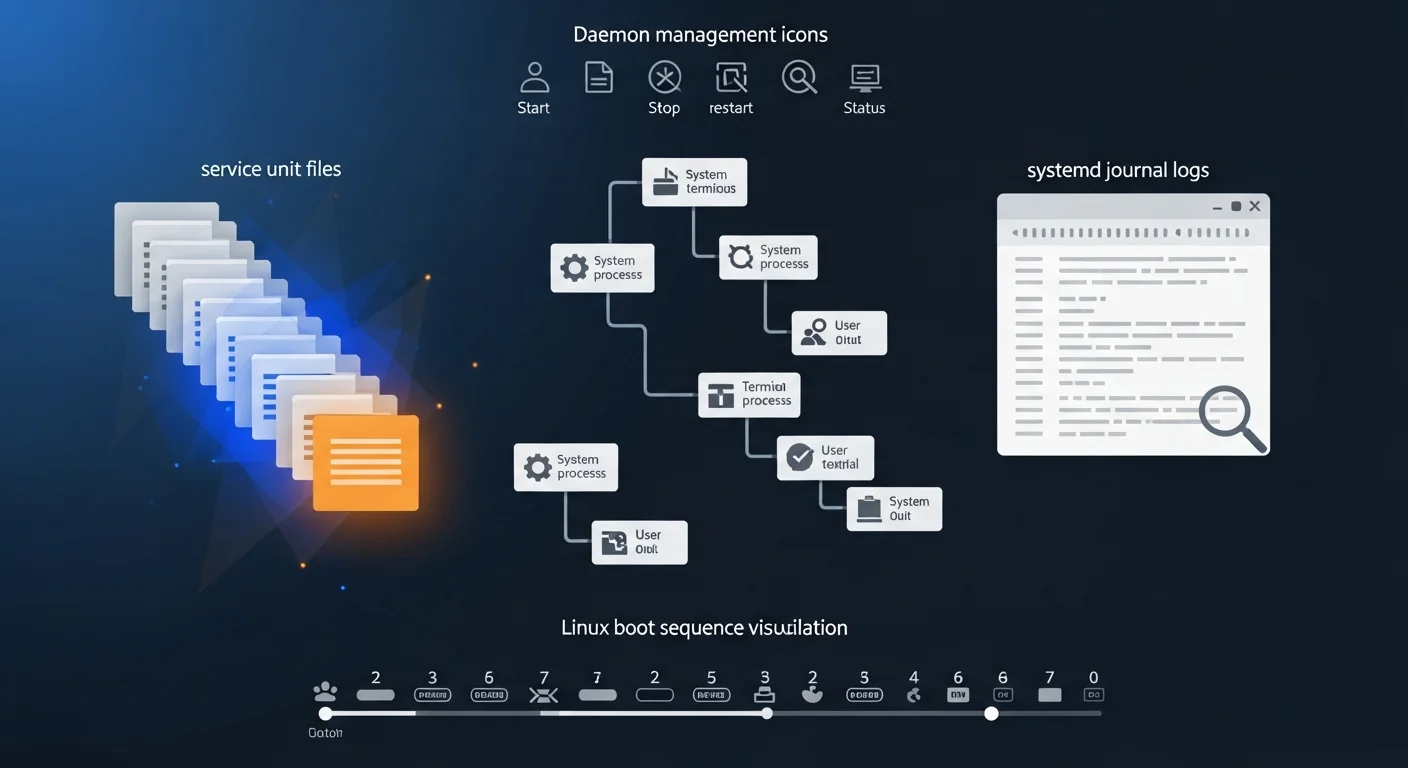
Systemd is the init system and service manager that powers virtually every modern Linux distribution. From managing background services and scheduling tasks to controlling the boot process and collecting logs, systemd is the central nervous system of your Linux server. Understanding systemd is no longer optional — it is a fundamental skill for any Linux administrator, DevOps engineer, or developer working with Linux systems.
This comprehensive guide covers everything from basic service management to advanced unit file creation, timer scheduling, journal analysis, and troubleshooting. Every concept is illustrated with practical, copy-paste-ready commands.
What is Systemd?
Systemd is a suite of system management tools that serves as the init system (PID 1) on most modern Linux distributions including Ubuntu, Debian, Fedora, RHEL, CentOS, AlmaLinux, and Arch Linux. Created by Lennart Poettering and Kay Sievers, systemd replaced the older SysVinit and Upstart systems by providing parallel service startup, on-demand daemon activation, dependency-based service management, and a unified interface for system administration.
The name "systemd" follows the Unix convention of naming daemons with a trailing "d". It manages not just services, but also mount points, devices, sockets, timers, and more — all through a consistent abstraction called units.
Why Learn Systemd?
- Universal Standard — Used by 95%+ of production Linux servers. If you manage Linux, you use systemd.
- Service Lifecycle — Start, stop, restart, enable, disable, and monitor any service with consistent commands.
- Centralized Logging —
journalctlprovides structured, queryable logs for every service, replacing scattered log files. - Cron Replacement — Systemd timers offer better logging, dependency management, and accuracy than traditional cron jobs.
- Resource Control — Built-in CPU, memory, and I/O limits via cgroups integration.
- Security Sandboxing — Restrict services with namespace isolation, read-only filesystems, and capability dropping.
Systemd Architecture
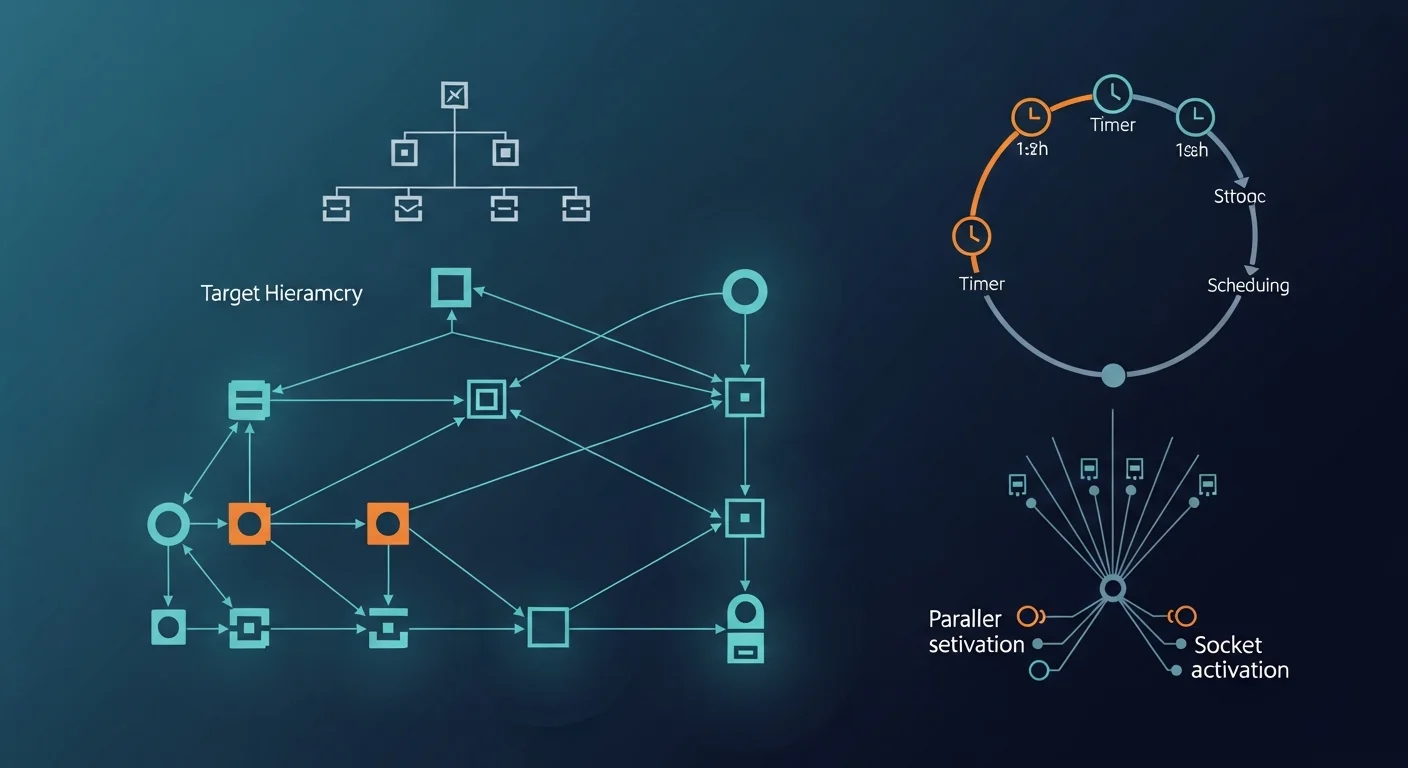
Systemd organizes everything into units. Each unit has a type that determines its behavior:
| Unit Type | Extension | Purpose |
|---|---|---|
| Service | .service | Manages daemons and processes |
| Socket | .socket | Socket-based activation |
| Timer | .timer | Scheduled task execution |
| Mount | .mount | Filesystem mount points |
| Target | .target | Groups of units (like runlevels) |
| Path | .path | File/directory monitoring |
| Slice | .slice | Resource management groups |
Service Management
The systemctl command is your primary interface to systemd:
Basic Service Operations
# Start/Stop/Restart a service
sudo systemctl start nginx
sudo systemctl stop nginx
sudo systemctl restart nginx
sudo systemctl reload nginx        # Reload config without restart

# Enable/Disable at boot
sudo systemctl enable nginx        # Start on boot
sudo systemctl disable nginx       # Don't start on boot
sudo systemctl enable --now nginx  # Enable AND start immediately

# Check status
systemctl status nginx             # Detailed status
systemctl is-active nginx          # Just "active" or "inactive"
systemctl is-enabled nginx         # "enabled" or "disabled"
systemctl is-failed nginx          # Check if failed
Listing and Filtering Services
# List all services
systemctl list-units --type=service

# List running services only
systemctl list-units --type=service --state=running

# List failed services
systemctl --failed

# List all unit files
systemctl list-unit-files --type=service

# Show service dependencies
systemctl list-dependencies nginxWriting Unit Files
Custom unit files go in /etc/systemd/system/. Here's a complete example for a Node.js application:
# /etc/systemd/system/myapp.service
[Unit]
Description=My Node.js Application
Documentation=https://example.com/docs
After=network.target postgresql.service
Wants=postgresql.service

[Service]
Type=simple
User=appuser
Group=appuser
WorkingDirectory=/opt/myapp
ExecStart=/usr/bin/node /opt/myapp/server.js
ExecReload=/bin/kill -HUP $MAINPID
Restart=on-failure
RestartSec=5
StartLimitBurst=5
StartLimitIntervalSec=60

# Environment
Environment=NODE_ENV=production
Environment=PORT=3000
EnvironmentFile=/opt/myapp/.env

# Logging
StandardOutput=journal
StandardError=journal
SyslogIdentifier=myapp

# Security
NoNewPrivileges=yes
ProtectSystem=strict
ProtectHome=yes
ReadWritePaths=/opt/myapp/data

[Install]
WantedBy=multi-user.target
# After creating/modifying a unit file:
sudo systemctl daemon-reload # Reload unit files
sudo systemctl enable --now myapp # Enable and startKey Unit File Sections
- [Unit] — Description, documentation, ordering (After/Before), and dependencies (Requires/Wants)
- [Service] — How to run: Type, User, ExecStart, Restart policy, Environment, Security
- [Install] — When to enable: WantedBy defines which target activates this service
Targets & Boot Process
Targets are groups of units that represent system states (similar to SysVinit runlevels):
# Common targets
multi-user.target    → Normal multi-user system (like runlevel 3)
graphical.target     → GUI desktop (like runlevel 5)
rescue.target        → Single-user rescue mode
emergency.target     → Emergency shell
poweroff.target      → Shutdown

# Check current target
systemctl get-default

# Change default target
sudo systemctl set-default multi-user.target

# Switch target immediately
sudo systemctl isolate rescue.target

# Analyze boot time
systemd-analyze                    # Total boot time
systemd-analyze blame              # Time per service
systemd-analyze critical-chain     # Critical path
Systemd Timers (Cron Replacement)
Systemd timers provide a modern alternative to cron with better logging and dependency management:
# /etc/systemd/system/backup.timer
[Unit]
Description=Daily Backup Timer

[Timer]
OnCalendar=*-*-* 02:00:00       # Every day at 2 AM
Persistent=true                  # Run missed executions
RandomizedDelaySec=300           # Random delay up to 5 min
AccuracySec=60                   # 1-minute accuracy

[Install]
WantedBy=timers.target

# /etc/systemd/system/backup.service
[Unit]
Description=Daily Backup Job

[Service]
Type=oneshot
ExecStart=/opt/scripts/backup.sh
User=backup
# Enable the timer
sudo systemctl enable --now backup.timer
# List all timers
systemctl list-timers --all
# Check timer status
systemctl status backup.timer
# Manually trigger the service
sudo systemctl start backup.service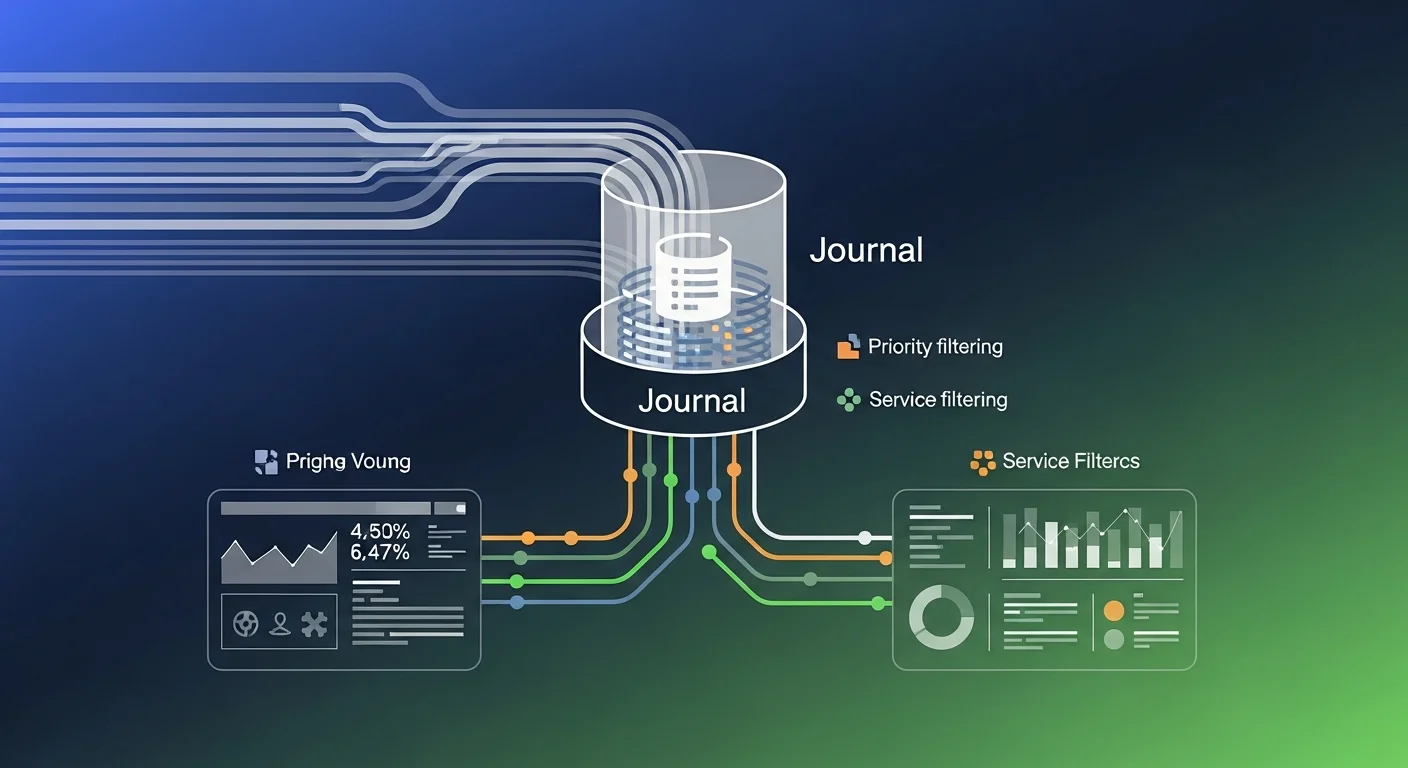
Journal & Logging (journalctl)
The systemd journal collects logs from all services, the kernel, and system messages in a structured binary format:
# View all logs
journalctl

# Follow logs in real time
journalctl -f

# Logs for a specific service
journalctl -u nginx
journalctl -u nginx --since "1 hour ago"
journalctl -u nginx --since "2026-03-01" --until "2026-03-15"

# Logs by priority
journalctl -p err                  # Errors only
journalctl -p warning              # Warnings and above

# Kernel messages (replaces dmesg)
journalctl -k

# Boot logs
journalctl -b                     # Current boot
journalctl -b -1                  # Previous boot
journalctl --list-boots            # All recorded boots

# Output formats
journalctl -u nginx -o json-pretty # JSON output
journalctl -u nginx --no-pager     # No paging

# Disk usage
journalctl --disk-usage
sudo journalctl --vacuum-size=500M  # Limit to 500MB
sudo journalctl --vacuum-time=30d   # Keep 30 days
Resource Control & Cgroups
Systemd integrates with Linux cgroups to limit resource consumption per service:
# In unit file [Service] section:
MemoryMax=512M                    # Hard memory limit
MemoryHigh=256M                   # Soft memory limit (throttle)
CPUQuota=50%                      # Max 50% of one CPU core
CPUWeight=100                     # Relative CPU weight
IOWeight=50                       # Relative I/O weight
TasksMax=100                      # Max number of processes

# Check resource usage
systemd-cgtop                     # Live resource monitor
systemctl show nginx -p MemoryCurrent  # Current memory
Troubleshooting
# Check why a service failed
systemctl status myapp
journalctl -u myapp -n 50 --no-pager

# Verify unit file syntax
systemd-analyze verify /etc/systemd/system/myapp.service

# Check service dependencies
systemctl list-dependencies myapp

# Reset failed state
sudo systemctl reset-failed myapp

# Debug boot issues
systemd-analyze critical-chain myapp.service
systemd-analyze dot | dot -Tsvg > systemd-deps.svg
Security Features
Systemd offers powerful sandboxing for services:
# In [Service] section:
NoNewPrivileges=yes               # No privilege escalation
ProtectSystem=strict              # Read-only / and /usr
ProtectHome=yes                   # Hide /home, /root, /run/user
PrivateTmp=yes                    # Private /tmp
PrivateDevices=yes                # No device access
ProtectKernelTunables=yes         # No sysctl changes
ProtectKernelModules=yes          # No module loading
RestrictNamespaces=yes            # No new namespaces
RestrictRealtime=yes              # No realtime scheduling
CapabilityBoundingSet=CAP_NET_BIND_SERVICE  # Only specific capabilities

# Analyze service security
systemd-analyze security myapp
Systemd vs Alternatives
| Feature | Systemd | SysVinit | OpenRC | runit |
|---|---|---|---|---|
| Parallel Boot | Yes | No (sequential) | Yes | Yes |
| Socket Activation | Yes | No | No | No |
| Built-in Logging | journalctl | No (syslog) | No | svlogd |
| Timers | Yes | No (cron) | No | No |
| Cgroup Integration | Full | None | None | None |
| Adoption | ~95% distros | Legacy | Gentoo, Alpine | Void Linux |
Best Practices
- Always use
daemon-reloadafter editing unit files before restarting services. - Set appropriate restart policies — Use
Restart=on-failurefor production services withRestartSecandStartLimitBurst. - Use
EnvironmentFileinstead of inlineEnvironment=for secrets and configuration. - Enable security sandboxing — Start with
systemd-analyze securityand address the highest-risk items. - Prefer timers over cron — Better logging, dependency management, and accuracy.
- Monitor with
systemctl --failed— Regularly check for failed units in production. - Configure journal rotation — Set
SystemMaxUseandMaxRetentionSecin/etc/systemd/journald.conf.
Recommended Resources
Deepen your systemd and Linux administration knowledge:
- Linux Administration Fundamentals — Complete foundation including service management
- Linux System Administration Handbook — Comprehensive reference for sysadmins
- Linux Automation with Cron, Systemd Timers & Scripts — Deep dive into automation
- Debian System Administration — Debian-specific systemd usage
- Linux System Administration for Beginners — Beginner-friendly approach
Explore our Linux Commands Hub for quick command references, and check the Topic Guides for comprehensive learning paths.
Master Linux Administration
Browse our collection of Linux administration and automation books for deeper learning.
Browse Linux Books