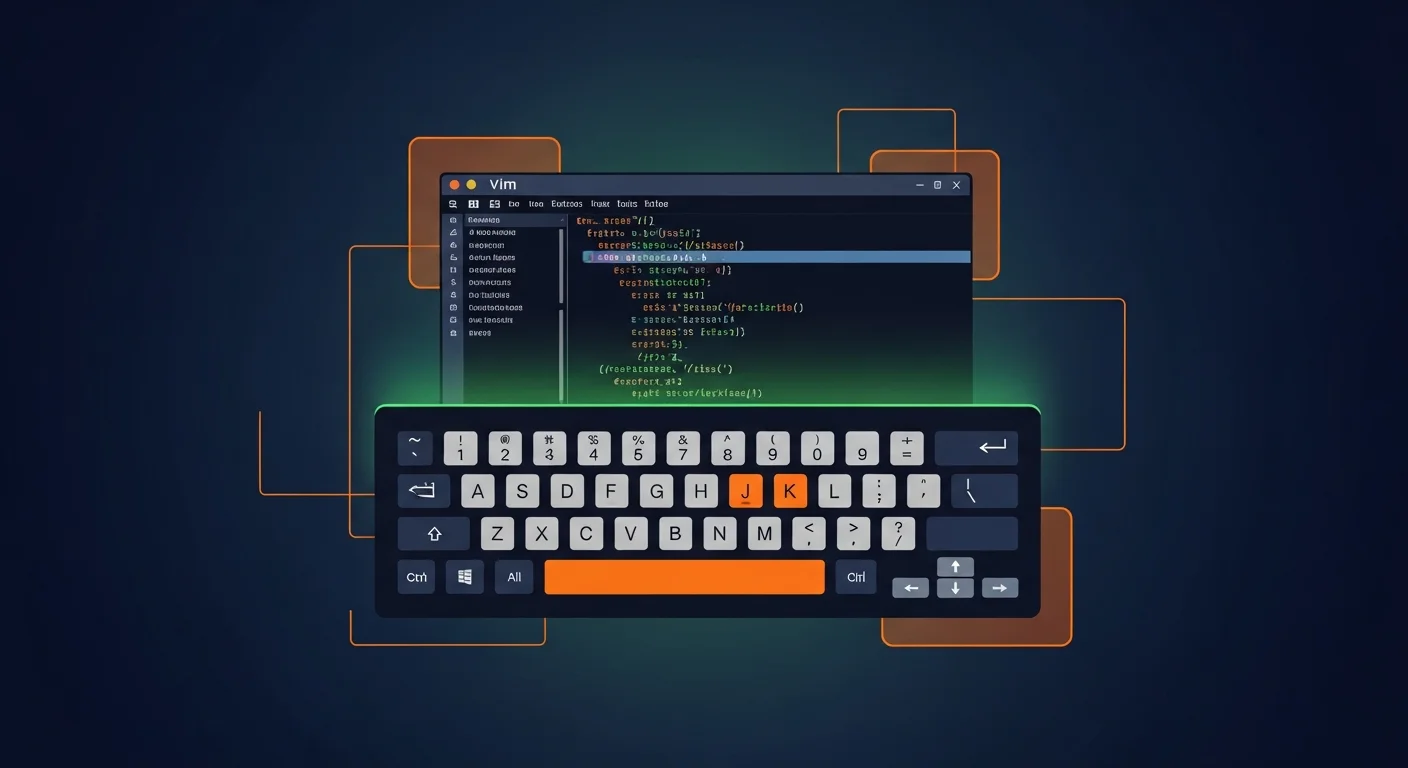
Vim is the most powerful and ubiquitous text editor in the Unix world. Available on virtually every Linux server, macOS system, and through ports on Windows, Vim has been the editor of choice for system administrators and developers for over 30 years. While its learning curve is legendary, mastering Vim transforms you into a dramatically faster and more efficient coder. This guide takes you from zero to productive Vim user.
Whether you need to quickly edit a config file on a remote server, write code at lightning speed, or simply understand why so many developers swear by this editor — this comprehensive guide covers everything you need to know about Vim in 2026.
What is Vim?
Vim (Vi IMproved) is a highly configurable, modal text editor built to make text editing extremely efficient. Originally created by Bram Moolenaar in 1991 as an improvement of the classic Unix editor vi, Vim has evolved into one of the most feature-rich text editors available. Unlike traditional editors, Vim uses a modal editing paradigm — different modes for different tasks — which eliminates the need to reach for a mouse and keeps your hands on the home row.
Vim is pre-installed on virtually every Unix-like system, making it the go-to editor when you SSH into a server, edit configuration files, or need a reliable editor in any environment. Its near-zero startup time and minimal resource usage mean it runs anywhere — from a Raspberry Pi to a production server.
Why Learn Vim in 2026?
Despite the rise of modern IDEs and cloud-based editors, Vim remains critically relevant:
- Server Administration — When you SSH into a production server, Vim (or vi) is always available. No GUI, no VS Code, just the terminal. Knowing Vim is essential for every sysadmin.
- Speed — Experienced Vim users edit text 2-5x faster than mouse-based editing. Modal editing eliminates context switching between navigation and insertion.
- Universal Availability — Pre-installed on Linux, macOS, and most Unix systems. Available on Windows via gVim or WSL.
- Ergonomics — No mouse needed. Your hands never leave the keyboard, reducing RSI risk over long coding sessions.
- IDE Integration — Vim keybindings are available in VS Code, JetBrains IDEs, Sublime Text, and nearly every modern editor. Learning Vim motions benefits you everywhere.
- Career Advantage — DevOps, SRE, and backend engineering roles frequently require terminal proficiency. Vim skills signal competence.
Installation & Setup
Installing Vim
# Debian/Ubuntu
sudo apt update && sudo apt install vim -y

# RHEL/CentOS/AlmaLinux
sudo dnf install vim-enhanced -y

# macOS (via Homebrew)
brew install vim

# Check version
vim --version | head -1
Neovim (Modern Alternative)
Neovim is a modernized fork of Vim with better defaults, Lua-based configuration, and an active plugin ecosystem:
# Debian/Ubuntu
sudo apt install neovim -y

# macOS
brew install neovim

# Launch
nvim
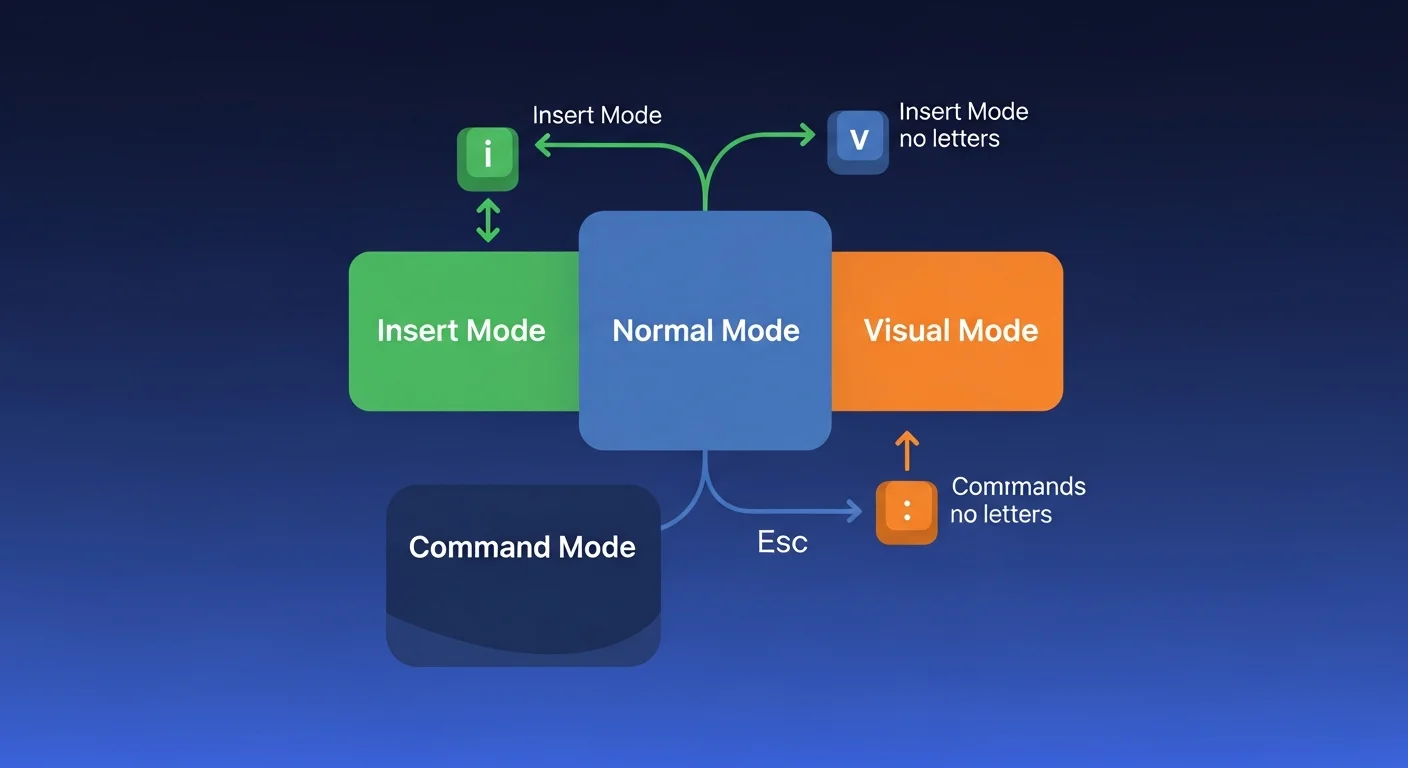
Understanding Vim Modes
Vim's modal editing is what makes it unique and powerful. Each mode serves a specific purpose:
Normal Mode (Default)
When you open Vim, you start in Normal mode. This is the command mode where you navigate, delete, copy, paste, and manipulate text. You should spend most of your time in Normal mode.
# Navigation
h, j, k, l     → Left, Down, Up, Right
w, b            → Jump word forward/backward
0, $            → Beginning/End of line
gg, G           → Top/Bottom of file
Ctrl+d, Ctrl+u  → Page down/up
Insert Mode
Press i to enter Insert mode — this is where you actually type text. Press Esc to return to Normal mode.
i   → Insert before cursor
a   → Insert after cursor
I   → Insert at beginning of line
A   → Insert at end of line
o   → Open new line below
O   → Open new line above
Visual Mode
Press v to select text character by character, V for line selection, or Ctrl+v for block (column) selection.
Command-Line Mode
Press : to enter commands like save, quit, search-replace:
:w          → Save file
:q          → Quit
:wq or :x   → Save and quit
:q!         → Quit without saving
:%s/old/new/g → Replace all occurrencesNavigation & Movement
Efficient navigation is Vim's superpower. Master these motions:
# Character/Word Movement
f{char}  → Jump to next {char} on line
t{char}  → Jump to before {char}
;        → Repeat last f/t search
*        → Search word under cursor forward
#        → Search word under cursor backward

# Line/File Movement
:{n}     → Go to line n
H, M, L  → Top/Middle/Bottom of screen
%        → Jump to matching bracket

# Text Object Navigation
(, )     → Previous/Next sentence
{, }     → Previous/Next paragraph
Editing Commands
Vim's editing commands follow a consistent grammar: operator + motion. Once you learn the pattern, you can combine any operator with any motion:
# Operators
d  → Delete
c  → Change (delete + enter insert mode)
y  → Yank (copy)

# Combinations
dw  → Delete word
d$  → Delete to end of line
dd  → Delete entire line
yy  → Yank entire line
ci" → Change inside quotes
da( → Delete around parentheses
diw → Delete inner word
ct. → Change to next period
Undo & Redo
u      → Undo
Ctrl+r → Redo
.      → Repeat last command
Search & Replace
# Search
/pattern      → Search forward
?pattern      → Search backward
n, N          → Next/Previous match
:noh          → Clear search highlight

# Replace
:s/old/new/      → Replace first on current line
:s/old/new/g     → Replace all on current line
:%s/old/new/g    → Replace all in file
:%s/old/new/gc   → Replace all with confirmation
Buffers, Windows & Tabs
# Buffers (open files in memory)
:e filename   → Open file in new buffer
:ls           → List buffers
:bn, :bp      → Next/Previous buffer
:bd           → Close buffer

# Windows (split views)
:split or :sp   → Horizontal split
:vsplit or :vsp → Vertical split
Ctrl+w h/j/k/l → Navigate between windows
Ctrl+w =        → Equalize window sizes

# Tabs
:tabnew file  → Open in new tab
gt, gT        → Next/Previous tab
:tabclose     → Close current tab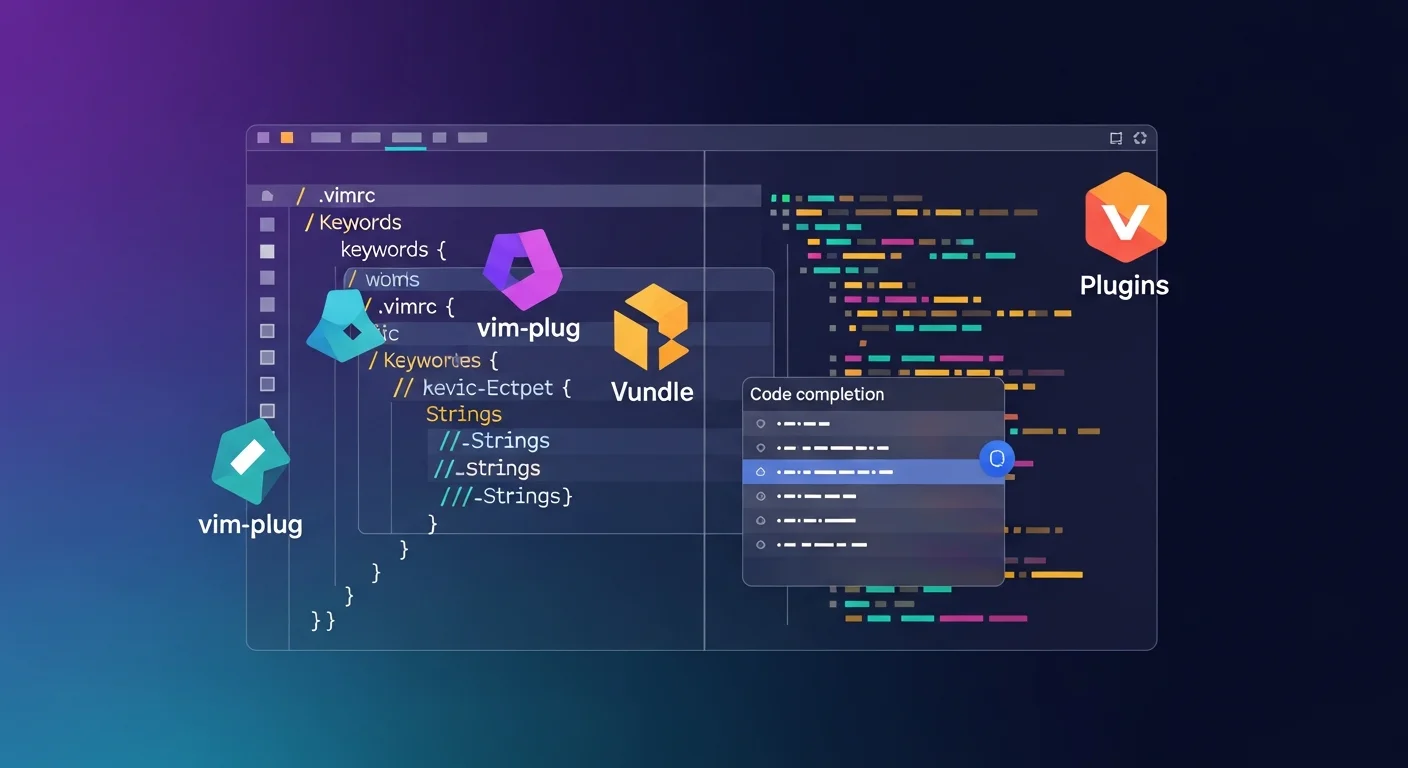
Configuring .vimrc
Your ~/.vimrc file controls Vim's behavior. Here's a production-ready starter configuration:
" Essential Settings
set nocompatible        " Use Vim defaults
set number              " Show line numbers
set relativenumber      " Relative line numbers
set cursorline          " Highlight current line
set showmatch           " Highlight matching brackets
set ignorecase          " Case-insensitive search
set smartcase           " Case-sensitive if uppercase used
set incsearch           " Incremental search
set hlsearch            " Highlight search results

" Indentation
set tabstop=4           " Tab width
set shiftwidth=4        " Indent width
set expandtab           " Spaces instead of tabs
set autoindent          " Auto-indent new lines
set smartindent         " Smart auto-indenting

" Performance & UI
set laststatus=2        " Always show status line
set wildmenu            " Command-line completion
set scrolloff=8         " Keep 8 lines above/below cursor
set signcolumn=yes      " Always show sign column
set updatetime=300      " Faster completion
set encoding=utf-8      " UTF-8 encoding
syntax enable           " Syntax highlighting
set background=dark     " Dark background

" File handling
set nobackup            " No backup files
set nowritebackup       " No backup before overwriting
set noswapfile          " No swap files
set undofile            " Persistent undo
set undodir=~/.vim/undodir
Essential Plugins
Install vim-plug as your plugin manager:
# Install vim-plug
curl -fLo ~/.vim/autoload/plug.vim --create-dirs \
  https://raw.githubusercontent.com/junegunn/vim-plug/master/plug.vim
Then add plugins to your .vimrc and run :PlugInstall. Essential plugins include vim-sensible (sensible defaults), vim-surround (surround text objects), vim-commentary (comment with gc), fzf.vim (fuzzy finder), NERDTree (file explorer), vim-airline (status line), and vim-gitgutter (git diff in gutter).
Productivity Tips
- Use
.religiously — The dot command repeats your last edit. Make a change once, then repeat it anywhere with a single keystroke. - Learn text objects —
ciw(change inner word),ci"(change inside quotes),da{(delete around braces) are incredibly powerful. - Macros — Record with
q{letter}, stop withq, replay with@{letter}. Apply to all lines with:%normal @a. - Marks — Set marks with
m{letter}, jump back with'{letter}. Usemaand'afor quick bookmarks. - Registers —
"ayyanks to register a,"appastes from it. Use:regto see all registers.
Vim vs Alternatives
| Feature | Vim | Nano | VS Code | Neovim |
|---|---|---|---|---|
| Learning Curve | Steep | Easy | Moderate | Steep |
| Speed | Extremely Fast | Basic | Good | Extremely Fast |
| Server Available | Always | Usually | No (needs GUI) | Sometimes |
| Extensibility | VimScript/Lua | Limited | Extensions | Lua (better) |
| Resource Usage | Minimal (~5MB) | Minimal | Heavy (~500MB) | Minimal |
| IDE Features | Via plugins | None | Built-in | Via plugins |
Best Practices
- Stay in Normal mode — Enter Insert mode only to type, then immediately return to Normal. This is the key mindset shift.
- Think in motions — Don't hold
jto move down 30 lines. Use30j, or/pattern, or:30. - Start small — Learn
hjkl,i,Esc,:wqfirst. Add new commands gradually, 2-3 per week. - Use
vimtutor— Runvimtutorin your terminal for a 30-minute interactive tutorial. - Don't customize too early — Learn vanilla Vim first. Add plugins and configuration once you understand what you need.
- Practice daily — Use Vim for all terminal editing for at least 2 weeks before judging it.
Recommended Resources
Take your Vim skills further with these curated books from the Dargslan library:
- Linux Command Line Mastery — Essential terminal skills that pair perfectly with Vim
- BASH Fundamentals — Master the shell environment where Vim lives
- Bash Mastery 2026 — Advanced shell scripting and terminal productivity
- Introduction to Linux Shell Scripting — Automate your workflow alongside Vim
- Linux Administration Fundamentals — System administration where Vim is essential
Also check out our free cheat sheet library for downloadable quick reference guides, and explore the IT Glossary for definitions of key terms.
Master the Linux Command Line
Browse our collection of Linux and shell scripting books to level up your terminal productivity.
Browse Linux Books