If you administer a Remote Desktop Services (RDS) farm, you have almost certainly faced this problem: dozens or hundreds of users need their own pre-configured .rdp connection file, every file needs to point to the right gateway and the right session host, and every file should be digitally signed so Windows does not warn the user about an "Unknown publisher" the first time they double-click it.
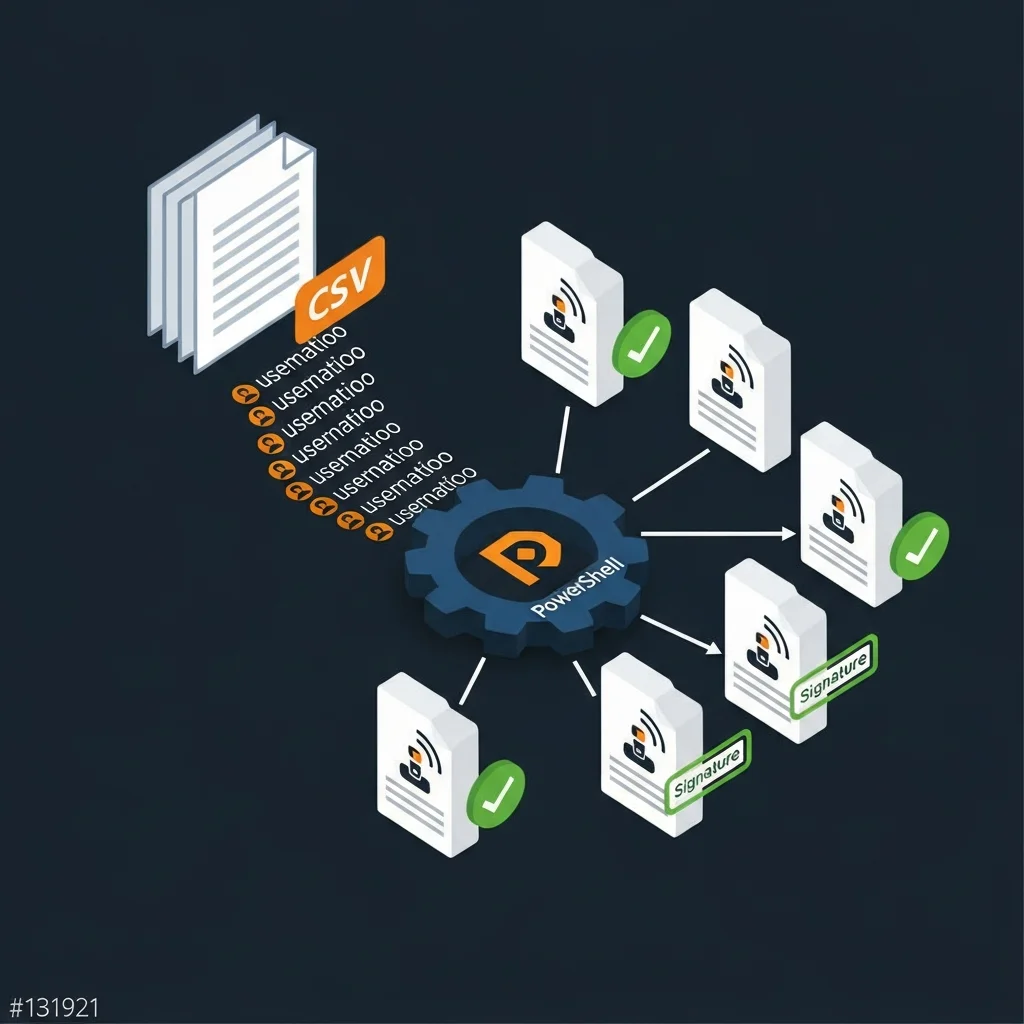
Doing this by hand does not scale. Editing a template in Notepad for every employee, then signing each file one at a time, is the kind of toil that ends in mistakes — wrong usernames, missed gateways, or unsigned files that trigger SmartScreen warnings. The good news: Microsoft already gives you everything you need. A small PowerShell loop, a CSV of users, an RDP template, and the built-in rdpsign.exe utility are enough to mass-produce signed RDP files in minutes.
This guide is the complete, production-ready version of that workflow. We will cover every step — from preparing your code-signing certificate, through templating, through the PowerShell loop, all the way to verifying the resulting signature. You will also get a downloadable free cheat sheet (PDF) with the entire flow on a single page, and a ready-to-install PowerShell module, Dargslan.RdpSign, that wraps the whole thing in two cmdlets.
Table of Contents
- What is rdpsign and why sign RDP files at all?
- Supported RDP file properties
- Choosing and finding the signing certificate
- Building the RDP template
- Designing your users.csv
- The PowerShell generation loop
- Signing with rdpsign.exe
- Test mode and the /l switch
- Verifying the signature
- More than just username — multiple placeholders
- Deployment options: file share, email, Intune, GPO
- Common errors and how to fix them
- Central RD Web Client vs distributed .rdp files
- Dargslan.RdpSign PowerShell module
- Download the cheat sheet
- FAQ
What is rdpsign and why sign RDP files at all?
rdpsign.exe is a built-in Windows command-line tool, shipped with every modern desktop and server release of Windows. Its job is simple: it takes one or more .rdp files and adds a cryptographic signature to them using a code-signing certificate from a certificate store.
An unsigned .rdp file is just a plain text configuration file. Anyone who can write to it can change the destination server, the gateway, the user account, or any other setting — and the user has no way to tell. When Windows sees an unsigned file, it warns the user that the publisher cannot be verified. Most users learn to click through that warning, which is exactly the behaviour you do not want when phishing campaigns rely on RDP files as an attack vector.
A signed RDP file is different. It carries a digital signature that covers the file content. If the file is modified after signing, the signature breaks, and Windows shows a clear "Modified" warning. If the signature is intact and the certificate chain is trusted on the client, the user gets a green "Trusted publisher" prompt — and you can even configure Group Policy to suppress that prompt entirely for files signed by your own certificate. That is the long-term goal for any organization rolling out RDS or per-user RemoteApp shortcuts.
Supported RDP file properties
Before we automate anything, it helps to know which properties of an .rdp file are officially documented and supported. Microsoft publishes the full list, but the ones you will use most often for templated, per-user files are:
full address:s:<hostname>— the target session host or RD Connection Brokergatewayhostname:s:<rdgw>— your Remote Desktop Gatewayusername:s:<DOMAIN\user>— the pre-filled usernameprompt for credentials:i:1— always prompt for the password (never embed it)authentication level:i:2— require server authentication, do not connect on failureredirectclipboard:i:1— allow clipboard redirectiondrivestoredirect:s:— empty value means do not redirect any drivesremoteapplicationmode:i:1— RemoteApp mode (when applicable)remoteapplicationname:s:<appname>— display name of the RemoteAppremoteapplicationprogram:s:<||appalias>— the published program alias
The exhaustive list is in the official Microsoft documentation, but those ten cover well over 90% of real-world per-user RDP files.
Choosing and finding the signing certificate
You need a code-signing certificate. In an enterprise environment this almost always comes from your internal Active Directory Certificate Services (AD CS) PKI — issue yourself a certificate from a "Code Signing" template and trust the issuing CA on every client (which AD does for you automatically inside the domain).
For external partners or unmanaged clients, you can use a publicly trusted code-signing certificate from any commercial CA. The technical signing process is identical either way; only the trust chain differs.
To find an installed code-signing certificate from PowerShell:
# List all code-signing certificates in the current user store
Get-ChildItem Cert:\CurrentUser\My -CodeSigningCert |
    Select-Object Subject, Thumbprint, NotAfter

# Or in the local machine store (requires admin)
Get-ChildItem Cert:\LocalMachine\My -CodeSigningCert |
    Select-Object Subject, Thumbprint, NotAfter
Copy the thumbprint (a 40-character hex string) of the certificate you want to use. Strip any spaces. rdpsign wants the thumbprint without spaces, exactly as a continuous hex string.
Building the RDP template
The template is a normal .rdp file with placeholders where the per-user values will go. Save it as template.rdp in a directory you control — for example C:\RDP\template.rdp:
full address:s:rdsh.contoso.local
gatewayhostname:s:rdgw.contoso.local
gatewayusagemethod:i:1
gatewaycredentialssource:i:0
prompt for credentials:i:1
authentication level:i:2
redirectclipboard:i:1
redirectprinters:i:0
drivestoredirect:s:
audiomode:i:0
username:s:__USERNAME__
The two important things in this template are: there is no password (never write a password into a distributed RDP file), and the only placeholder we will replace is __USERNAME__. We will see in a moment how to add more placeholders if you also need different gateways or RemoteApp targets per user.
Designing your users.csv
The CSV is the source of truth for who gets a file and what goes into it. Keep it simple:
SamAccountName,UserName,OutputName
jsmith,DOMAIN\jsmith,jsmith.rdp
adoe,DOMAIN\adoe,adoe.rdp
bkiss,DOMAIN\bkiss,bkiss.rdp
The first column is the AD identifier, the second is what we will substitute into username:s:, and the third is the file name we want to produce. You can extend this with any number of columns if your template has more placeholders.
The PowerShell generation loop
Here is the minimal, production-quality loop. It reads the CSV, expands the template, writes each output file, and signs it. It also prints a clear status line per user so you can pipe the output into a log file:
# Bulk RDP generation and signing
# Author: Dargslan — https://dargslan.com
# Cheat sheet: https://dargslan.com/cheat-sheets/rdpsign-bulk-signing-2026

$TemplatePath = "C:\RDP\template.rdp"
$CsvPath      = "C:\RDP\users.csv"
$OutDir       = "C:\RDP\out"
$Thumbprint   = "ABCDEF1234567890ABCDEF1234567890ABCDEF12"   # no spaces

# Make sure the output directory exists
New-Item -ItemType Directory -Force -Path $OutDir | Out-Null

# Read the template once
$template = Get-Content $TemplatePath -Raw

# Read the user list
$users = Import-Csv $CsvPath

foreach ($u in $users) {
    # Expand placeholders for this user
    $content = $template.Replace("__USERNAME__", $u.UserName)

    # Write the per-user .rdp file (ASCII is what rdpsign expects)
    $outFile = Join-Path $OutDir $u.OutputName
    Set-Content -Path $outFile -Value $content -Encoding ASCII

    # Sign it with the code-signing certificate
    & rdpsign.exe /sha256 $Thumbprint $outFile

    if ($LASTEXITCODE -eq 0) {
        Write-Host "OK    $($u.SamAccountName) -> $outFile" -ForegroundColor Green
    } else {
        Write-Host "FAIL  $($u.SamAccountName) (exit $LASTEXITCODE)" -ForegroundColor Red
    }
}
That is it. Run this script on any Windows machine where the certificate is installed and where rdpsign.exe is on the path (it is, by default). In a few seconds you will have one signed file per user in C:\RDP\out, ready to ship.
Signing with rdpsign.exe
The exact command we use inside the loop is:
rdpsign.exe /sha256 <thumbprint> <path-to-rdp-file>A few important details:
/sha256tells rdpsign to look for and use a SHA-256 certificate. Always use SHA-256; SHA-1 has been deprecated for code signing for years.- You can pass multiple file paths in a single command.
rdpsign /sha256 <thumbprint> file1.rdp file2.rdp file3.rdpworks, and is faster than calling it once per file when you have hundreds. - Wildcards are not supported. If you need to sign every
.rdpfile in a directory, expand the list yourself, for example(Get-ChildItem $OutDir -Filter *.rdp).FullName. rdpsignwants the full path. Relative paths often fail silently or produce confusing errors.
If you want to batch them into one rdpsign call (faster for very large lists), the loop becomes a build phase plus one final sign phase:
$files = @()
foreach ($u in $users) {
    $content = $template.Replace("__USERNAME__", $u.UserName)
    $outFile = Join-Path $OutDir $u.OutputName
    Set-Content -Path $outFile -Value $content -Encoding ASCII
    $files += $outFile
}

# Sign all of them in a single rdpsign invocation
& rdpsign.exe /sha256 $Thumbprint @files
Test mode and the /l switch
Before you sign hundreds of production files, test the certificate with the /l switch. This tells rdpsign to validate that it can sign the file using the given thumbprint, but to not modify the input file. It is the equivalent of --dry-run:
rdpsign.exe /sha256 $Thumbprint /l C:\RDP\out\jsmith.rdpIf the exit code is zero and you see no error output, your certificate is good. If you see something like "Could not find specified certificate", you either have the wrong thumbprint, the certificate is in a different store than the one rdpsign is looking at, or the certificate has expired.
Verifying the signature
Two quick ways to confirm a freshly signed RDP file:
- Inspect the file. Open it in Notepad. A signed file ends with two extra lines:
signscope:s:Full Address,Server Port,GatewayHostname,...andsignature:s:<long base64 blob>. The presence ofsignature:s:means it has been signed. - Open it from Explorer. Double-click the file. If the certificate chain is trusted on this machine, you will see a "Do you trust the publisher of this RemoteApp program?" dialog with the green publisher name from your certificate's subject. That is exactly what your users will see. If you instead get the red "Unknown publisher" warning, the certificate is not trusted on this client — fix the trust chain, do not blame the signing.
More than just username — multiple placeholders
Real environments rarely have only one variable per file. You may also need a per-user gateway, a per-user RemoteApp target, or a different alternate full address. Add columns to your CSV and matching placeholders to the template:
users.csv (extended):
SamAccountName,UserName,OutputName,Gateway,RemoteApp
jsmith,DOMAIN\jsmith,jsmith.rdp,rdgw-eu.contoso.local,SAP
adoe,DOMAIN\adoe,adoe.rdp,rdgw-us.contoso.local,Outlook
bkiss,DOMAIN\bkiss,bkiss.rdp,rdgw-eu.contoso.local,SAP
template.rdp (extended):
full address:s:rdsh.contoso.local
gatewayhostname:s:__GATEWAY__
gatewayusagemethod:i:1
prompt for credentials:i:1
authentication level:i:2
remoteapplicationmode:i:1
remoteapplicationname:s:__REMOTEAPP__
remoteapplicationprogram:s:||__REMOTEAPP__
username:s:__USERNAME__
And the loop becomes:
foreach ($u in $users) {
    $content = $template `
        .Replace("__USERNAME__", $u.UserName) `
        .Replace("__GATEWAY__",  $u.Gateway) `
        .Replace("__REMOTEAPP__", $u.RemoteApp)

    $outFile = Join-Path $OutDir $u.OutputName
    Set-Content -Path $outFile -Value $content -Encoding ASCII
    & rdpsign.exe /sha256 $Thumbprint $outFile
}
Deployment options: file share, email, Intune, GPO
Once you have a directory full of signed .rdp files, you have to get them onto user desktops. Pick the method that matches how you already manage endpoints:
- File share + shortcut. Copy each user's file to
\\server\users$\<sam>\Desktop\. Simple if you already have user home shares. - Group Policy Preferences (GPP). Use a "Files" preference item targeted by
%LogonUser%to drop the matching<sam>.rdpfile onto each user's desktop or Start Menu folder. - Microsoft Intune (modern deployment). Package each file as a Win32 app or a script payload and assign by group membership. This is the path most organizations are migrating to.
- Email. Mail the file to the user. This works, but train users that an unexpected RDP file by email is a phishing red flag — even a signed one. Use email only for first-time provisioning.
- Self-service portal. Publish the files behind authentication on an internal web portal. Combined with signing, this is a clean, auditable distribution method.
Common errors and how to fix them
"Could not find specified certificate" or exit code 1
The thumbprint you passed is wrong, contains spaces, or the certificate is not in a store the current user can read. Re-run Get-ChildItem Cert:\CurrentUser\My -CodeSigningCert and copy the thumbprint again with no spaces. If the cert lives in Cert:\LocalMachine\My, run PowerShell as administrator.
The signed file shows "Unknown publisher" on the client
The certificate is fine, but the client does not trust the issuing CA. Distribute your CA certificate to all clients (in AD-joined environments this happens automatically). For unmanaged machines, you may need to manually install the CA certificate into Trusted Root Certification Authorities.
The file is signed but Windows still shows "Modified"
Something has changed the file after signing. Common causes: a script that re-encodes the file (UTF-8 with BOM vs ASCII), a deployment tool that "fixes" line endings, or a user who edited the file in Notepad. Re-sign the file in its final state, and never let any later step touch it.
"This signed RDP file does not contain any valid signature" warning
The signature exists, but the algorithm does not match. You probably signed with SHA-1 against a host that requires SHA-256, or vice versa. Always use /sha256 on modern systems and re-sign the file.
Wildcards do not work
Correct — rdpsign *.rdp will fail. Expand the wildcard yourself: rdpsign /sha256 <thumb> (Get-ChildItem $OutDir *.rdp).FullName.
Central RD Web Client vs distributed .rdp files
For very large user populations, the maintenance burden of regenerating and redistributing signed RDP files every time someone joins, leaves, or changes group memberships becomes painful. In those environments, the better long-term answer is the Remote Desktop Web Client or RemoteApp publishing through RD Web Access. Users authenticate through a portal and the published collection takes care of generating the appropriate connection — no per-user file to manage.
That said, distributed signed RDP files are still the right tool for many real-world cases:
- Specialized desktop shortcuts that need to land in known locations
- Per-user RemoteApp links that bypass the web portal
- Out-of-band scenarios where the RD Web Access infrastructure is not yet rolled out
- Mass migrations where you want to ship one signed file per user as part of an upgrade
Knowing both approaches — and choosing the right one per scenario — is a hallmark of a senior RDS administrator.
Dargslan.RdpSign PowerShell module
To save you the effort of pasting the loop into every project, we wrapped this entire workflow in a small PowerShell module published on the PowerShell Gallery. Install it on any machine with rdpsign.exe available:
Install-Module -Name Dargslan.RdpSign -Scope CurrentUser
Import-Module Dargslan.RdpSign

# Test that the certificate works (dry run)
Test-DargslanRdpSignature -Thumbprint $Thumbprint -Path C:\RDP\out\jsmith.rdp

# Generate and sign in one call, from CSV + template
New-DargslanSignedRdpBatch `
    -TemplatePath C:\RDP\template.rdp `
    -CsvPath      C:\RDP\users.csv `
    -OutDir       C:\RDP\out `
    -Thumbprint   $Thumbprint
The module is open-source and lives on GitHub. It is part of the broader Dargslan Windows Admin Tools suite — over a hundred small, single-purpose PowerShell modules for everyday Windows administration. Browse them at powershellgallery.com/profiles/Dargslan.
Download the cheat sheet
The RDP Bulk Signing Cheat Sheet (PDF) condenses this entire workflow into a single printable page: certificate lookup, template syntax, CSV format, the PowerShell loop, the rdpsign command, the verification steps, and the most common errors. Print it, pin it next to your monitor, and you will never have to re-derive any of it.
FAQ
Can I sign RDP files on Linux?
No. rdpsign.exe is Windows-only and depends on the Windows certificate store and CryptoAPI. You can generate the unsigned .rdp files on any platform, but the actual signing must happen on Windows.
Does signing protect the username and gateway from tampering?
Yes — the signature covers all of the standard properties listed in signscope:s:. If anyone changes the full address, gateway, username, or any other signed field, Windows will refuse the signature and warn the user.
Can I embed a password in the signed file?
Technically you can include a hashed password through GPP-style processing, but you should not. Distributing a file with embedded credentials defeats the entire point of MFA, password rotation, and conditional access. Always set prompt for credentials:i:1.
How long does the signature stay valid?
For as long as the certificate stays trusted on the client. Once the certificate expires, existing signed files keep working unless the timestamp authority option was not used and the validation policy is strict. For long-lived RDP files, sign with the /t timestamp option pointing to a public timestamp service.
Does the user need anything special on their machine?
No — they just double-click the file. As long as the issuing CA is trusted (automatic in AD), they get the green "Trusted publisher" prompt and connect.
Can I use this for RemoteApp shortcuts too?
Yes. RemoteApp shortcuts on the desktop are also .rdp files under the hood, and the same template + sign flow works. Add remoteapplicationmode:i:1 and the related fields to your template.
What is the best practice for storing the private key?
Keep the code-signing certificate's private key in a hardware token (HSM or smart card) on a single, locked-down "signing host" — and only run rdpsign there. CSV expansion can happen anywhere; signing should happen in one controlled place with audited access.