
Quick Summary: Linux file permissions control who can read, write, and execute files and directories. Every file has three permission sets: owner, group, and others. Permissions are displayed as rwxr-xr-x (symbolic) or 755 (octal). Understanding permissions is critical for server security — misconfigured permissions are one of the most common causes of security breaches and application errors.
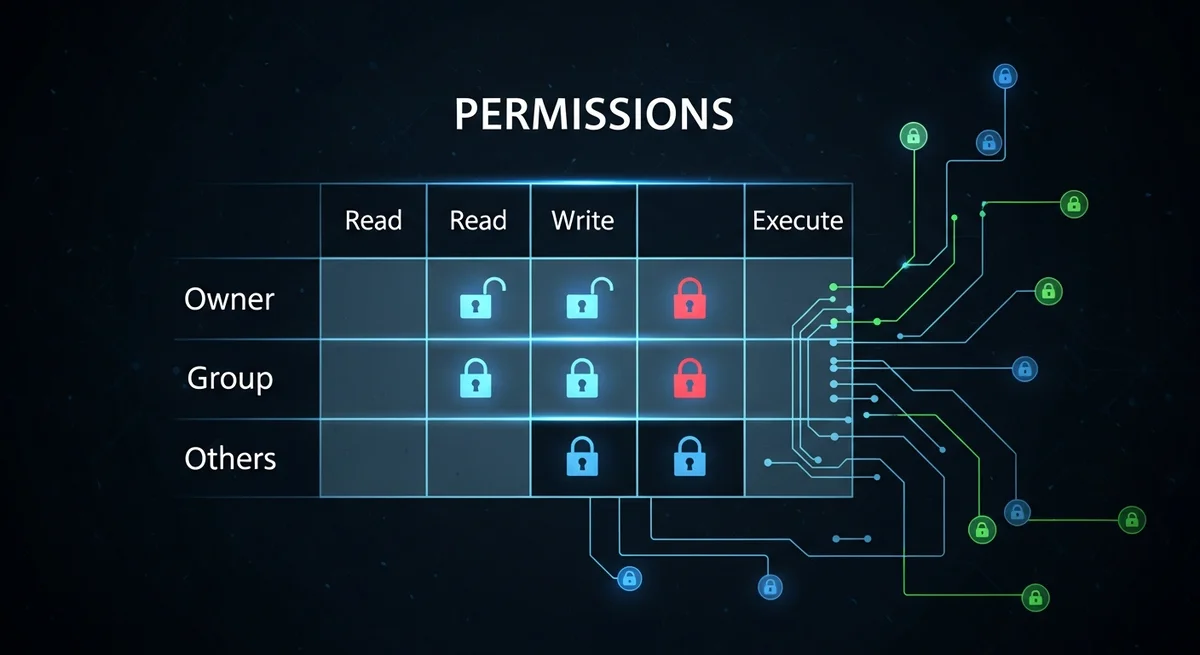
Permission Basics
| Permission | Symbol | Octal | On Files | On Directories |
|---|---|---|---|---|
| Read | r | 4 | View file contents | List directory contents |
| Write | w | 2 | Modify file contents | Create/delete files in directory |
| Execute | x | 1 | Run as program | Enter (cd into) directory |
Reading Permission Strings
The output of ls -la shows permissions like -rwxr-xr--:
- Position 1: File type (
-file,ddirectory,lsymlink) - Positions 2-4: Owner permissions (
rwx= read+write+execute) - Positions 5-7: Group permissions (
r-x= read+execute) - Positions 8-10: Others permissions (
r--= read only)
Changing Permissions with chmod
Octal (Numeric) Method
| Octal | Permission | Common Use |
|---|---|---|
| 755 | rwxr-xr-x | Executable scripts, directories |
| 644 | rw-r--r-- | Regular files, config files |
| 600 | rw------- | Private files (SSH keys, secrets) |
| 700 | rwx------ | Private directories, .ssh/ |
| 775 | rwxrwxr-x | Shared group directories |
| 666 | rw-rw-rw- | World-writable (avoid on servers!) |
| 777 | rwxrwxrwx | World-writable+executable (never use!) |
Symbolic Method
chmod u+x script.sh— Add execute for ownerchmod g-w file.txt— Remove write from groupchmod o-rwx private.key— Remove all permissions for otherschmod a+r file.txt— Add read for all (a = all)
Changing Ownership with chown
chown user file.txt— Change ownerchown user:group file.txt— Change owner and groupchown :group file.txt— Change group onlychown -R www-data:www-data /var/www/— Recursive
Special Permissions
| Permission | Octal | Symbol | Purpose |
|---|---|---|---|
| SUID | 4000 | s in owner execute | Run as file owner (e.g., passwd runs as root) |
| SGID | 2000 | s in group execute | Run as file group; new files inherit group |
| Sticky Bit | 1000 | t in others execute | Only owner can delete files (used on /tmp) |
Access Control Lists (ACLs)
When standard permissions are too coarse, ACLs provide fine-grained control:
getfacl file.txt— View ACLssetfacl -m u:username:rw file.txt— Grant read+write to specific usersetfacl -m g:developers:rx /var/www/— Grant read+execute to specific groupsetfacl -x u:username file.txt— Remove ACL for a usersetfacl -R -m g:developers:rx /var/www/— Apply recursively
Security Best Practices
- Never use 777 — World-writable executables are a critical security vulnerability
- SSH keys must be 600 — SSH refuses to use keys with broader permissions
- Web files: 644, directories: 755 — Standard web server permissions
- Sensitive config: 600 or 640 — Database passwords, API keys
- Use groups for team access instead of opening permissions to "others"
- Audit SUID files regularly:
find / -perm -4000 -type f
Frequently Asked Questions
What does "Permission denied" mean?
Your current user does not have the required permission (read, write, or execute) on the file or directory. Check permissions with ls -la, verify ownership with id, and use chmod or sudo as appropriate.
Why does SSH reject my key with "bad permissions"?
SSH requires strict permissions for security: ~/.ssh/ must be 700, ~/.ssh/authorized_keys must be 600, and private key files must be 600. SSH refuses to use files with broader permissions to prevent other users from reading your keys.
What is umask?
umask sets the default permissions for newly created files and directories. The default umask of 022 means new files get 644 and new directories get 755. A umask of 077 means only the owner can access new files (600/700). Check yours with umask, set with umask 027.



