
The Linux terminal is the most powerful tool in any system administrator's toolkit. While graphical interfaces make Linux increasingly accessible, the command line remains the fastest, most flexible, and most scriptable way to interact with a Linux system. Whether you are managing a single server or orchestrating a fleet of cloud instances, terminal proficiency is not optional — it is essential.
This beginner-friendly guide will take you from zero to confident terminal user, covering everything from basic navigation to file manipulation, text processing, system monitoring, and automation. By the end of this 2026 guide, you will have the foundation needed to tackle any Linux administration task with confidence.
What Is the Linux Terminal?
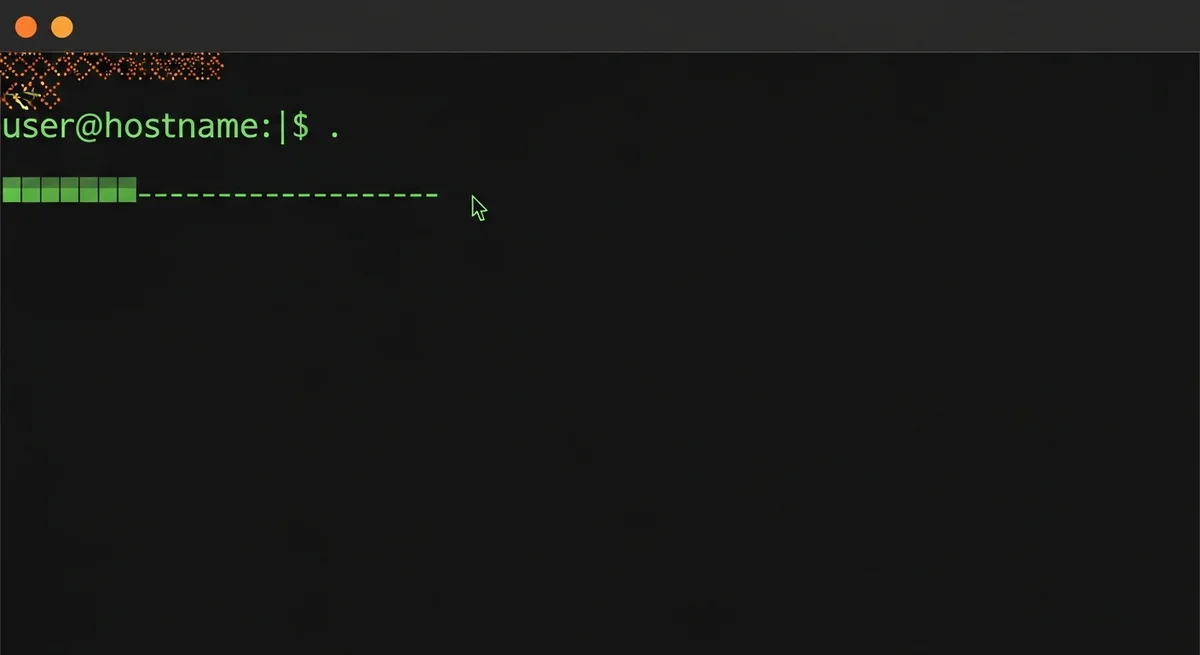
The terminal (also called the command line, shell, or console) is a text-based interface where you type commands and receive text output. Unlike graphical interfaces where you click buttons, the terminal accepts typed instructions and executes them directly. The default shell on most modern Linux distributions is Bash (Bourne Again SHell), though Zsh and Fish are popular alternatives.
Think of the terminal as having a direct conversation with your computer. You type a command, press Enter, and the system responds. This directness makes the terminal faster and more precise than any GUI for repetitive or complex tasks. Every server you will ever manage — whether it runs in the cloud, in a data center, or under your desk — will require terminal skills.
The terminal is not just a tool for experienced administrators. It is the gateway to understanding how Linux actually works. Every GUI application you use is ultimately running terminal commands behind the scenes. Learning the terminal means understanding your system at its deepest level.
Opening the Terminal: Your First Steps
If you are using a Linux desktop environment (GNOME, KDE, XFCE), you can typically open a terminal with Ctrl+Alt+T. On macOS, open Terminal from Applications → Utilities. On Windows, install Windows Subsystem for Linux (WSL2) to get a genuine Linux terminal experience.
When you open the terminal, you will see a prompt that typically looks something like username@hostname:~$. This tells you your username, the computer's name, your current directory (~ means home), and whether you are a normal user ($) or root (#). Understanding this prompt is your first step to terminal literacy.
Essential Navigation Commands
The first skill every terminal user needs is navigating the file system. Linux organizes everything in a hierarchical directory tree starting from the root directory (/). Unlike Windows, which uses drive letters (C:\, D:\), Linux mounts everything under a single root.
Where Am I? Moving Around
pwd— Print Working Directory. Shows your current location in the file system. This is your "you are here" command. Use it whenever you feel lost.ls— List directory contents. The most basic form shows files and folders. Add flags to customize:ls -lfor detailed view,ls -afor hidden files,ls -lafor both,ls -lhfor human-readable file sizes.cd /path/to/directory— Change Directory. Move to a specific location using an absolute path (starting from/) or a relative path (from your current location).cd ..— Move up one directory level (parent directory). You can chain these:cd ../../goes up two levels.cd ~— Jump to your home directory from anywhere. This is the same as just typingcdwith no arguments.cd -— Return to the previous directory (like an "undo" for navigation). Incredibly useful when switching between two directories repeatedly.
Understanding the File System Hierarchy
Every Linux system follows the Filesystem Hierarchy Standard (FHS). Understanding this structure means you can navigate any Linux distribution, from Ubuntu to RHEL to Alpine.
| Directory | Purpose | Example Contents |
|---|---|---|
/ | Root — the top of the tree | All other directories |
/home | User home directories | /home/admin, /home/deploy |
/etc | System configuration files | nginx.conf, ssh/sshd_config, fstab |
/var | Variable data (logs, databases) | /var/log, /var/www, /var/lib |
/tmp | Temporary files (cleared on reboot) | Session files, caches |
/usr | User programs and libraries | /usr/bin, /usr/lib, /usr/share |
/opt | Optional/third-party software | Custom applications |
/bin | Essential user command binaries | ls, cp, mv, cat |
/sbin | System administration binaries | fdisk, mount, iptables |
/dev | Device files | sda (disk), null, random |
/proc | Virtual filesystem for process info | cpuinfo, meminfo |
/boot | Boot loader files | vmlinuz (kernel), grub |
File and Directory Operations
Creating, copying, moving, and deleting files are everyday operations in the terminal. These commands are the building blocks of everything you will do on Linux.
Creating Files and Directories
touch filename.txt— Create an empty file (or update its timestamp if it exists). You can create multiple files at once:touch file1.txt file2.txt file3.txtmkdir my-project— Create a new directorymkdir -p parent/child/grandchild— Create nested directories in one command. Without-p, this fails if parent does not existecho "Hello World" > newfile.txt— Create a file with content in one step
Copying, Moving, and Renaming
cp source.txt destination.txt— Copy a filecp -r source-dir/ destination-dir/— Copy a directory recursively (including all contents)cp -p file.txt backup.txt— Copy preserving permissions, timestamps, and ownershipmv old-name.txt new-name.txt— Rename a file (moving within the same directory = renaming)mv file.txt /path/to/destination/— Move a file to another locationmv *.log /var/archive/— Move all .log files using wildcard patterns
Deleting Files and Directories
rm filename.txt— Delete a file (no confirmation by default!)rm -i filename.txt— Delete with confirmation prompt (safer)rm -r directory/— Delete a directory and all its contents recursivelyrmdir empty-directory/— Delete an empty directory only (safe alternative)rm -rf directory/— Force-delete without prompts (dangerous — use with extreme caution)
Warning: Thermcommand does not use a trash can. Deleted files are gone permanently. Always double-check before runningrm -r, especially as root. Consider usingrm -ior aliases to add safety prompts.
Viewing and Editing File Content
Reading and editing files from the terminal is a fundamental skill for server management. Whether you are reviewing logs, editing configuration files, or inspecting data, these commands are used hundreds of times daily by working administrators.
Viewing Files
cat filename.txt— Display entire file content at once. Best for short files. For long files, uselessless filename.txt— View file with scrolling navigation. Press/to search,nfor next match,qto quit. This is the go-to command for reading log fileshead -20 filename.txt— Show the first 20 lines. Default is 10 without the numbertail -20 filename.txt— Show the last 20 lines. Default is 10tail -f /var/log/syslog— Follow a log file in real time (essential for debugging live issues). New lines appear as they are written. PressCtrl+Cto stopwc -l filename.txt— Count lines in a file. Add-wfor word count,-cfor byte count
Searching Inside Files
grep "search term" filename.txt— Find lines containing specific text. This is one of the most powerful and frequently used Linux commandsgrep -r "error" /var/log/— Search recursively through all files in a directory treegrep -i "warning" log.txt— Case-insensitive searchgrep -n "pattern" file.txt— Show line numbers with matchesgrep -c "error" log.txt— Count the number of matching linesgrep -v "debug" log.txt— Invert match: show lines that do NOT contain "debug"
Text Editors in the Terminal
nano filename.txt— Beginner-friendly editor with on-screen shortcuts.Ctrl+Osaves,Ctrl+Xexits. Perfect for quick editsvim filename.txt— Powerful editor with a learning curve. Pressito enter insert mode (editing),Escto return to command mode,:wqto save and quit,:q!to quit without saving
Permissions and Ownership
Linux uses a permission system to control who can read, write, and execute files. Understanding permissions is critical for server security and is one of the concepts that trips up beginners most often.
Reading Permission Strings
When you run ls -la, you see permission strings like -rwxr-xr--. This breaks down into four parts: the file type (- for file, d for directory), owner permissions (rwx), group permissions (r-x), and others permissions (r--).
Changing Permissions and Ownership
chmod 755 script.sh— Set permissions using octal notation (owner: rwx, group: rx, others: rx)chmod +x script.sh— Add execute permission for everyonechmod u+w file.txt— Add write permission for owner onlychown user:group filename— Change file ownershipchown -R www-data:www-data /var/www/— Recursively change ownership for a directory tree
| Number | Permission | Meaning |
|---|---|---|
| 7 | rwx | Read + Write + Execute |
| 6 | rw- | Read + Write |
| 5 | r-x | Read + Execute |
| 4 | r-- | Read only |
| 0 | --- | No permissions |
Common Permission Patterns
| Use Case | Permission | Octal |
|---|---|---|
| Shell script (executable) | rwxr-xr-x | 755 |
| Configuration file | rw-r--r-- | 644 |
| Private SSH key | rw------- | 600 |
| Shared directory | rwxrwxr-x | 775 |
| Secret file (owner only) | rw------- | 600 |
System Monitoring Commands
Monitoring your system's health is a daily task for any administrator. These commands give you real-time visibility into CPU, memory, disk, and network usage.
top— Real-time process and resource monitoring. Pressqto quit,Mto sort by memory,Pto sort by CPUhtop— Enhanced version of top with color-coded display and mouse support (may need to install first)df -h— Disk space usage in human-readable format. Shows mounted filesystems, total/used/available spacedu -sh /var/log/— Size of a specific directory. Add--max-depth=1to see subdirectory sizesfree -h— Memory usage overview. Shows total, used, free, and cached memoryuptime— System uptime and load averages (1, 5, and 15 minute averages)who— Currently logged-in usersw— Likewhobut shows what each user is runningps aux— All running processes with detailed informationlsblk— List block devices (disks and partitions) in a tree formatip addr— Show network interfaces and IP addresses
Pipes and Redirection: The Power of Combination
The true power of the terminal comes from combining simple commands into powerful pipelines. This is what separates casual terminal users from power users.
Pipes: Connecting Commands
command1 | command2— Pipe: send output of command1 as input to command2ls -la | grep ".log"— List files and filter for log filesps aux | grep nginx— Find running processes related to nginxcat access.log | sort | uniq -c | sort -rn | head -10— Find the top 10 most common lines in a log filedmesg | tail -20— Show the last 20 kernel messages
Redirection: Saving Output
command > file.txt— Redirect output to a file (overwrite existing content)command >> file.txt— Append output to a file (preserve existing content)command 2> errors.txt— Redirect only error messages to a filecommand > output.txt 2>&1— Redirect both normal output and errors to the same filecommand < input.txt— Use a file as input to a command
Practical Pipeline Examples
df -h | grep "/dev/sda"— Check disk usage for a specific drivenetstat -tuln | grep ":80"— Check if port 80 is listeninghistory | grep "apt install"— Find previous package installationsfind /var/log -name "*.log" -mtime -1— Find log files modified in the last 24 hours
Process Management
Understanding how to manage running processes is critical for server administration. Processes are the programs currently running on your system.
ps aux— List all running processes with CPU and memory usagekill PID— Send a termination signal to a process (graceful shutdown)kill -9 PID— Force-kill a process (use when normal kill does not work)killall process-name— Kill all processes with a specific namejobs— List background jobs in the current sessionbg— Resume a suspended job in the backgroundfg— Bring a background job to the foregroundnohup command &— Run a command that continues even after you log out
Package Management Basics
Installing, updating, and removing software is essential knowledge for any Linux user. The commands differ between distribution families.
Debian/Ubuntu (APT)
apt update— Refresh package lists from repositoriesapt upgrade— Upgrade all installed packages to latest versionsapt install nginx— Install a new packageapt remove nginx— Remove a package (keeps configuration files)apt purge nginx— Remove a package and its configuration filesapt search keyword— Search for packages by name or descriptionapt list --installed— List all installed packages
RHEL/AlmaLinux/Rocky (DNF)
dnf update— Update all packagesdnf install httpd— Install a packagednf remove httpd— Remove a packagednf search keyword— Search for packagesdnf list installed— List all installed packagesdnf info package-name— Show detailed information about a package
Useful Keyboard Shortcuts
These shortcuts dramatically speed up your terminal workflow:
| Shortcut | Action |
|---|---|
Ctrl+C | Cancel/interrupt the current command |
Ctrl+Z | Suspend (pause) the current command |
Ctrl+D | End of input / logout from session |
Ctrl+L | Clear the terminal screen |
Ctrl+R | Search command history (reverse search) |
Ctrl+A | Move cursor to beginning of line |
Ctrl+E | Move cursor to end of line |
Tab | Auto-complete file/directory names |
Tab Tab | Show all completion options |
↑ / ↓ | Navigate through command history |
Frequently Asked Questions
What is the difference between terminal, console, and shell?
The terminal (or terminal emulator) is the application window where you type. The shell (Bash, Zsh, Fish) is the program that interprets your commands and communicates with the operating system. The console historically referred to a physical text terminal, but today these terms are often used interchangeably in casual conversation.
How do I cancel a running command?
Press Ctrl+C to interrupt (cancel) a running command. Use Ctrl+Z to suspend it (pause and send to background). A suspended command can be resumed with fg (foreground) or bg (background).
What does sudo mean and when should I use it?
sudo stands for "Super User Do." It runs a command with administrator (root) privileges. You will be asked for your password. Use sudo only when necessary — installing packages, editing system configuration files, or managing services. Running everything as root is a serious security risk.
How do I find a file on my system?
Use find / -name "filename.txt" to search the entire system, or find /home -name "*.log" to search a specific directory for files matching a pattern. For faster searches, use locate filename (requires updatedb to run first).
What is the difference between rm and rmdir?
rmdir only removes empty directories (safe operation — it fails if the directory has any contents). rm -r removes directories and all their contents recursively (dangerous — it deletes everything without asking). Always prefer rmdir when possible, and use rm -ri for interactive confirmation when deleting recursively.
Related Resources
- Linux Terminal Basics — Complete eBook for terminal beginners
- Linux Command Line Mastery — Advanced command line techniques
- Master Linux Command Line in 30 Chapters — Comprehensive CLI reference
- BASH Fundamentals — Learn shell scripting from the ground up
- Browse all 205+ free IT cheat sheets



