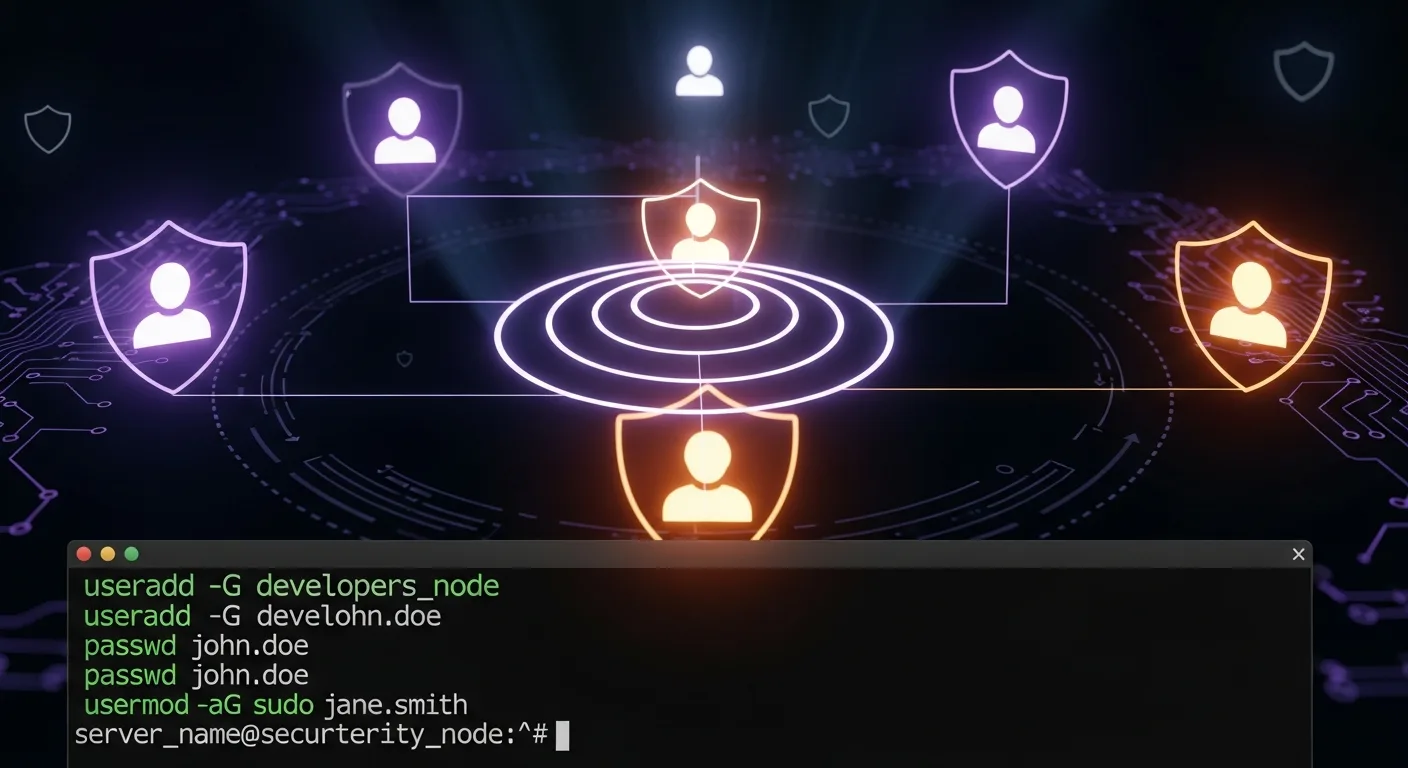
Managing users and groups is a cornerstone of Linux system administration. Every person, service, and application that interacts with your system does so through a user account. Properly configuring these accounts — with appropriate permissions, group memberships, and authentication settings — is essential for both security and usability.
📥 Free Cheat Sheet
Download our Linux User & Group Admin Cheat Sheet PDF — all user management commands at a glance.
User Management Files
Before diving into commands, understand where user data lives:
/etc/passwd— user account information (username, UID, GID, home, shell)/etc/shadow— encrypted passwords and aging info (restricted access)/etc/group— group definitions and memberships/etc/gshadow— group passwords (rarely used)/etc/login.defs— default settings for user creation/etc/skel/— skeleton directory (files copied to new user's home)
# Understanding /etc/passwd format:
# username:x:UID:GID:comment:home:shell
root:x:0:0:root:/root:/bin/bash
alice:x:1001:1001:Alice Developer:/home/alice:/bin/bash
nginx:x:990:990:Nginx web server:/var/lib/nginx:/sbin/nologin
Creating Users
# Create user with defaults
sudo useradd alice

# Create user with full options
sudo useradd -m -d /home/alice -s /bin/bash -c "Alice Developer" -G developers,docker alice

# Options explained:
# -m        Create home directory
# -d PATH   Custom home directory path
# -s SHELL  Login shell
# -c "..."  Comment/full name (GECOS field)
# -G GROUPS Supplementary groups (comma-separated)
# -g GROUP  Primary group
# -u UID    Specific UID
# -e DATE   Account expiration (YYYY-MM-DD)

# Set password
sudo passwd alice

# Generate password hash for scripting
openssl passwd -6 -salt xyz "SecurePassword123!"

# Create user with password (scripting)
sudo useradd -m -s /bin/bash -p $(openssl passwd -6 "TempPass123!") newuser

# Create system user (for services)
sudo useradd -r -s /sbin/nologin -d /var/lib/myapp myapp
Modifying Users
# Change username
sudo usermod -l newalice alice

# Change home directory (and move files)
sudo usermod -d /home/newhome -m alice

# Change shell
sudo usermod -s /bin/zsh alice
# Or user can change their own:
chsh -s /bin/zsh

# Add to supplementary groups (APPEND!)
sudo usermod -aG docker,developers alice
# WARNING: Without -a, existing groups are REPLACED!

# Lock/unlock account
sudo usermod -L alice    # Lock
sudo usermod -U alice    # Unlock

# Set account expiration
sudo usermod -e 2026-12-31 contractor

# Change comment/full name
sudo usermod -c "Alice Senior Developer" alice
Deleting Users
# Delete user (keep home directory)
sudo userdel alice

# Delete user and home directory
sudo userdel -r alice

# Before deleting, check for running processes
ps -u alice
# Kill all processes
sudo pkill -u alice

# Find all files owned by user
find / -user alice 2>/dev/null
Group Management
# Create a group
sudo groupadd developers

# Create with specific GID
sudo groupadd -g 2000 devops

# Modify group
sudo groupmod -n newname oldname  # Rename
sudo groupmod -g 2001 devops     # Change GID

# Delete group
sudo groupdel oldgroup

# Add user to group
sudo gpasswd -a alice developers

# Remove user from group
sudo gpasswd -d alice developers

# List groups for a user
groups alice
id alice

# List members of a group
getent group developers

# View all groups
cat /etc/group
Password Policy and Aging
# View password aging info
sudo chage -l alice

# Set password to expire in 90 days
sudo chage -M 90 alice

# Set minimum days between changes
sudo chage -m 7 alice

# Force password change on next login
sudo chage -d 0 alice

# Set account to expire on a date
sudo chage -E 2026-06-30 contractor

# Set warning days before expiration
sudo chage -W 14 alice

# Set inactive days after expiration
sudo chage -I 30 alice

# Full password policy example
sudo chage -m 7 -M 90 -W 14 -I 30 alice
Sudo Configuration
# Edit sudoers safely
sudo visudo

# Grant full sudo access to user
alice ALL=(ALL:ALL) ALL

# Grant sudo without password
alice ALL=(ALL) NOPASSWD: ALL

# Grant specific commands only
alice ALL=(ALL) /usr/bin/systemctl restart nginx, /usr/bin/systemctl restart php-fpm

# Grant sudo to a group
%developers ALL=(ALL) ALL

# Allow running commands as specific user
alice ALL=(www-data) /usr/bin/php

# Sudoers include directory (recommended)
# Create /etc/sudoers.d/alice:
echo "alice ALL=(ALL) NOPASSWD: /usr/bin/docker" | sudo tee /etc/sudoers.d/alice
sudo chmod 440 /etc/sudoers.d/alice

# View sudo privileges for current user
sudo -l
PAM (Pluggable Authentication Modules)
# PAM configuration files
ls /etc/pam.d/

# Common PAM modules:
# pam_unix.so    — standard Unix authentication
# pam_pwquality.so — password strength requirements
# pam_tally2.so  — account lockout after failed attempts
# pam_limits.so  — resource limits from /etc/security/limits.conf

# Set password complexity requirements
# Edit /etc/security/pwquality.conf:
# minlen = 12
# dcredit = -1    (require digit)
# ucredit = -1    (require uppercase)
# lcredit = -1    (require lowercase)
# ocredit = -1    (require special character)

# Account lockout after 5 failed attempts
# Add to /etc/pam.d/common-auth (Debian) or /etc/pam.d/system-auth (RHEL):
# auth required pam_tally2.so deny=5 unlock_time=900

# View failed attempts
sudo pam_tally2 --user=alice

# Reset failed attempts
sudo pam_tally2 --user=alice --reset
Bulk User Management
# Create multiple users from a CSV
while IFS=, read -r username fullname group; do
    sudo useradd -m -c "$fullname" -G "$group" -s /bin/bash "$username"
    echo "$username:TempPass123!" | sudo chpasswd
    sudo chage -d 0 "$username"
    echo "Created: $username"
done < users.csv

# Mass password reset
for user in alice bob charlie; do
    echo "$user:NewTempPass!" | sudo chpasswd
    sudo chage -d 0 "$user"
done
Security Best Practices
- Disable root SSH login — Use
PermitRootLogin noin sshd_config - Use sudo instead of su — Better auditing and granular control
- Enforce password policies — Minimum length, complexity, and rotation
- Remove unused accounts — Regular audits of
/etc/passwd - Use nologin for service accounts —
useradd -s /sbin/nologin - Monitor authentication logs —
journalctl -u sshdand/var/log/auth.log - Implement account lockout — PAM tally module for brute force protection
- Use SSH keys — Disable password authentication when possible
📚 Level Up Your Admin Skills
- Linux User & Group Management — The definitive guide to user administration
- Linux Administration Fundamentals — Build a solid foundation
- Linux Security Auditing — Comprehensive security hardening