Rocky Linux is a community-driven, enterprise-grade Linux distribution designed as a 1:1 bug-for-bug compatible replacement for Red Hat Enterprise Linux (RHEL). Created by Gregory Kurtzer — the original founder of CentOS — Rocky Linux was born in December 2020 when Red Hat killed CentOS as a downstream RHEL rebuild.
Rocky Linux 9 is the latest major release, based on RHEL 9, with support until May 2032. It brings modern kernel features, enhanced security, and improved container support while maintaining the rock-solid stability that enterprise environments demand.
Why the name? Rocky Linux is named after Rocky McGaugh, the co-founder of CentOS who passed away in 2004. It’s a tribute to the roots of the community-driven enterprise Linux movement.
Rocky Linux 9 Key Features
| Feature | Details |
|---|---|
| Kernel | 5.14 (with backported features) |
| Support Lifecycle | 10 years (until 2032) |
| Package Manager | DNF 4 (with RPM 4.16) |
| Default Filesystem | XFS |
| Init System | systemd 252 |
| Security | SELinux enforcing, firewalld, OpenSSL 3.0 |
| Container Runtime | Podman 4.x (rootless containers) |
| Python | Python 3.9 (default), 3.11, 3.12 via AppStream |
| PHP | PHP 8.1 (default), 8.2 via AppStream modules |
| Database | MariaDB 10.5, PostgreSQL 15, MySQL 8.0 |
| Web Server | Nginx 1.22, Apache 2.4 |
| RHEL Compatibility | 100% binary compatible |
| License | Free & open source (BSD license) |
| Governance | Rocky Enterprise Software Foundation (RESF) |
Installation & Initial Setup
Download & Install
# Download Rocky Linux 9 Minimal ISO (recommended for servers)
# Visit: https://rockylinux.org/download

# For cloud deployments, use the official cloud images:
# AWS Marketplace, Azure, GCP, DigitalOcean, Vultr, Hetzner

# Verify the ISO checksum
sha256sum Rocky-9.x-x86_64-minimal.iso
Post-Installation Essentials
# 1. Update the system
sudo dnf update -y

# 2. Set hostname
sudo hostnamectl set-hostname server01.example.com

# 3. Set timezone
sudo timedatectl set-timezone Europe/Amsterdam

# 4. Enable NTP time sync
sudo timedatectl set-ntp true

# 5. Install essential tools
sudo dnf install -y vim curl wget tar git htop tmux

# 6. Enable EPEL repository (Extra Packages)
sudo dnf install -y epel-release

# 7. Check SELinux status (should be Enforcing)
getenforce

# 8. Configure firewall
sudo firewall-cmd --permanent --add-service=ssh
sudo firewall-cmd --reload
sudo firewall-cmd --list-all
Security Hardening on Rocky Linux 9
Rocky Linux 9 ships with strong security defaults, but production servers need additional hardening:
SSH Hardening
# Edit SSH configuration
sudo vim /etc/ssh/sshd_config

# Recommended settings:
Port 2222                    # Change default port
PermitRootLogin no           # Disable root login
PasswordAuthentication no    # Key-based auth only
MaxAuthTries 3               # Limit login attempts
ClientAliveInterval 300      # 5-minute timeout
ClientAliveCountMax 2        # Disconnect after 2 missed keepalives
AllowUsers deploy admin      # Whitelist specific users

# Restart SSH
sudo systemctl restart sshd
Firewall Configuration (firewalld)
# View current rules
sudo firewall-cmd --list-all

# Add services
sudo firewall-cmd --permanent --add-service=http
sudo firewall-cmd --permanent --add-service=https

# Add custom port
sudo firewall-cmd --permanent --add-port=2222/tcp

# Remove default SSH (if you changed the port)
sudo firewall-cmd --permanent --remove-service=ssh

# Apply changes
sudo firewall-cmd --reload

# Verify
sudo firewall-cmd --list-all
SELinux Management
# Check SELinux status
sestatus

# View SELinux alerts
sudo ausearch -m AVC --start today

# Allow Nginx to connect to network (common requirement)
sudo setsebool -P httpd_can_network_connect on

# Allow custom SSH port
sudo semanage port -a -t ssh_port_t -p tcp 2222

# Install SELinux troubleshooter
sudo dnf install -y setroubleshoot-server

# Relabel filesystem (if needed after major changes)
sudo touch /.autorelabel
sudo reboot
Automatic Security Updates
# Install dnf-automatic
sudo dnf install -y dnf-automatic

# Configure for security updates only
sudo vim /etc/dnf/automatic.conf
# Set: upgrade_type = security
# Set: apply_updates = yes
# Set: emit_via = motd

# Enable and start the timer
sudo systemctl enable --now dnf-automatic.timer

# Verify timer is active
sudo systemctl status dnf-automatic.timer
Web Server Setup (Nginx + PHP)
# Install Nginx
sudo dnf install -y nginx
sudo systemctl enable --now nginx

# Install PHP 8.2 via AppStream module
sudo dnf module reset php
sudo dnf module enable php:8.2
sudo dnf install -y php php-fpm php-mysqlnd php-pgsql php-mbstring \
  php-xml php-curl php-zip php-gd php-intl php-opcache

# Configure PHP-FPM
sudo vim /etc/php-fpm.d/www.conf
# Set: user = nginx
# Set: group = nginx
# Set: listen = /run/php-fpm/www.sock
# Set: listen.owner = nginx
# Set: listen.group = nginx

# Start PHP-FPM
sudo systemctl enable --now php-fpm

# Configure Nginx for PHP
sudo vim /etc/nginx/conf.d/default.conf
Sample Nginx Server Block:
server {
    listen 80;
    server_name example.com www.example.com;
    root /var/www/example.com/public;
    index index.php index.html;

    location / {
        try_files $uri $uri/ /index.php?$query_string;
    }

    location ~ \.php$ {
        fastcgi_pass unix:/run/php-fpm/www.sock;
        fastcgi_index index.php;
        fastcgi_param SCRIPT_FILENAME $document_root$fastcgi_script_name;
        include fastcgi_params;
    }

    location ~ /\.ht {
        deny all;
    }
}
Database Setup
PostgreSQL 15
# Install PostgreSQL 15
sudo dnf module enable postgresql:15
sudo dnf install -y postgresql-server postgresql-contrib

# Initialize the database
sudo postgresql-setup --initdb

# Start and enable
sudo systemctl enable --now postgresql

# Set password for postgres user
sudo -u postgres psql -c "ALTER USER postgres PASSWORD 'your_password';"

# Create a database and user
sudo -u postgres createdb myapp
sudo -u postgres createuser --interactive
MariaDB 10.5
# Install MariaDB
sudo dnf install -y mariadb-server

# Start and enable
sudo systemctl enable --now mariadb

# Secure the installation
sudo mysql_secure_installation

# Create database and user
mysql -u root -p
CREATE DATABASE myapp CHARACTER SET utf8mb4 COLLATE utf8mb4_unicode_ci;
CREATE USER 'appuser'@'localhost' IDENTIFIED BY 'strong_password';
GRANT ALL PRIVILEGES ON myapp.* TO 'appuser'@'localhost';
FLUSH PRIVILEGES;
Podman: Rootless Containers on Rocky Linux 9
Rocky Linux 9 ships with Podman instead of Docker. Podman is daemonless, rootless by default, and compatible with Docker CLI commands:
# Install Podman
sudo dnf install -y podman

# Run a container (same syntax as Docker!)
podman run -d -p 8080:80 --name web nginx:alpine

# List containers
podman ps

# Run as rootless (no sudo needed)
podman run -d --name my-postgres \
  -e POSTGRES_PASSWORD=secret \
  -v pgdata:/var/lib/postgresql/data \
  postgres:16-alpine

# Generate systemd service from container
podman generate systemd --new --name web > ~/.config/systemd/user/web.service
systemctl --user enable --now web.service

# Docker Compose equivalent: use podman-compose
sudo dnf install -y podman-compose
podman-compose up -d
Rocky Linux vs AlmaLinux: Quick Comparison
| Aspect | Rocky Linux | AlmaLinux |
|---|---|---|
| Founded By | Gregory Kurtzer (CentOS founder) | CloudLinux Inc. |
| Governance | RESF (foundation) | AlmaLinux OS Foundation |
| RHEL Compatibility | 1:1 bug-for-bug | 1:1 ABI compatible |
| Support Lifecycle | 10 years | 10 years |
| ELevate Migration | Supported (via AlmaLinux) | Native support |
| cPanel Support | Supported | Supported |
| Cloud Images | AWS, Azure, GCP | AWS, Azure, GCP, OpenStack |
| FIPS 140-3 | In progress | In progress |
| Best Known For | CentOS heritage, community trust | CloudLinux backing, ELevate tool |
Both are excellent choices. If you’re choosing between them, pick whichever your team prefers — the technical differences are minimal.
Essential System Administration Commands
| Task | Command |
|---|---|
| System info | cat /etc/os-release |
| Kernel version | uname -r |
| Update system | sudo dnf update -y |
| Security updates only | sudo dnf update --security |
| List enabled modules | dnf module list --enabled |
| Service management | sudo systemctl status/start/stop/enable <service> |
| View failed services | systemctl --failed |
| System logs | journalctl -xe |
| Disk usage | df -hT |
| Memory usage | free -h |
| Network connections | ss -tulnp |
| Firewall status | sudo firewall-cmd --list-all |
| SELinux status | sestatus |
| User management | sudo useradd -m -G wheel newuser |
Sysadmin Salary with RHEL/Rocky Expertise (EU, 2026)
| Level | Salary Range | Key Skills |
|---|---|---|
| Junior Sysadmin | €32,000 - €42,000 | RHEL basics, firewalld, systemd |
| Mid-Level Sysadmin | €45,000 - €65,000 | + SELinux, automation, monitoring |
| Senior Sysadmin | €65,000 - €90,000 | + HA, clustering, performance tuning |
| With RHCSA/RHCE | +15-25% premium | Red Hat certifications validate on Rocky too |
Rocky Linux uses the same tools, commands, and architecture as RHEL — making it the perfect platform to prepare for RHCSA and RHCE certifications.
Essential Books for Rocky Linux Administrators:
- Rocky Linux 9 Administration — €13.90
- Linux Administration Fundamentals — €9.90
- Linux System Administration Masterclass — €16.90
- SELinux & AppArmor Guide — €16.90
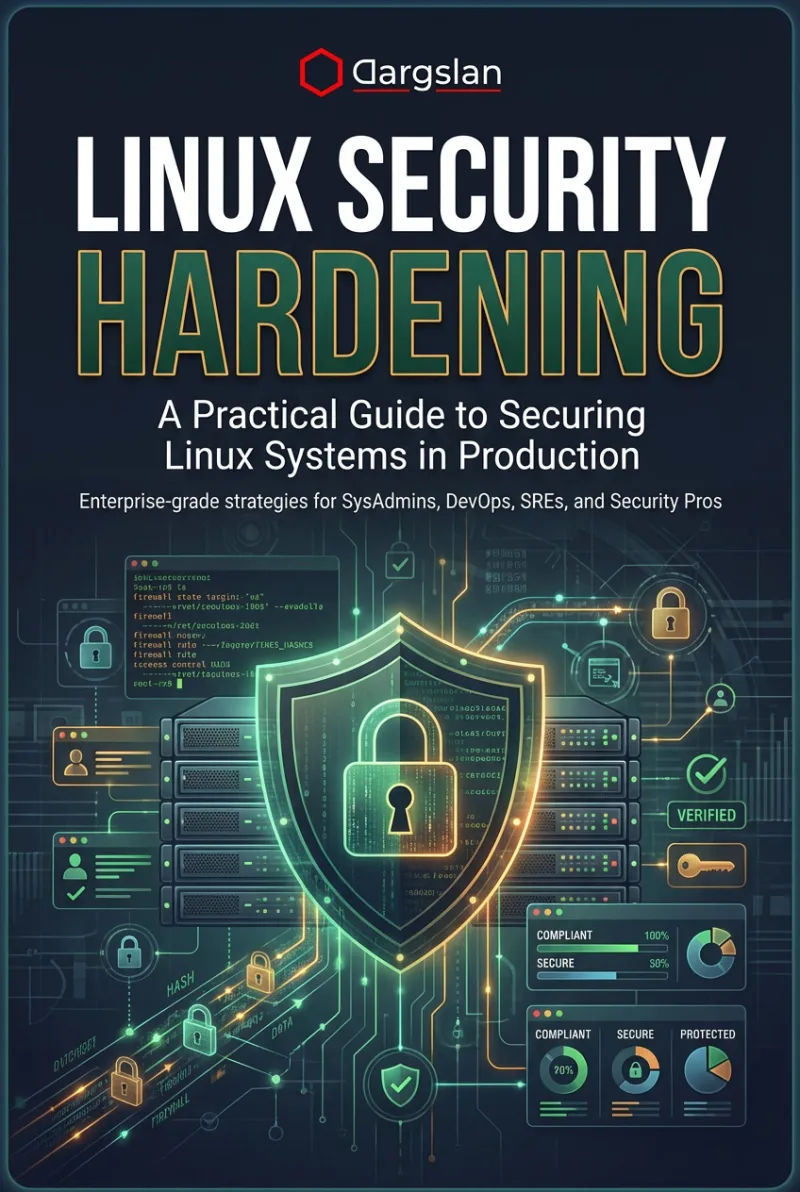
- Linux Security Hardening — €14.90
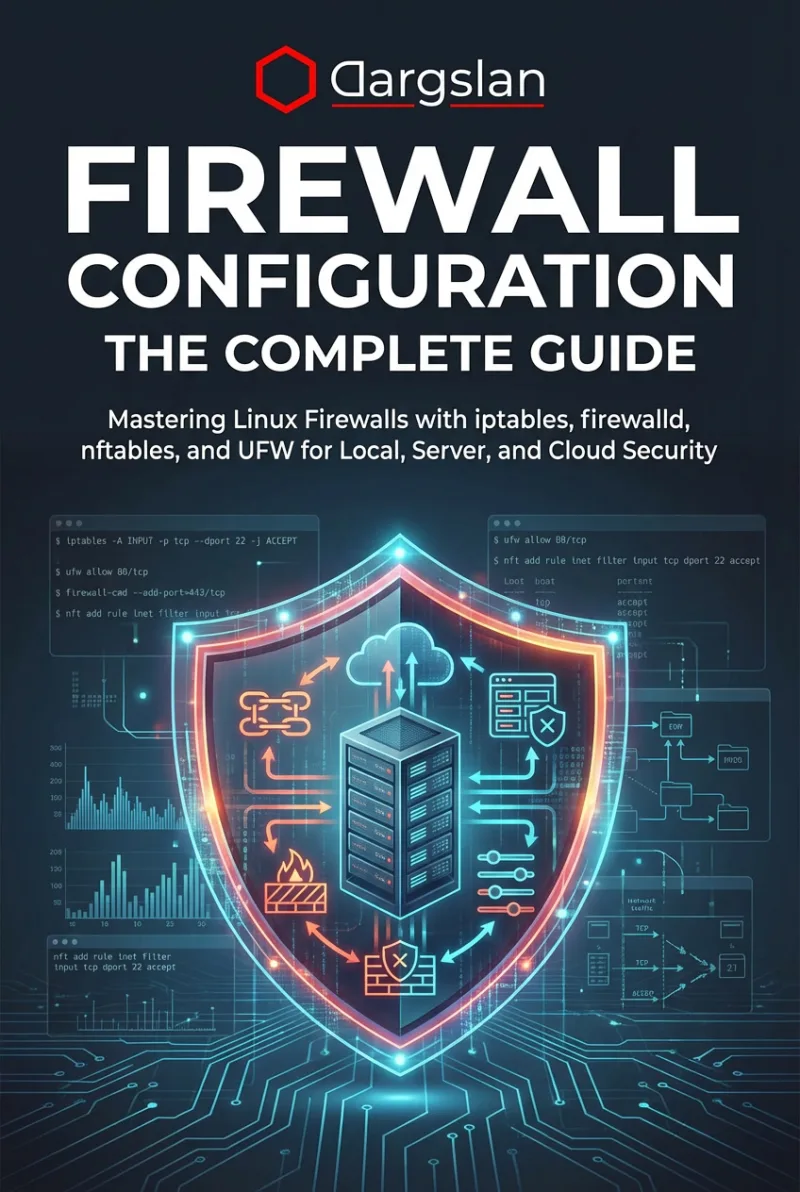
- Firewall Configuration: The Complete Guide — €14.90
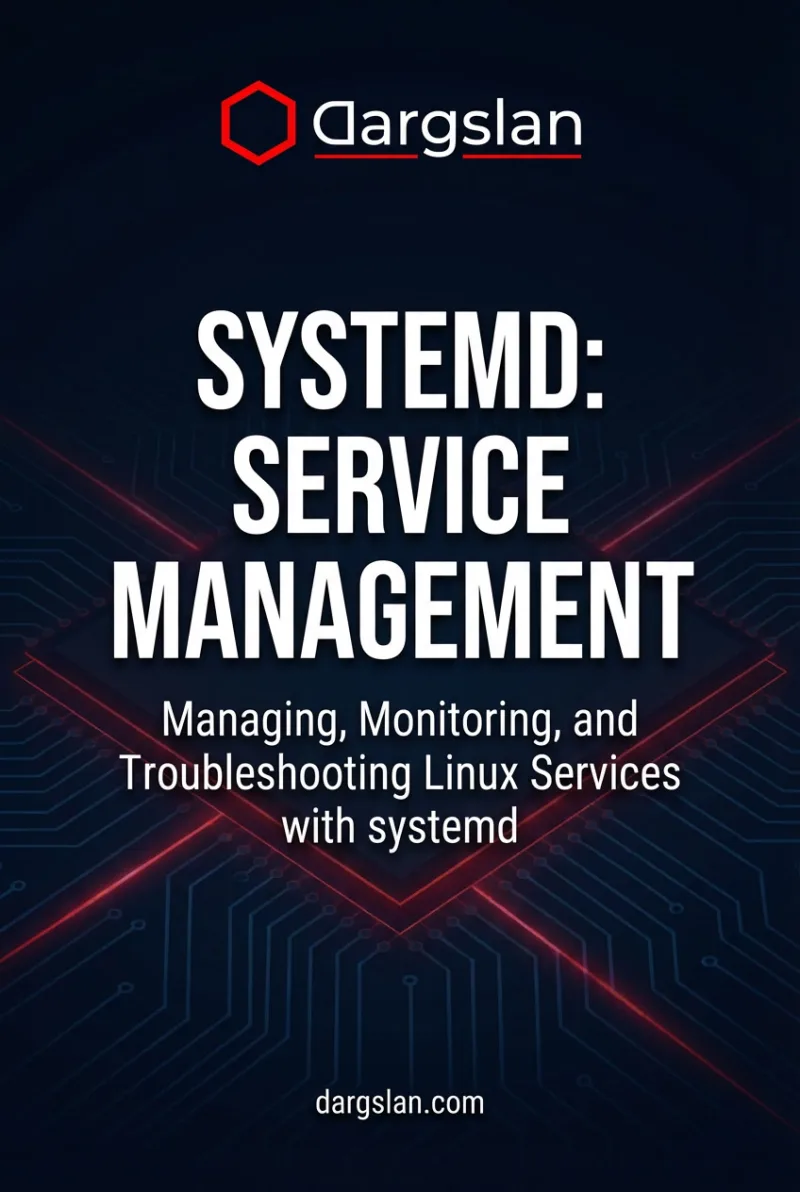
- systemd: Service Management — €21.90
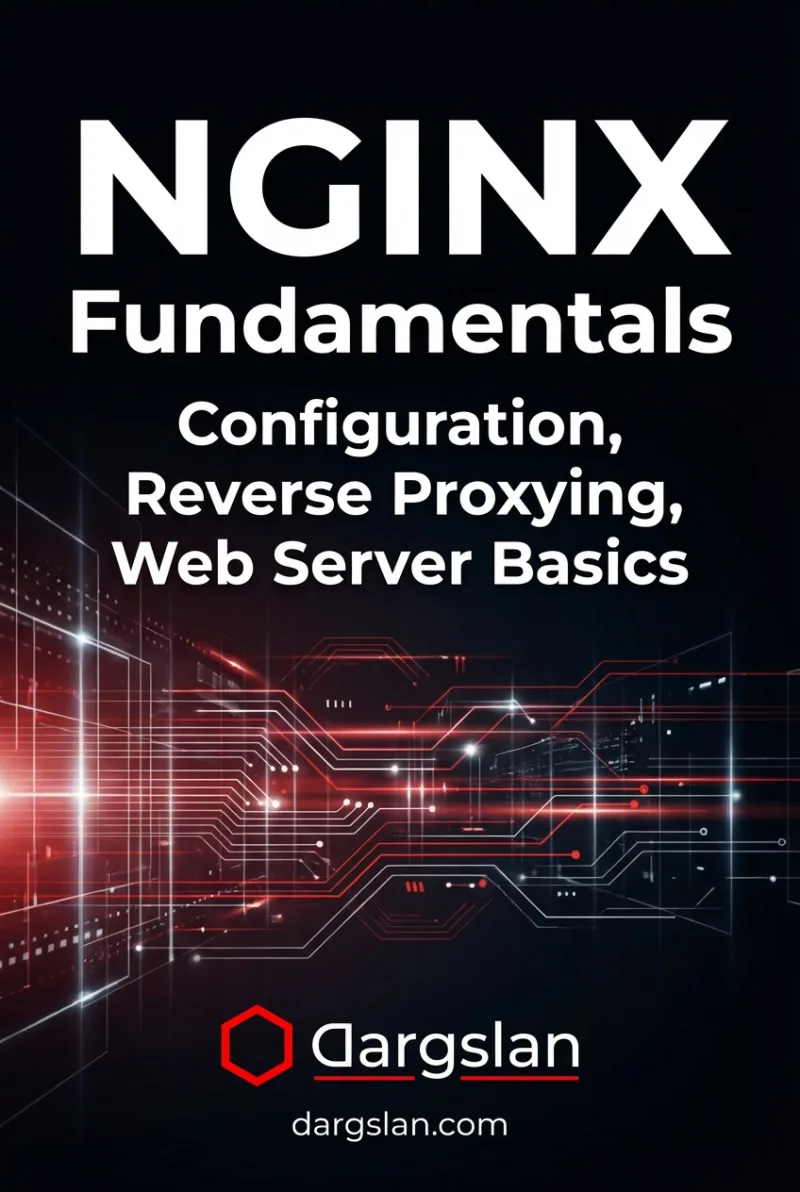
- NGINX Fundamentals — €21.90
- AlmaLinux for Beginners — €12.90
Further Reading on Dargslan
- AlmaLinux vs Ubuntu Server 2026: Which Linux Distro?
- How to Migrate from CentOS to AlmaLinux
- Mastering Midnight Commander on AlmaLinux
- Linux Server Hardening: The Complete Security Checklist
- RHCSA vs LFCS vs LPIC: Which Linux Certification?
- Docker vs Kubernetes: What’s the Difference?
Final Verdict
Rocky Linux 9 is enterprise Linux done right. Free, stable, 10-year support, and fully RHEL-compatible. Whether you’re running web servers, databases, containers, or enterprise applications — Rocky Linux delivers the reliability you need without the subscription cost.
Coming from CentOS? Rocky Linux is the natural successor. Same philosophy, same community-driven approach, same rock-solid stability. Your RHEL skills, certifications, and experience transfer directly.
Ready to get started? Grab our Rocky Linux 9 Administration book and have your first production server running in an afternoon.
Master Rocky Linux Administration
Everything you need to manage enterprise Linux servers:
Get Rocky Linux 9 Administration →