
Debian 13 "Trixie" represents the next evolution of the world's most respected Linux distribution. Named after another beloved Toy Story character, Trixie brings a modernized kernel, improved security defaults, and a fully nftables-based firewall to the table. Whether you're setting up your first Debian server or upgrading from Bookworm, this comprehensive guide covers everything from installation to production deployment.
Debian has been the foundation of countless servers, cloud instances, and even other Linux distributions (including Ubuntu) for over three decades. With Debian 13, the project continues its tradition of stability while embracing modern technologies that system administrators need in 2026.
What's New in Debian 13 "Trixie"
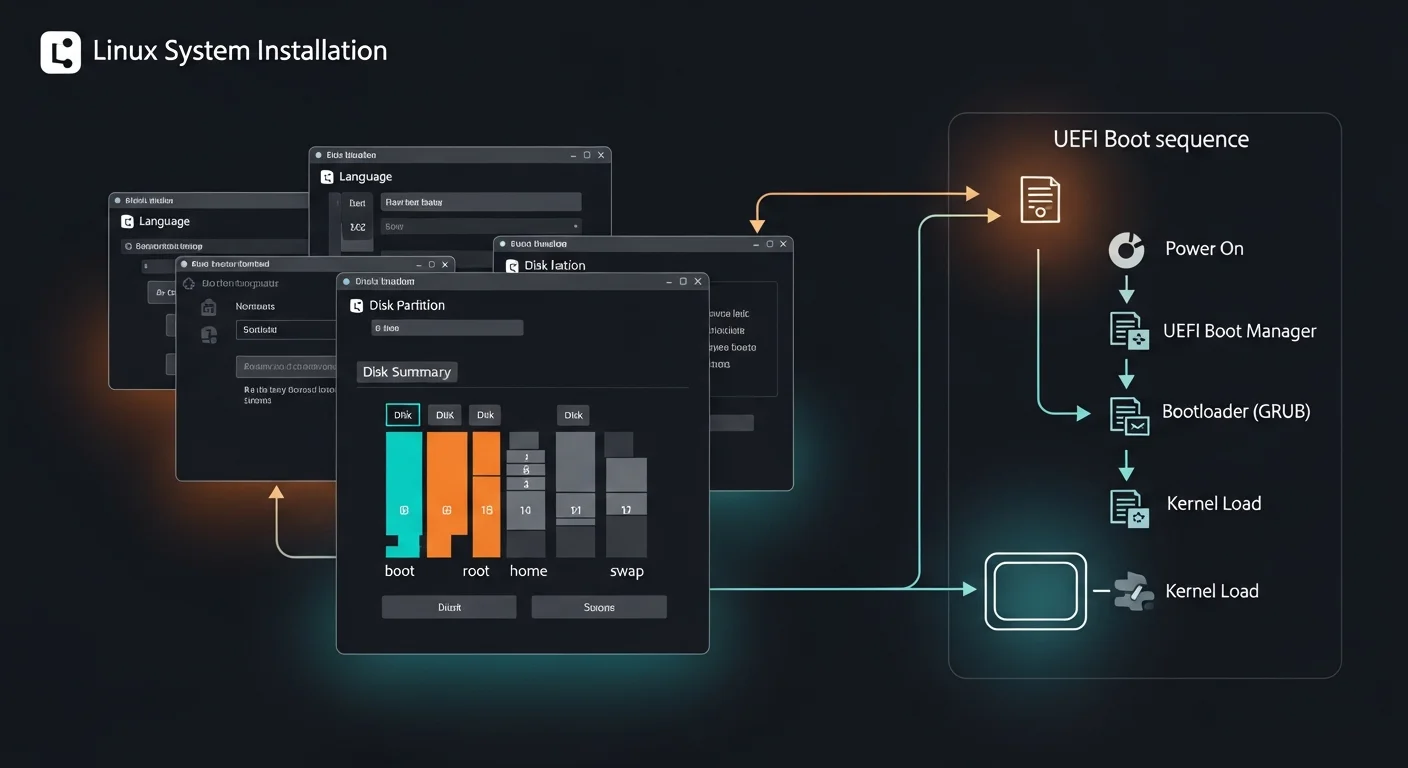
Debian 13 brings substantial upgrades across the entire software stack. Here are the most significant changes that system administrators need to know about:
Kernel and Core System
- Linux Kernel 6.12+ LTS — With PREEMPT_RT merged into mainline, real-time capabilities are now available without patches. Improved io_uring performance, better hardware support for modern CPUs and GPUs, and enhanced container isolation
- systemd 256 — Soft-reboot capability for faster restarts, improved systemd-run, better container and VM support, new systemd-vmspawn tool
- GCC 14 — Latest compiler toolchain with improved optimizations, better C23 support, and enhanced static analysis
- 64-bit time_t — Full Y2038 readiness across all architectures, ensuring long-term compatibility
Security Improvements
- nftables as default firewall — Replaces iptables with cleaner syntax, better performance, and unified IPv4/IPv6 handling
- OpenSSL 3.2+ — Post-quantum cryptography preparation, improved TLS 1.3 support
- AppArmor enabled by default — Mandatory access control out of the box
- Non-free firmware included — The installer ISO now includes non-free firmware by default, simplifying installation on modern hardware
Updated Software Packages
| Package | Debian 12 | Debian 13 |
|---|---|---|
| Python | 3.11 | 3.12+ |
| PHP | 8.2 | 8.3+ |
| PostgreSQL | 15 | 16+ |
| MariaDB | 10.11 | 11.x |
| Node.js | 18 | 20 LTS |
| GNOME | 43 | 46+ |
Installing Debian 13 Trixie
Download Options
Debian 13 is available in several formats to suit different installation scenarios:
- Netinstall ISO (~400MB) — Recommended for servers. Downloads packages during installation, ensuring you get the latest versions
- Full DVD ISO (~4GB) — Complete installation without internet. Useful for air-gapped environments
- Cloud Images — Pre-built images for AWS, Azure, Google Cloud, and other providers
- Live ISO — Try Debian without installing. Available with GNOME, KDE, XFCE, and other desktop environments
Creating Bootable USB Media
# Linux/macOS — using dd
sudo dd if=debian-13-amd64-netinst.iso of=/dev/sdX bs=4M status=progress

# Verify the download first
sha256sum debian-13-amd64-netinst.iso

# Or use balenaEtcher (GUI tool, works on all platforms)
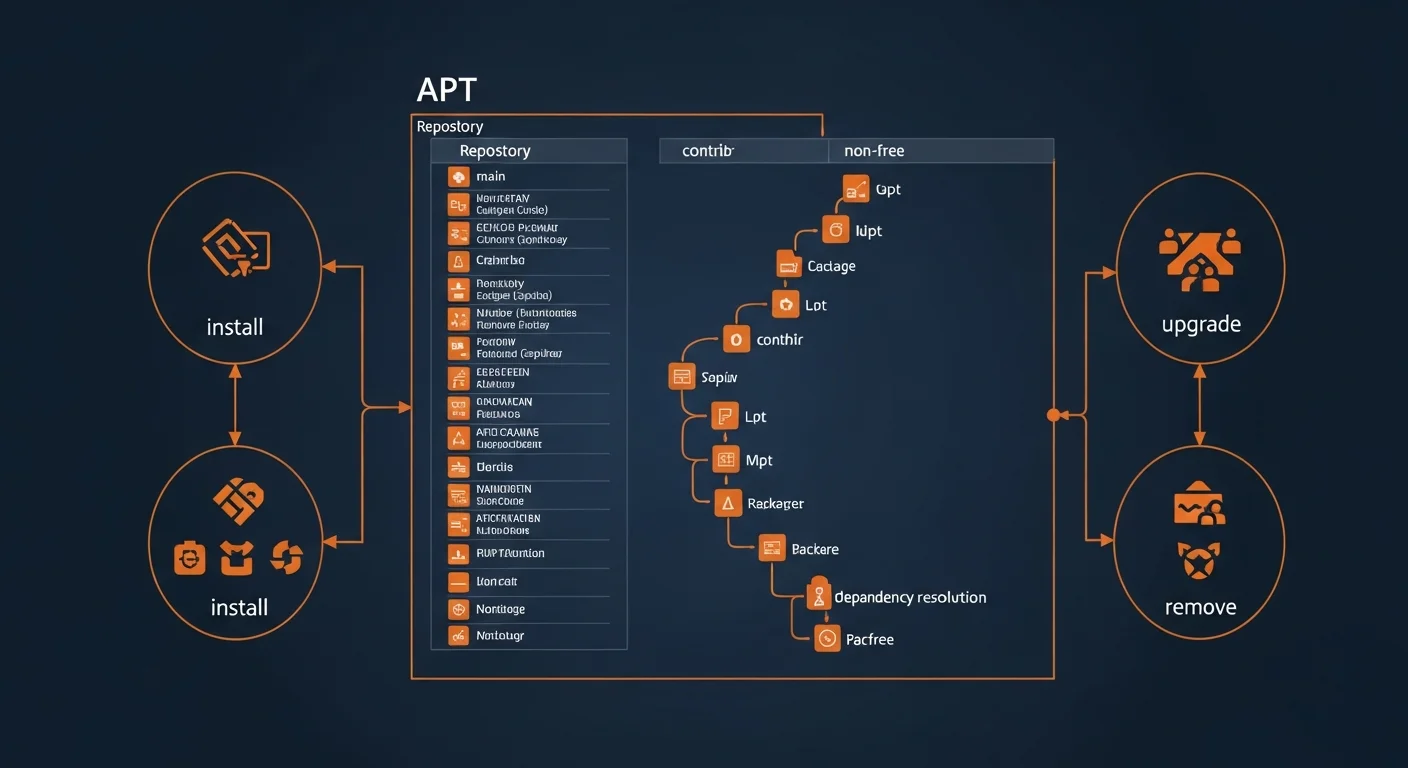
Recommended Server Partition Layout
For production servers, separate partitions improve security and manageability:
| Mount Point | Size | Purpose |
|---|---|---|
/boot/efi | 512 MB | UEFI boot partition |
/boot | 1 GB | Kernel and initramfs |
/ | 20-50 GB | Root filesystem |
/home | 10+ GB | User home directories |
/var | 20+ GB | Logs, databases, web content |
/tmp | 5 GB | Temporary files (mount with noexec) |
swap | 2× RAM | Swap space (or use zram) |
Post-Installation Setup
After installing Debian 13, these essential steps will prepare your system for production use:
Update and Essential Packages
# Update package lists and upgrade
sudo apt update && sudo apt upgrade -y

# Install essential tools
sudo apt install -y vim curl wget git htop tmux
sudo apt install -y build-essential software-properties-common
sudo apt install -y unzip zip ca-certificates gnupg lsb-release
Configure Time and Hostname
# Set timezone
sudo timedatectl set-timezone Europe/Berlin
timedatectl status

# Set hostname
sudo hostnamectl set-hostname myserver

# Enable NTP time synchronization
sudo timedatectl set-ntp true
Configure APT Sources
# /etc/apt/sources.list for Debian 13 Trixie
deb http://deb.debian.org/debian trixie main contrib non-free non-free-firmware
deb http://deb.debian.org/debian trixie-updates main contrib non-free non-free-firmware
deb http://security.debian.org/debian-security trixie-security main contrib non-free non-free-firmware

# Optional: backports for newer packages
deb http://deb.debian.org/debian trixie-backports main contrib non-free
APT Package Management Mastery
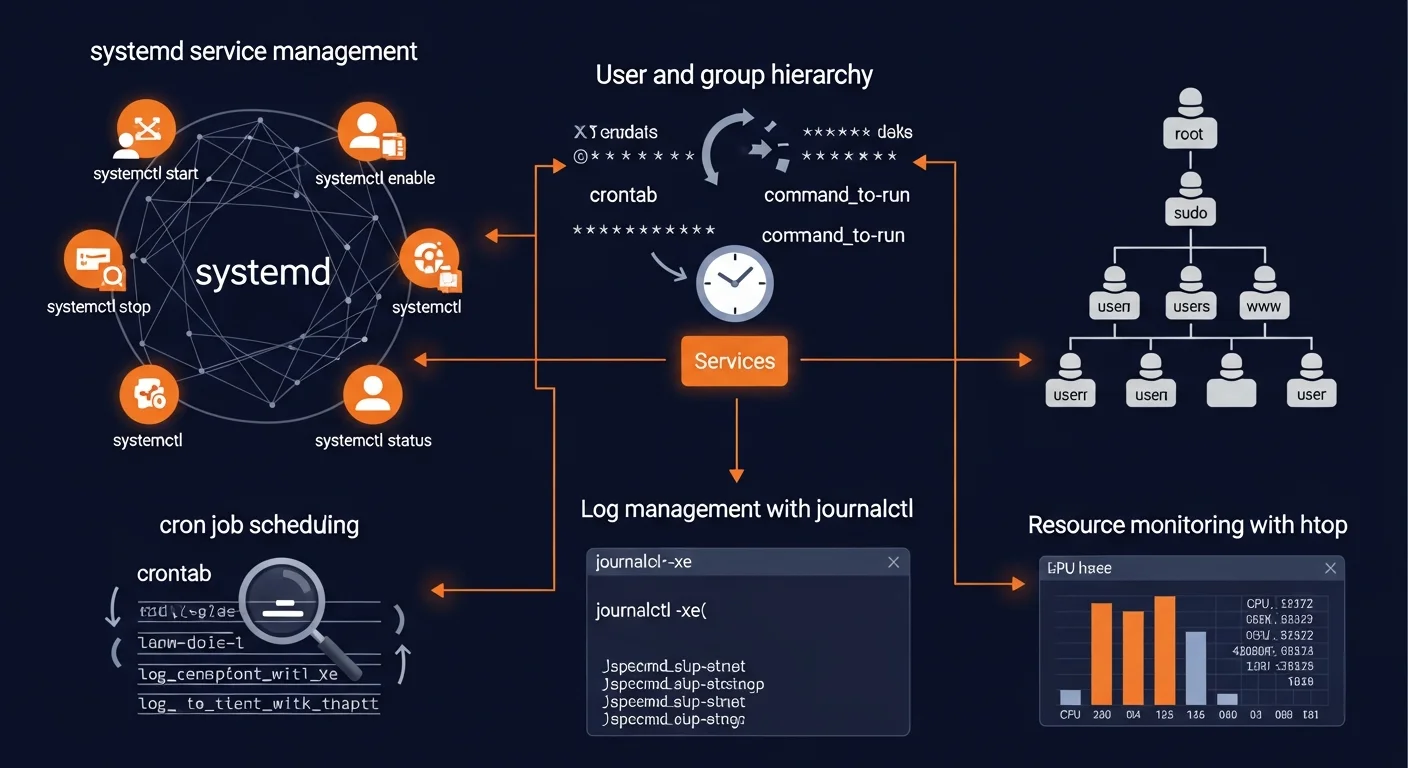
APT (Advanced Package Tool) is Debian's powerful package management system. Mastering APT is essential for maintaining a healthy Debian system.
Essential APT Commands
# Update package index
sudo apt update

# Upgrade all packages
sudo apt upgrade              # Safe upgrade (no removals)
sudo apt full-upgrade         # Full upgrade (may remove packages)

# Install and remove packages
sudo apt install nginx        # Install
sudo apt install nginx=1.24.0-2  # Install specific version
sudo apt remove nginx         # Remove (keep config)
sudo apt purge nginx          # Remove + delete config
sudo apt autoremove           # Remove unused dependencies

# Search and inspect
apt search nginx              # Search packages
apt show nginx                # Show package details
apt list --installed          # List installed packages
apt list --upgradable         # List available updates

# Dependency management
apt-cache depends nginx       # Show dependencies
apt-cache rdepends nginx      # Show reverse dependencies

# Version hold (prevent upgrades)
sudo apt-mark hold nginx      # Hold version
sudo apt-mark unhold nginx    # Release hold
APT Pinning for Version Control
# /etc/apt/preferences.d/pin-nginx
Package: nginx
Pin: version 1.24.*
Pin-Priority: 1001

# Priority levels:
# 1001+  = Force install (even downgrade)
# 990    = Install if not installed
# 500    = Default priority
# 100    = Install only if no other version
# -1     = Never install
Adding Third-Party Repositories (Modern Method)
# Download and store GPG key
curl -fsSL https://example.com/gpg.key | \
    sudo gpg --dearmor -o /usr/share/keyrings/example.gpg

# Add repository with signed-by
echo "deb [signed-by=/usr/share/keyrings/example.gpg] \
    https://repo.example.com/debian trixie main" | \
    sudo tee /etc/apt/sources.list.d/example.list

sudo apt update
User and Group Management
Proper user management is fundamental to Linux security. Every service should run under its own dedicated user account.
# Create interactive user with home directory
sudo adduser newuser

# Create system user (no home, no login shell)
sudo adduser --system --no-create-home appuser

# Add user to groups
sudo usermod -aG sudo newuser      # Grant sudo access
sudo usermod -aG docker newuser    # Grant Docker access
sudo usermod -aG www-data newuser  # Web server group

# File permissions
chmod 755 script.sh        # rwxr-xr-x (owner: all, others: read+execute)
chmod 644 config.txt       # rw-r--r-- (owner: read+write, others: read)
chmod 600 secret.key       # rw------- (owner only)

# Change ownership
sudo chown -R www-data:www-data /var/www/htmlsystemd Service Management
Debian 13 ships with systemd 256, bringing soft-reboot capabilities and improved service management. Understanding systemd is critical for managing any modern Debian server.
Essential systemctl Commands
# Service lifecycle
sudo systemctl start nginx      # Start service
sudo systemctl stop nginx       # Stop service
sudo systemctl restart nginx    # Restart service
sudo systemctl reload nginx     # Reload config (no downtime)

# Boot management
sudo systemctl enable nginx     # Start on boot
sudo systemctl disable nginx    # Don't start on boot
sudo systemctl enable --now nginx  # Enable + start immediately

# Status and troubleshooting
systemctl status nginx          # Show status
systemctl is-active nginx       # Check if running
systemctl is-enabled nginx      # Check boot status
systemctl list-units --failed   # List failed services

# After editing unit files
sudo systemctl daemon-reload
Creating Custom systemd Services
# /etc/systemd/system/myapp.service
[Unit]
Description=My Application
After=network.target postgresql.service
Wants=postgresql.service

[Service]
Type=simple
User=appuser
Group=appuser
WorkingDirectory=/opt/myapp
ExecStart=/opt/myapp/start.sh
Restart=on-failure
RestartSec=5
StandardOutput=journal
StandardError=journal
Environment=NODE_ENV=production

[Install]
WantedBy=multi-user.target
Networking Configuration
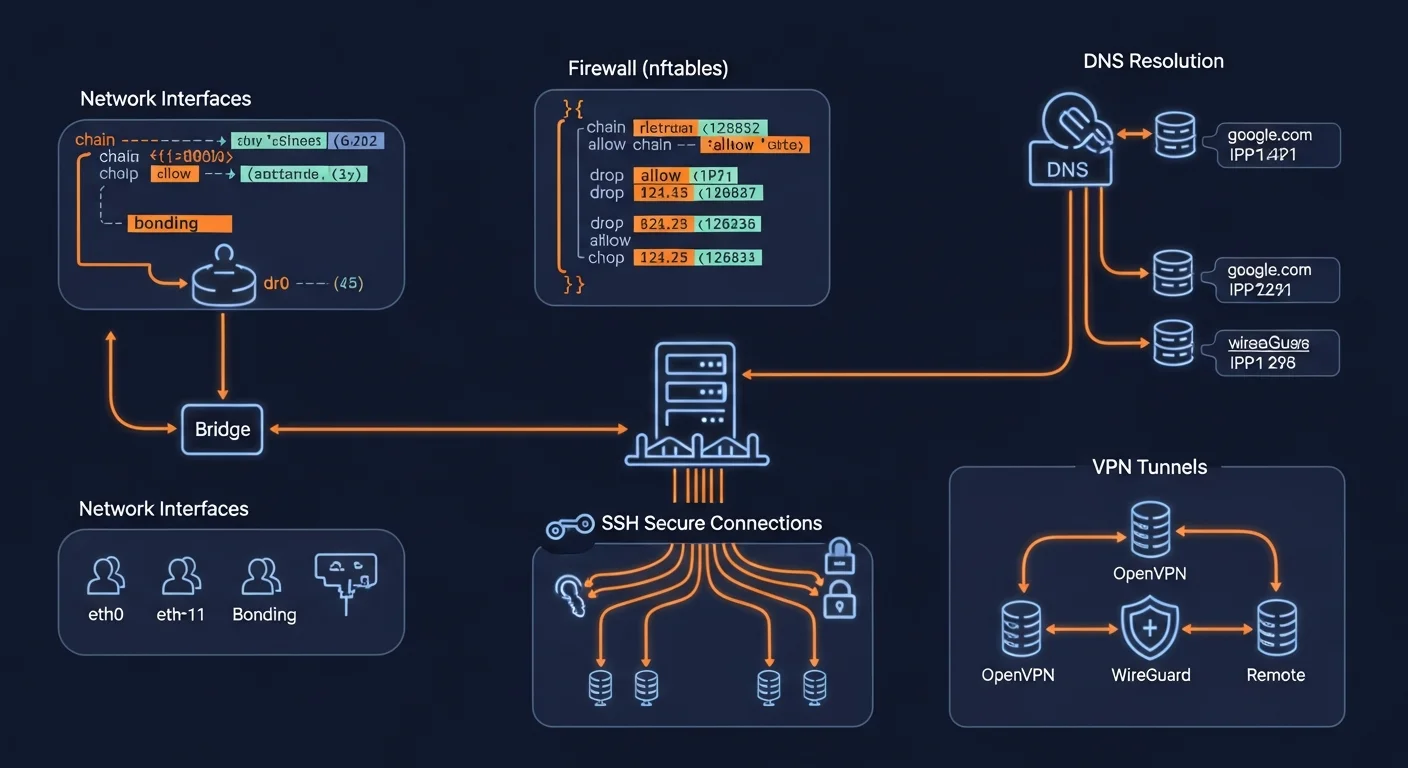
Static IP Configuration
# Method 1: /etc/network/interfaces (traditional, recommended for servers)
auto lo
iface lo inet loopback

auto eth0
iface eth0 inet static
    address 192.168.1.100/24
    gateway 192.168.1.1
    dns-nameservers 8.8.8.8 1.1.1.1

# Apply changes
sudo systemctl restart networking

# Method 2: NetworkManager (desktop/modern)
sudo nmcli con mod "Wired" ipv4.addresses 192.168.1.100/24
sudo nmcli con mod "Wired" ipv4.gateway 192.168.1.1
sudo nmcli con mod "Wired" ipv4.dns "8.8.8.8 1.1.1.1"
sudo nmcli con mod "Wired" ipv4.method manual
sudo nmcli con up "Wired"
Essential Network Commands
ip addr show          # Show all IP addresses
ip route show         # Show routing table
ip link set eth0 up   # Enable interface
ss -tlnp              # Show listening TCP ports
ss -ulnp              # Show listening UDP ports
dig domain.com        # DNS lookup
resolvectl status     # DNS resolver status
Firewall Configuration
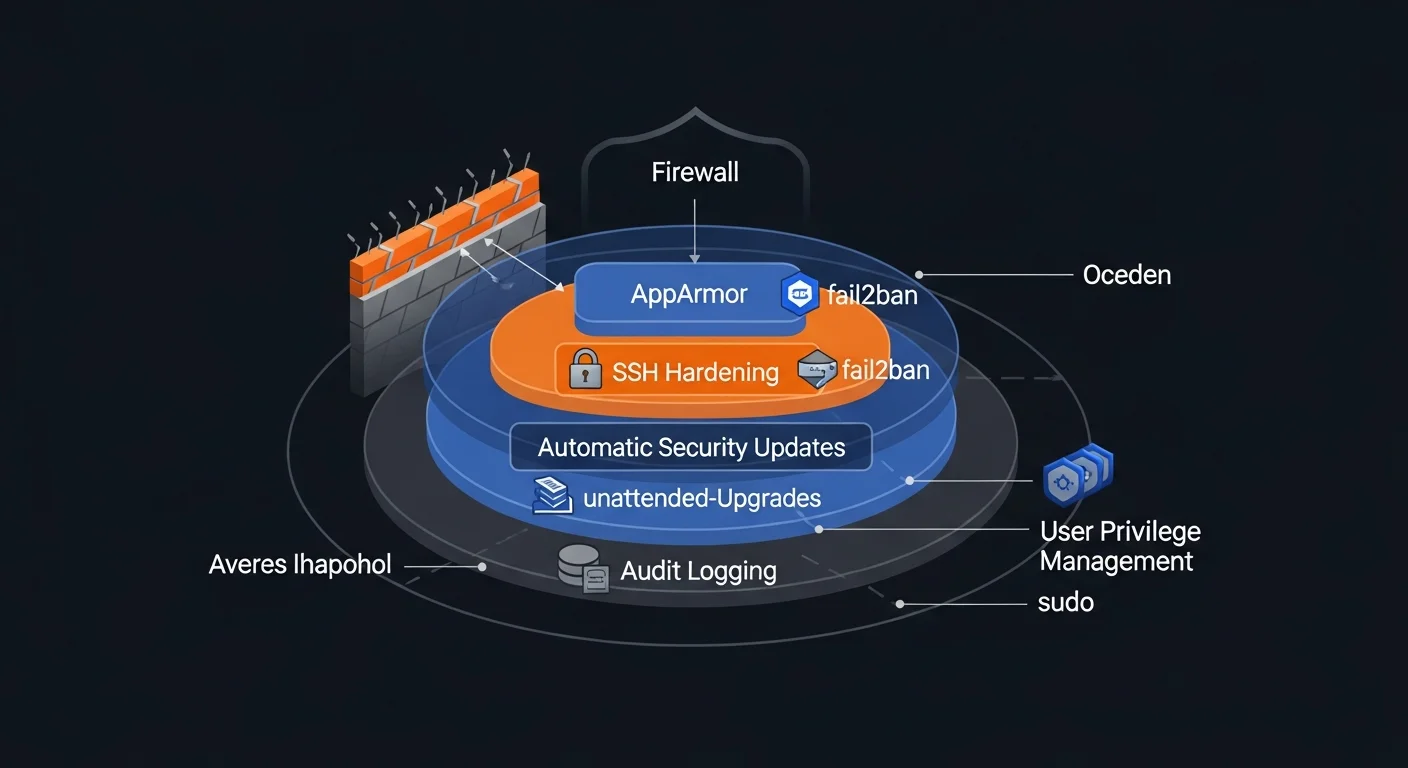
Debian 13 defaults to nftables, replacing the legacy iptables framework. For simpler setups, UFW provides an easy-to-use interface on top of nftables.
UFW (Recommended for Beginners)
# Install and configure UFW
sudo apt install ufw
sudo ufw default deny incoming
sudo ufw default allow outgoing

# Allow essential services
sudo ufw allow ssh
sudo ufw allow 80/tcp
sudo ufw allow 443/tcp
sudo ufw allow from 192.168.1.0/24 to any port 5432

# Enable
sudo ufw enable
sudo ufw status verbose
nftables (Debian 13 Default)
# /etc/nftables.conf
table inet filter {
    chain input {
        type filter hook input priority 0; policy drop;
        iif lo accept
        ct state established,related accept
        tcp dport 22 accept    # SSH
        tcp dport 80 accept    # HTTP
        tcp dport 443 accept   # HTTPS
        counter drop
    }
    chain forward {
        type filter hook forward priority 0; policy drop;
    }
    chain output {
        type filter hook output priority 0; policy accept;
    }
}

# Apply and enable
sudo nft -f /etc/nftables.conf
sudo systemctl enable nftables
SSH Hardening
SSH is your primary remote access method. Hardening it is one of the most impactful security measures you can take.
# Generate SSH key pair (on client machine)
ssh-keygen -t ed25519 -C "your@email.com"

# Copy public key to server
ssh-copy-id -i ~/.ssh/id_ed25519.pub user@server
Essential SSH Hardening Settings
# /etc/ssh/sshd_config
PermitRootLogin no               # No root SSH login
PasswordAuthentication no        # Key-only authentication
PubkeyAuthentication yes         # Enable key auth
MaxAuthTries 3                   # Limit login attempts
MaxSessions 3                    # Limit sessions
ClientAliveInterval 300          # Timeout inactive sessions
ClientAliveCountMax 2
AllowUsers alice bob             # Restrict to specific users

# Apply changes
sudo systemctl restart sshd
fail2ban for Brute Force Protection
# Install and configure
sudo apt install fail2ban
sudo cp /etc/fail2ban/jail.conf /etc/fail2ban/jail.local

# /etc/fail2ban/jail.local
[sshd]
enabled = true
port = ssh
maxretry = 3
bantime = 3600
findtime = 600

sudo systemctl enable fail2ban
sudo systemctl start fail2ban
Security Hardening Checklist
Production Debian 13 servers should implement these security measures:
- Disable root SSH login — Use a regular user with sudo
- SSH key authentication only — Disable password login
- Enable firewall — UFW or nftables, deny all incoming by default
- Automatic security updates — unattended-upgrades for critical patches
- fail2ban — Brute force protection for SSH and other services
- AppArmor profiles — Mandatory access control for services
- Kernel hardening — sysctl parameters for network and memory security
- Audit open ports — Close everything that's not needed
- Regular backups — Tested, automated, with offsite copies
- Log monitoring — centralized logging with alerts
Automatic Security Updates
# Install unattended-upgrades
sudo apt install unattended-upgrades apt-listchanges
sudo dpkg-reconfigure -plow unattended-upgrades

# /etc/apt/apt.conf.d/50unattended-upgrades
Unattended-Upgrade::Origins-Pattern {
    "origin=Debian,codename=trixie,label=Debian-Security";
};
Unattended-Upgrade::Mail "admin@example.com";
Unattended-Upgrade::Automatic-Reboot "true";
Unattended-Upgrade::Automatic-Reboot-Time "03:00";
Kernel Security Parameters
# /etc/sysctl.d/99-security.conf
net.ipv4.ip_forward = 0                    # Disable forwarding
net.ipv4.tcp_syncookies = 1                # SYN flood protection
net.ipv4.conf.all.accept_redirects = 0     # Ignore ICMP redirects
net.ipv6.conf.all.accept_redirects = 0
net.ipv4.conf.all.accept_source_route = 0  # Disable source routing
net.ipv4.conf.all.log_martians = 1         # Log suspicious packets

# Apply
sudo sysctl -p /etc/sysctl.d/99-security.conf
Web Server Stack: NGINX + PHP-FPM
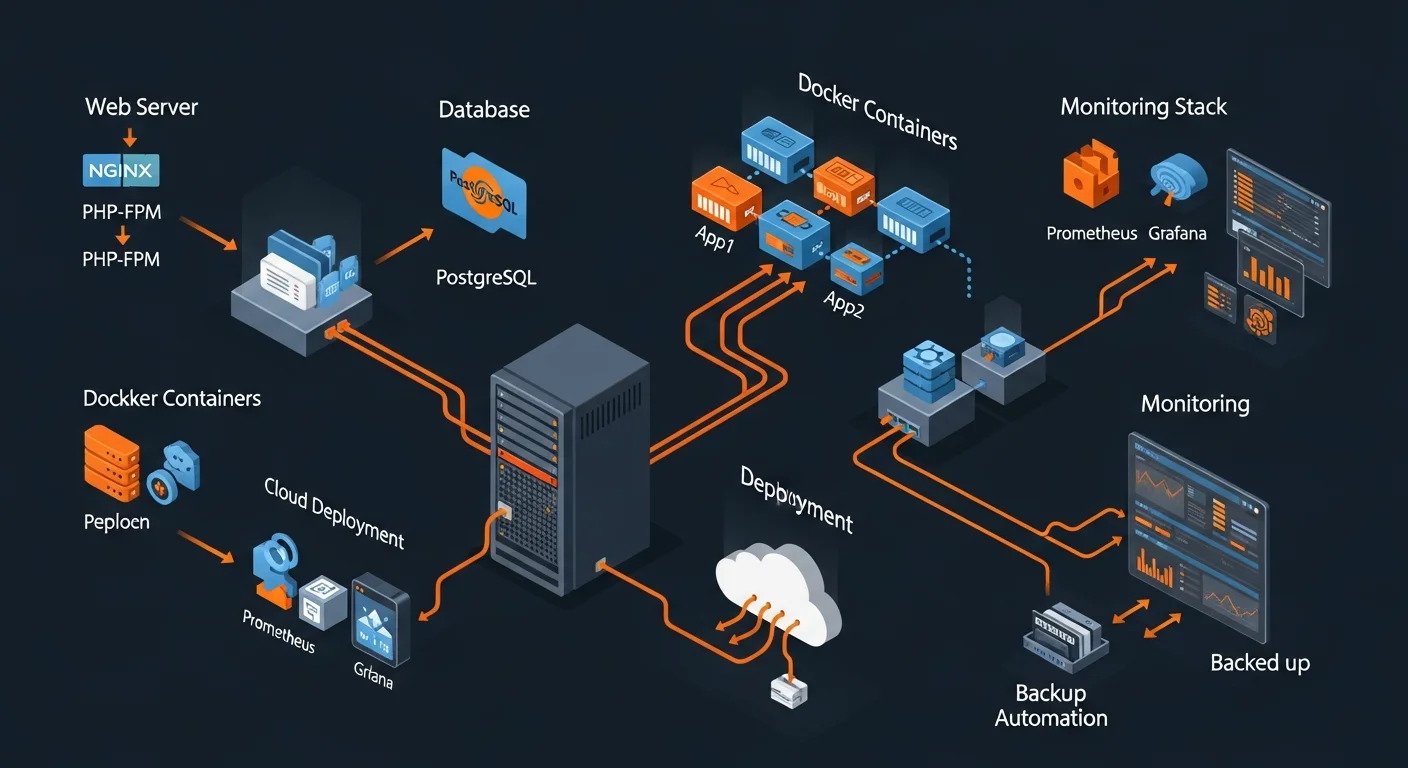
Setting up a production web server on Debian 13 with NGINX, PHP-FPM, and a database backend:
NGINX Installation and Configuration
# Install NGINX
sudo apt install nginx
sudo systemctl enable nginx

# /etc/nginx/sites-available/mysite
server {
    listen 80;
    server_name example.com www.example.com;
    root /var/www/mysite/public;
    index index.php index.html;

    location / {
        try_files $uri $uri/ /index.php?$query_string;
    }

    location ~ \.php$ {
        fastcgi_pass unix:/run/php/php8.3-fpm.sock;
        fastcgi_param SCRIPT_FILENAME $realpath_root$fastcgi_script_name;
        include fastcgi_params;
    }

    location ~* \.(js|css|png|jpg|jpeg|gif|ico|svg|webp)$ {
        expires 30d;
        add_header Cache-Control "public, immutable";
    }
}

# Enable site
sudo ln -s /etc/nginx/sites-available/mysite /etc/nginx/sites-enabled/
sudo nginx -t && sudo systemctl reload nginx
PHP-FPM Setup
# Install PHP 8.3 with common extensions
sudo apt install php8.3-fpm php8.3-cli php8.3-common
sudo apt install php8.3-pgsql php8.3-mysql php8.3-mbstring
sudo apt install php8.3-xml php8.3-curl php8.3-zip php8.3-gd

# Tune PHP-FPM pool: /etc/php/8.3/fpm/pool.d/www.conf
pm = dynamic
pm.max_children = 50
pm.start_servers = 5
pm.min_spare_servers = 5
pm.max_spare_servers = 35

sudo systemctl restart php8.3-fpm
Free SSL with Let's Encrypt
sudo apt install certbot python3-certbot-nginx
sudo certbot --nginx -d example.com -d www.example.com

# Auto-renewal is configured automatically via systemd timer
sudo systemctl status certbot.timer
Database Setup
PostgreSQL on Debian 13
# Install PostgreSQL 16+
sudo apt install postgresql postgresql-contrib

# Create user and database
sudo -u postgres createuser --interactive myapp
sudo -u postgres createdb myappdb -O myapp

# Set password
sudo -u postgres psql
ALTER USER myapp WITH PASSWORD 'strongpassword';
\q

# Enable remote connections (if needed)
# /etc/postgresql/16/main/postgresql.conf
listen_addresses = '*'

# /etc/postgresql/16/main/pg_hba.conf
host myappdb myapp 192.168.1.0/24 scram-sha-256

sudo systemctl restart postgresql
Docker on Debian 13
# Install Docker
sudo apt install ca-certificates curl gnupg
sudo install -m 0755 -d /etc/apt/keyrings
curl -fsSL https://download.docker.com/linux/debian/gpg | \
    sudo gpg --dearmor -o /etc/apt/keyrings/docker.gpg

echo "deb [arch=$(dpkg --print-architecture) \
    signed-by=/etc/apt/keyrings/docker.gpg] \
    https://download.docker.com/linux/debian \
    trixie stable" | \
    sudo tee /etc/apt/sources.list.d/docker.list

sudo apt update
sudo apt install docker-ce docker-ce-cli containerd.io \
    docker-buildx-plugin docker-compose-plugin

# Add user to docker group (no sudo needed for docker commands)
sudo usermod -aG docker $USER
Backup and Automation
Borg Backup (Recommended)
# Install Borg
sudo apt install borgbackup

# Initialize encrypted repository
borg init --encryption=repokey /backup/borg-repo

# Create backup
borg create /backup/borg-repo::daily-{now} \
    /etc /var/www /var/lib/postgresql \
    --exclude '*.log' --exclude '/var/cache'

# List and restore backups
borg list /backup/borg-repo
borg extract /backup/borg-repo::daily-2026-03-13

# Prune old backups (keep 7 daily, 4 weekly, 6 monthly)
borg prune /backup/borg-repo \
    --keep-daily=7 --keep-weekly=4 --keep-monthly=6
Automated Backup Cron Job
# Edit crontab
crontab -e

# Daily backup at 2:00 AM
0 2 * * * /usr/local/bin/backup.sh >> /var/log/backup.log 2>&1

# Weekly database backup (Sunday 3:00 AM)
0 3 * * 0 pg_dump mydb | gzip > /backup/db-$(date +\%Y\%m\%d).sql.gz

# Daily apt update check
0 6 * * * apt update -qq && apt list --upgradable 2>/dev/nullPerformance Tuning
Optimize your Debian 13 server for production workloads:
# /etc/sysctl.d/99-performance.conf

# Increase file descriptor limit
fs.file-max = 2097152

# Network performance
net.core.somaxconn = 65535
net.core.netdev_max_backlog = 65535
net.ipv4.tcp_max_syn_backlog = 65535

# TCP keepalive (faster dead connection detection)
net.ipv4.tcp_keepalive_time = 600
net.ipv4.tcp_keepalive_intvl = 60
net.ipv4.tcp_keepalive_probes = 3

# VM settings
vm.swappiness = 10          # Reduce swap usage
vm.dirty_ratio = 15         # Write cache ratio

# Apply
sudo sysctl -p /etc/sysctl.d/99-performance.conf
Upgrading from Debian 12 to Debian 13
If you're currently running Debian 12 "Bookworm," here's how to upgrade to Debian 13 "Trixie":
# Step 1: Update current system completely
sudo apt update && sudo apt full-upgrade -y
sudo apt autoremove

# Step 2: Update sources.list
sudo sed -i 's/bookworm/trixie/g' /etc/apt/sources.list
sudo sed -i 's/bookworm/trixie/g' /etc/apt/sources.list.d/*.list

# Step 3: Update and upgrade
sudo apt update
sudo apt full-upgrade -y

# Step 4: Reboot
sudo reboot

# Step 5: Verify
cat /etc/debian_version
lsb_release -aRecommended Resources
Continue your Debian 13 journey with these resources from Dargslan:
- Debian System Administration — Complete sysadmin guide for Debian servers
- Debian Linux for Absolute Beginners — Start from zero with Debian
- Debian Security and Hardening — Production security for Debian
- Linux Administration Fundamentals — Core skills every admin needs
- Linux System Hardening — Advanced security techniques
- Linux Networking Fundamentals — Deep network configuration
- Linux Command Line Mastery — Become a terminal power user
📥 Download the Free Debian 13 Trixie Cheat Sheet
20-page PDF covering installation, APT, systemd, networking, security hardening, web server setup, Docker, backup, and performance tuning.
Get Your Free Cheat Sheet →


