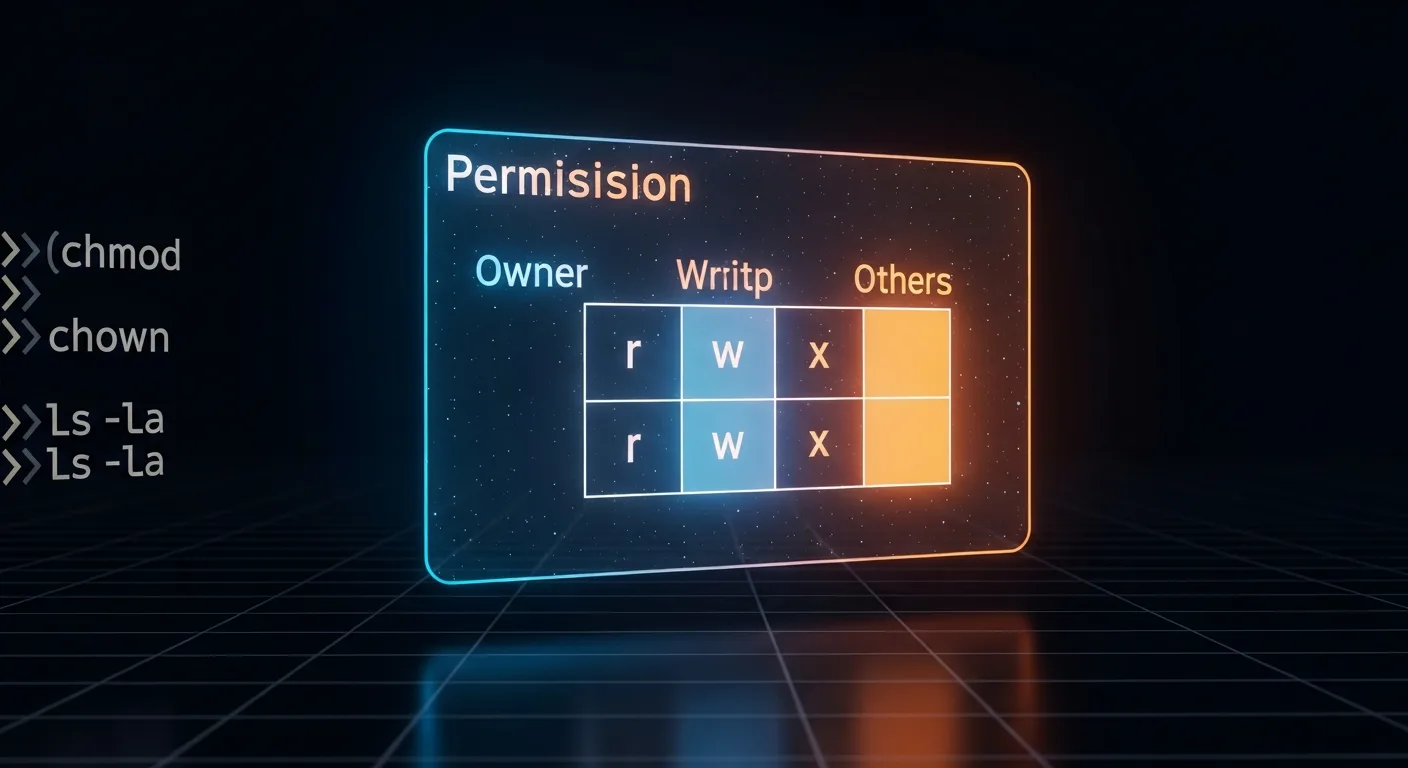
File permissions are one of the most fundamental concepts in Linux security. Every file and directory on a Linux system has an associated set of permissions that determine who can read, write, or execute it. Whether you're a beginner setting up your first server or an experienced administrator hardening a production environment, understanding permissions is critical.
In this comprehensive guide, we'll walk through everything you need to know about Linux file permissions — from the basics of read, write, and execute bits to advanced topics like Access Control Lists (ACLs), special permission bits, and real-world security scenarios.
📥 Free Cheat Sheet
Download our Linux File Permissions Cheat Sheet PDF — a printable quick reference with all chmod modes, special bits, and ACL commands.
Understanding the Permission Model
Linux uses a discretionary access control (DAC) model. Every file has three categories of users:
- Owner (u) — the user who created the file
- Group (g) — users belonging to the file's group
- Others (o) — everyone else on the system
Each category can have three permission types:
- Read (r = 4) — view file contents or list directory contents
- Write (w = 2) — modify file contents or create/delete files in a directory
- Execute (x = 1) — run a file as a program or access a directory
Reading Permissions with ls -la
The ls -la command displays the full permission string for every file:
$ ls -la /etc/passwd
-rw-r--r-- 1 root root 2847 Jan 15 10:30 /etc/passwd
The permission string -rw-r--r-- breaks down as follows:
- Position 1: File type (
-= regular file,d= directory,l= symlink) - Positions 2-4: Owner permissions (
rw-= read + write) - Positions 5-7: Group permissions (
r--= read only) - Positions 8-10: Others permissions (
r--= read only)
Changing Permissions with chmod
Numeric (Octal) Mode
The most common way to set permissions is using numeric mode. Each permission has a value: read = 4, write = 2, execute = 1. You sum these for each category:
# Owner: rwx (7), Group: r-x (5), Others: r-- (4)
chmod 754 script.sh

# Owner: rw- (6), Group: rw- (6), Others: --- (0)
chmod 660 sensitive-data.conf

# Owner: rwx (7), Group: rwx (7), Others: r-x (5)
chmod 775 shared-directory/
Symbolic Mode
Symbolic mode uses letters and operators to modify specific permissions:
# Add execute for owner
chmod u+x script.sh

# Remove write from group and others
chmod go-w document.txt

# Set exact permissions for all
chmod u=rwx,g=rx,o=r file.txt

# Add execute for everyone
chmod a+x program
Common Permission Patterns
| Numeric | Symbolic | Use Case |
|---|---|---|
644 | rw-r--r-- | Regular files, config files |
755 | rwxr-xr-x | Executable scripts, directories |
600 | rw------- | SSH keys, secrets |
700 | rwx------ | Private directories, .ssh/ |
440 | r--r----- | sudoers files |
Changing Ownership with chown
The chown command changes the owner and/or group of files:
# Change owner
chown alice file.txt

# Change owner and group
chown alice:developers file.txt

# Change group only
chown :developers file.txt

# Recursive change
chown -R www-data:www-data /var/www/html/
The related chgrp command changes only the group:
chgrp developers project-files/
chgrp -R webteam /var/www/
Special Permission Bits
SUID (Set User ID) — 4000
When SUID is set on an executable, it runs with the permissions of the file owner rather than the user executing it. This is how commands like passwd can modify /etc/shadow even when run by a regular user:
# Set SUID
chmod u+s /usr/bin/myapp
chmod 4755 /usr/bin/myapp

# Verify (shows 's' in owner execute position)
ls -la /usr/bin/passwd
-rwsr-xr-x 1 root root 68208 /usr/bin/passwd
Security Warning: SUID binaries are a common attack vector. Regularly audit SUID files:
find / -perm -4000 -type f 2>/dev/nullSGID (Set Group ID) — 2000
On files, SGID runs the program with the file's group. On directories, it ensures new files inherit the directory's group — essential for shared project folders:
# Set SGID on a shared directory
chmod g+s /projects/teamwork/
chmod 2775 /projects/teamwork/

# Now any file created inside inherits the group
touch /projects/teamwork/newfile.txt
ls -la /projects/teamwork/newfile.txt
# Group will be the directory's group, not user's primary group
Sticky Bit — 1000
The sticky bit on a directory prevents users from deleting files they don't own. This is critical for shared directories like /tmp:
# Set sticky bit
chmod +t /shared/
chmod 1777 /tmp/

# Verify (shows 't' in others execute position)
ls -ld /tmp
drwxrwxrwt 15 root root 4096 /tmp
Access Control Lists (ACLs)
Standard Unix permissions only support one owner and one group. ACLs extend this to allow fine-grained permissions for multiple users and groups:
# Install ACL support (if needed)
sudo apt install acl        # Debian/Ubuntu
sudo dnf install acl        # RHEL/Fedora

# Grant specific user read access
setfacl -m u:bob:rx /projects/reports/

# Grant specific group write access
setfacl -m g:auditors:r /var/log/app.log

# Set default ACL for new files in directory
setfacl -d -m g:developers:rwx /projects/code/

# View ACLs
getfacl /projects/reports/

# Remove specific ACL entry
setfacl -x u:bob /projects/reports/

# Remove all ACLs
setfacl -b /projects/reports/
Default Permissions with umask
The umask sets the default permissions for newly created files and directories. It works by subtracting from the maximum (666 for files, 777 for directories):
# View current umask
umask
0022

# With umask 0022:
# New files:       666 - 022 = 644 (rw-r--r--)
# New directories:  777 - 022 = 755 (rwxr-xr-x)

# Set stricter umask
umask 0077
# New files:       666 - 077 = 600 (rw-------)
# New directories:  777 - 077 = 700 (rwx------)
To make umask permanent, add it to ~/.bashrc or /etc/profile.
Real-World Security Scenarios
Securing a Web Server
# Web root owned by www-data
chown -R www-data:www-data /var/www/html/

# Directories: 755, Files: 644
find /var/www/html/ -type d -exec chmod 755 {} \;
find /var/www/html/ -type f -exec chmod 644 {} \;

# Config files with secrets: owner only
chmod 600 /var/www/html/.env
chmod 600 /var/www/html/config/database.php
Securing SSH Keys
chmod 700 ~/.ssh/
chmod 600 ~/.ssh/id_rsa
chmod 644 ~/.ssh/id_rsa.pub
chmod 600 ~/.ssh/authorized_keys
chmod 644 ~/.ssh/known_hosts
Shared Development Directory
# Create shared directory with SGID
mkdir /projects/webapp
chown root:developers /projects/webapp
chmod 2775 /projects/webapp

# Set default ACL for new files
setfacl -d -m g:developers:rwx /projects/webapp
Auditing Permissions
Regular permission audits are essential for security compliance:
# Find world-writable files
find / -type f -perm -0002 -ls 2>/dev/null

# Find SUID/SGID executables
find / -type f \( -perm -4000 -o -perm -2000 \) -ls 2>/dev/null

# Find files without an owner
find / -nouser -ls 2>/dev/null

# Find files without a group
find / -nogroup -ls 2>/dev/null

# Find files writable by group or others in /etc
find /etc -type f \( -perm -020 -o -perm -002 \) -ls 2>/dev/null
Best Practices Summary
- Principle of Least Privilege: Grant only the minimum permissions necessary
- Never use 777: World-writable and executable is almost never appropriate
- Protect SSH keys: Always chmod 600 private keys
- Use groups: Manage access through groups rather than individual user permissions
- Audit regularly: Schedule periodic SUID/SGID and world-writable file audits
- Use ACLs: When standard permissions aren't granular enough
- Set umask: Configure appropriate default permissions system-wide
- Document changes: Log all permission changes for compliance
📚 Deepen Your Linux Knowledge
Ready to master Linux administration? Check out these recommended books:
- Linux Administration Fundamentals — Complete foundation for system administrators
- Linux for Beginners: Zero to Hero — Start from scratch and build confidence
- Linux Security Auditing — Master security hardening techniques
- 250 Linux Exercises — Hands-on practice to solidify your skills