Every running application on Linux is a process. Understanding how to view, manage, prioritize, and troubleshoot processes is one of the most critical skills for any system administrator. From identifying runaway processes consuming all CPU to gracefully managing services with systemd, this guide covers everything you need.
📥 Free Cheat Sheet
Download our Linux Process Management Cheat Sheet PDF — all process commands, signals, and systemctl operations on one page.
Understanding Linux Processes
A process is an instance of a running program. Each process has a unique Process ID (PID), a parent process (PPID), an owner, memory allocation, CPU usage, and a state. Processes can be in several states:
- R (Running) — actively using CPU or ready to run
- S (Sleeping) — waiting for an event (I/O, signal)
- D (Uninterruptible Sleep) — waiting for I/O (cannot be killed)
- Z (Zombie) — finished but parent hasn't collected exit status
- T (Stopped) — suspended by a signal (SIGSTOP or Ctrl+Z)
Viewing Processes with ps
# Show all processes (BSD style)
ps aux

# Show all processes (System V style)
ps -ef

# Show process tree
ps auxf
ps -ejH

# Show specific user's processes
ps -u www-data

# Show specific process by PID
ps -p 1234

# Custom output format
ps -eo pid,ppid,user,%cpu,%mem,vsz,rss,stat,start,time,comm --sort=-%cpu

# Top 10 CPU consumers
ps aux --sort=-%cpu | head -11

# Top 10 memory consumers
ps aux --sort=-%mem | head -11
Interactive Monitoring with top and htop
top — Built-in System Monitor
# Basic top
top

# Sort by memory
top -o %MEM

# Show specific user
top -u www-data

# Batch mode (for scripting)
top -bn1 | head -20
Key top shortcuts: M = sort by memory, P = sort by CPU, k = kill process, r = renice, 1 = show individual CPUs, c = show full command.
htop — Enhanced System Monitor
# Install htop
sudo apt install htop    # Debian/Ubuntu
sudo dnf install htop    # RHEL/Fedora

# Run htop
htop

# Filter by user
htop -u www-data

# Show tree view
htop -t
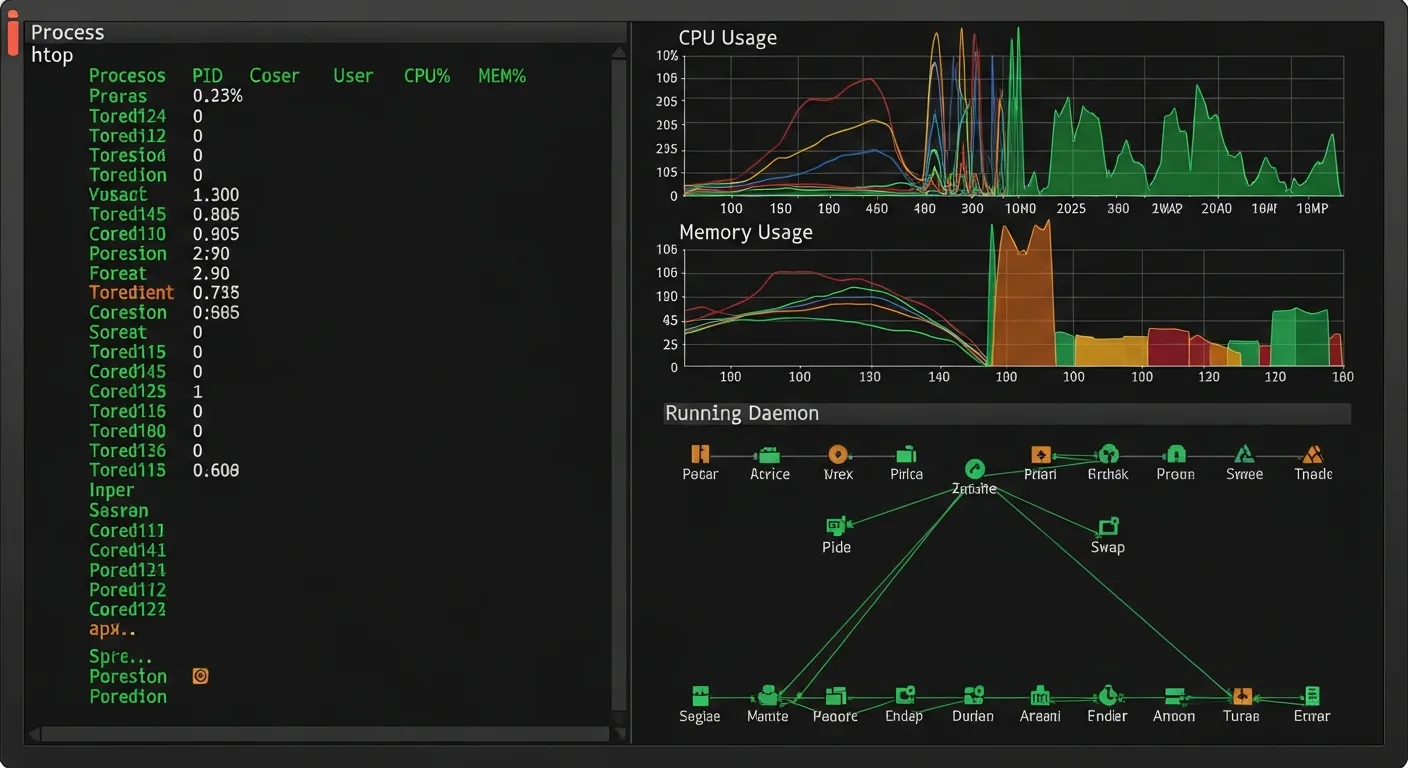
htop provides a colorful, scrollable interface with mouse support, tree view, and easier process management.
Controlling Processes
Kill Signals
# Graceful termination (SIGTERM - 15)
kill 1234
kill -15 1234
kill -TERM 1234

# Force kill (SIGKILL - 9) — use as last resort
kill -9 1234
kill -KILL 1234

# Hang up / reload config (SIGHUP - 1)
kill -HUP 1234
kill -1 1234

# Stop (pause) a process (SIGSTOP - 19)
kill -STOP 1234

# Continue a stopped process (SIGCONT - 18)
kill -CONT 1234

# Kill by name
killall nginx
pkill -f "python app.py"

# Kill all processes of a user
pkill -u baduser

# List all signals
kill -l
Background and Foreground Jobs
# Run command in background
long-running-task &

# List background jobs
jobs

# Bring job to foreground
fg %1

# Send running process to background
# Press Ctrl+Z first, then:
bg %1

# Disown a background job (survives terminal close)
disown %1

# Run immune to hangup
nohup long-running-task &

# Better alternative: use screen or tmux
tmux new -s mysession
# Run your command, then Ctrl+B, D to detach
Process Priority with nice and renice
Linux uses nice values (-20 to 19) to determine process scheduling priority. Lower values mean higher priority:
# Start process with lower priority (nice value 10)
nice -n 10 heavy-computation

# Start with high priority (requires root)
sudo nice -n -5 important-service

# Change priority of running process
renice 15 -p 1234

# Change priority for all processes of a user
renice 10 -u backup-user

# View nice values
ps -eo pid,ni,comm --sort=-ni
System Service Management with systemctl
# Start/stop/restart a service
sudo systemctl start nginx
sudo systemctl stop nginx
sudo systemctl restart nginx
sudo systemctl reload nginx

# Check service status
systemctl status nginx

# Enable/disable service at boot
sudo systemctl enable nginx
sudo systemctl disable nginx

# List all active services
systemctl list-units --type=service --state=active

# List all failed services
systemctl list-units --type=service --state=failed

# Show service dependencies
systemctl list-dependencies nginx

# View service logs
journalctl -u nginx -f
journalctl -u nginx --since "1 hour ago"

# Mask a service (prevent starting)
sudo systemctl mask dangerous-service

# Reload systemd after changing unit files
sudo systemctl daemon-reload
Resource Limits with cgroups and ulimit
# View current user limits
ulimit -a

# Set max open files for current session
ulimit -n 65536

# Set max processes
ulimit -u 4096

# View process resource usage
cat /proc/1234/status
cat /proc/1234/limits

# Control groups (cgroups v2) — limit resources for groups of processes
# View cgroup hierarchy
ls /sys/fs/cgroup/

# Create a cgroup to limit CPU
sudo mkdir /sys/fs/cgroup/myapp
echo "50000 100000" | sudo tee /sys/fs/cgroup/myapp/cpu.max
# Limits to 50% of one CPU core
Troubleshooting Common Issues
High CPU Usage
# Identify CPU-hungry processes
top -bn1 -o %CPU | head -15

# Check load average
uptime
cat /proc/loadavg

# Trace what a process is doing
strace -p 1234 -c
strace -p 1234 -e trace=network
Memory Issues
# Check system memory
free -h

# Check per-process memory
ps aux --sort=-%mem | head -10

# Check for OOM killer activity
dmesg | grep -i "out of memory"
journalctl -k | grep -i "oom"

# View memory maps of a process
pmap 1234
Zombie Processes
# Find zombie processes
ps aux | awk '$8 == "Z"'

# Find parent of zombie
ps -eo pid,ppid,stat,comm | grep Z

# Kill parent to clean up zombies
kill -SIGCHLD parent_pid
# If that fails:
kill parent_pid
📚 Master Linux Administration
Take your skills to the next level:
- Linux System Administration Masterclass — Comprehensive sysadmin training
- Master Linux Command Line in 30 Chapters — Deep command-line expertise
- Linux Cron Jobs & Task Scheduling — Automate recurring processes