
Quick Summary: Version control is a system that tracks changes to files and coordinates work among multiple developers. It allows you to save snapshots (commits) of your project, create independent branches for features, and merge changes back together. Modern distributed version control is the industry standard for source code management, used by over 90% of professional developers worldwide.
What Is Version Control and Why Does It Matter?
Version control (also called source control or revision control) is a system that records changes to files over time so you can recall specific versions later. Think of it as an unlimited undo button for your entire project — but much more powerful. It tracks who made each change, when, and why.
Modern distributed version control solves three fundamental problems:
- History tracking — Every change is recorded. You can always go back to any previous state
- Collaboration — Multiple developers work simultaneously without overwriting each other
- Experimentation — Branches let you try new ideas without risking the stable codebase
Setting Up Your Environment
- Install on your platform:
- Debian/Ubuntu:
sudo apt install git - RHEL/AlmaLinux:
sudo dnf install git - macOS: Xcode Command Line Tools or Homebrew
- Debian/Ubuntu:
- Configure your identity (required before first commit):
- Set your name and email globally
- Set default branch name to main
- Set your preferred text editor
- Verify configuration by listing all settings
Core Concepts
| Concept | Description | Analogy |
|---|---|---|
| Repository | A project folder tracked by version control | A filing cabinet for your project |
| Commit | A saved snapshot of changes | Taking a photo of your work |
| Branch | An independent line of development | A parallel universe for experiments |
| Merge | Combining changes from two branches | Bringing experiments back to reality |
| Clone | Copying a remote repository locally | Downloading a copy of the filing cabinet |
| Push | Uploading local commits to remote | Syncing your work to the cloud |
| Pull | Downloading and merging remote changes | Getting your team's latest work |
The Basic Workflow
Step 1: Create or Clone a Repository
- Initialize a new repository in your project directory
- Or clone an existing one from a remote URL (GitHub, GitLab, etc.)
Step 2: Make Changes and Check Status
Edit your files normally. The status command shows which files have been modified, which are staged for commit, and which are untracked (new files not yet added).
Step 3: Stage Changes
Staging lets you select exactly which changes to include in your next commit. You can stage individual files or all changes at once. This gives you fine-grained control over your project history.
Step 4: Commit
A commit creates a permanent snapshot of your staged changes. Every commit requires a message explaining what was changed and why. Good commit messages make project history readable and useful.
Step 5: Push to Remote
Upload your local commits to a remote repository so teammates can access them and your work is backed up.
Branching and Merging
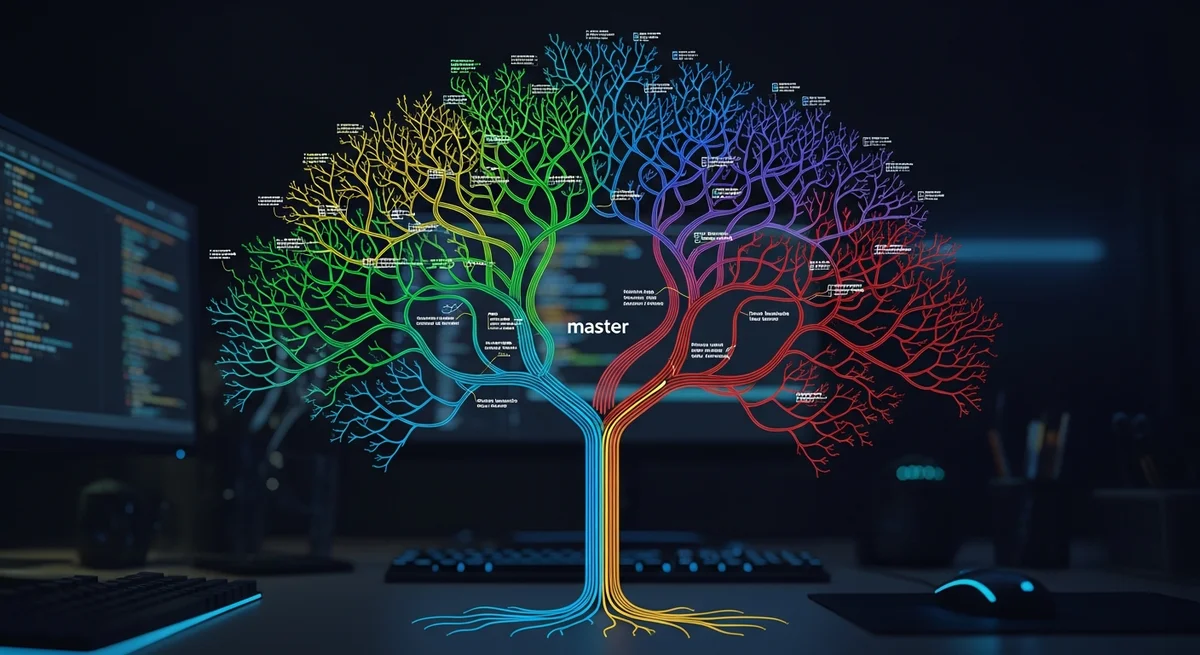
Branching is the most powerful feature of modern version control. It allows you to create isolated copies of your codebase where you can develop features, fix bugs, or experiment without affecting the main branch.
Common Branching Workflow
- Create a new branch from main for your feature
- Make commits on your feature branch
- When the feature is complete, switch back to main
- Merge the feature branch into main
- Delete the feature branch (it has served its purpose)
Handling Merge Conflicts
When two branches modify the same lines in a file, a merge conflict occurs. Version control marks the conflicting sections so you can manually choose which version to keep or combine both changes. After resolving conflicts, you stage the fixed files and complete the merge with a commit.
Undoing Changes
| What to Undo | Method | Safety |
|---|---|---|
| Uncommitted file changes | Discard changes to specific file | Permanent — changes lost |
| Staged but uncommitted | Unstage the file | Safe — changes preserved |
| Last commit (keep changes) | Soft reset | Safe — changes back to staging |
| Last commit (discard all) | Hard reset | Dangerous — changes lost |
| Published commit | Revert (new undo commit) | Safe — history preserved |
| Temporary save | Stash and restore later | Safe — stored separately |
Ignoring Files
Create a .gitignore file to exclude files from tracking:
node_modules/— Dependency directories*.log— Log files.env— Environment files with secrets__pycache__/— Python cachedist/— Build output.DS_Store— macOS system files
Collaboration Best Practices
- Pull before push — Always get the latest changes before uploading yours
- Use feature branches — Never commit directly to main in team projects
- Write meaningful commit messages — Imperative mood, 50-char subject
- Review before merging — Use pull/merge requests for team code review
- Keep commits focused — One logical change per commit
- Never commit secrets — API keys, passwords, tokens belong in environment variables
Frequently Asked Questions
What is the difference between pull and fetch?
Fetch downloads changes from the remote but does not modify your working files — it updates remote tracking branches only. Pull does a fetch followed by a merge, automatically integrating remote changes. Use fetch when you want to review changes before merging.
How do I resolve a merge conflict?
When automatic merging fails, conflicting sections are marked in the affected files. Open the file, choose which version to keep or combine both, remove the conflict markers, stage the file, and commit to complete the merge.
What makes a good commit message?
A concise subject line (50 chars or less) in imperative mood ("Add login feature" not "Added login"), optionally followed by a blank line and a body explaining WHY. Reference issue numbers when applicable.
Should I commit directly to main?
For personal projects, committing to main is fine. For team projects, use feature branches and pull requests for code review and testing before changes reach main.
How often should I commit?
Commit whenever you complete a logical unit of work — a feature, a bug fix, a refactor. Committing frequently (multiple times per day) creates a detailed history and makes it easier to isolate and revert problems.
Related Resources
- Version Control for Absolute Beginners — Complete eBook
- Linux Terminal Basics — Terminal skills for version control
- Browse all 205+ free IT cheat sheets



