Understanding the difference between soft links (symbolic links) and hard links is one of the most fundamental skills every Linux user and system administrator must master. While both appear to create references to files, they work in fundamentally different ways under the hood — and choosing the wrong type can lead to broken references, wasted disk space, or security vulnerabilities.
In this complete guide, we break down how inodes work, how each link type interacts with the filesystem, and when to use each one. Whether you are setting up deployment workflows, managing configuration files, or building backup systems, this knowledge will save you countless hours of troubleshooting.

How Linux Stores Files: The Inode System
Before diving into links, you need to understand inodes. Every file on a Linux filesystem (ext4, XFS, Btrfs, etc.) is represented by an inode — a data structure that stores all file metadata:
- File type and permissions
- Owner and group IDs
- File size and timestamps (created, modified, accessed)
- Pointers to data blocks on disk
- Link count (number of directory entries pointing to this inode)
Critically, the inode does not store the filename. Filenames are stored in directory entries — a directory is essentially a table mapping filenames to inode numbers. This separation is the key to understanding how both link types work.
You can view a file's inode number with ls -i or stat:
$ ls -i report.txt
1234567 report.txt

$ stat report.txt
  File: report.txt
  Size: 4096       Blocks: 8          IO Block: 4096   regular file
Inode: 1234567    Links: 1
Access: (0644/-rw-r--r--)  Uid: ( 1000/  admin)   Gid: ( 1000/  admin)
What Is a Hard Link?
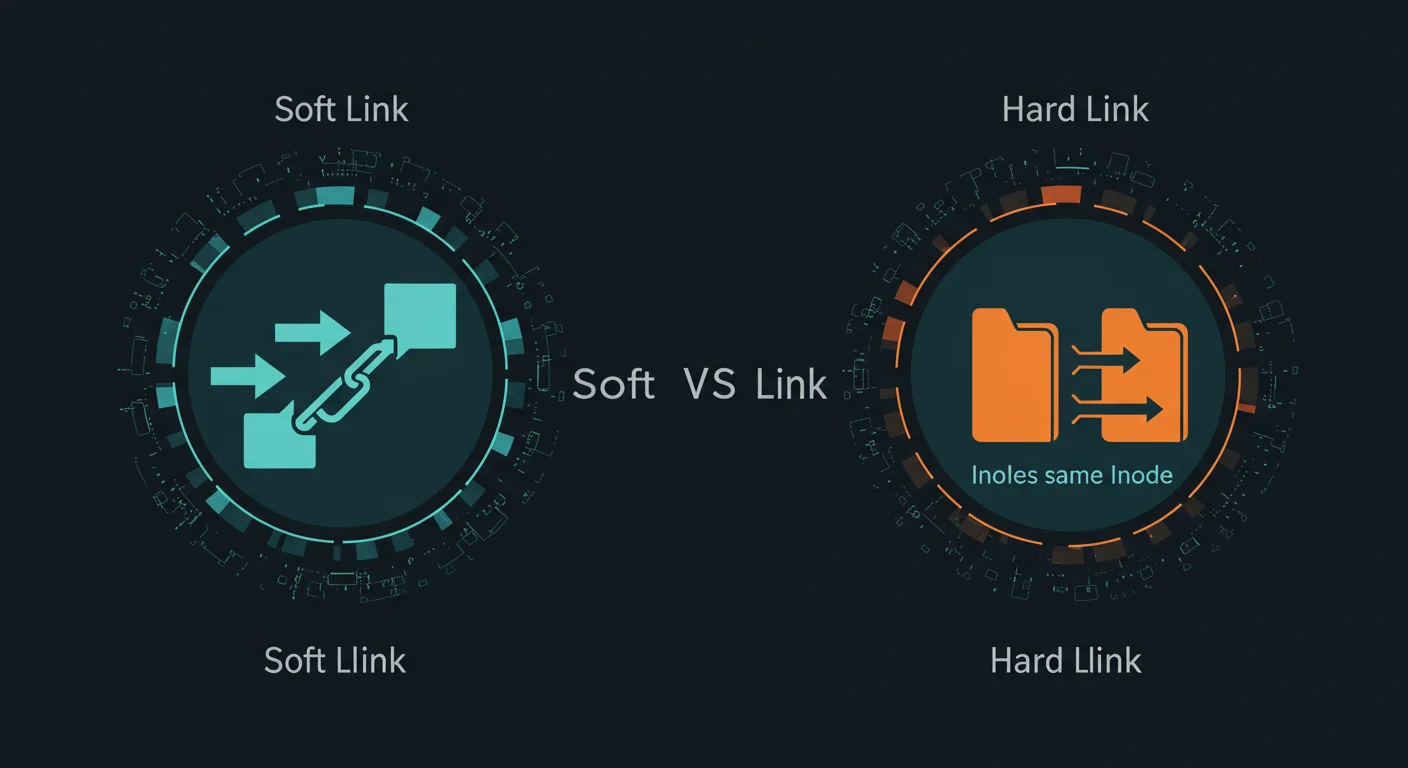
A hard link is simply another directory entry (another filename) that points to the same inode as the original file. When you create a hard link, you are not creating a new file — you are adding a second name for an existing file. Both names are completely equal; there is no concept of "original" vs "copy".
$ ln report.txt backup-report.txt
$ ls -li report.txt backup-report.txt
1234567 -rw-r--r-- 2 admin admin 4096 Mar 20 report.txt
1234567 -rw-r--r-- 2 admin admin 4096 Mar 20 backup-report.txt
Notice both files share inode 1234567 and the link count is now 2. Editing one file changes the other because they point to the same data blocks. Deleting one simply decrements the link count — the data is only freed when the link count drops to zero.
Hard Link Restrictions
- Same filesystem only — Hard links cannot cross filesystem/partition boundaries because inode numbers are only unique within a single filesystem.
- No directories — You cannot hard-link directories (to prevent circular references in the filesystem tree). Only root can do this with
ln -don some systems, but it is strongly discouraged. - No special files — Hard links to device files or sockets have restrictions.
What Is a Soft (Symbolic) Link?
A symbolic link (symlink) is a separate file with its own inode that contains a text string — the path to the target file. When the kernel encounters a symlink during path resolution, it reads the stored path and redirects to the target. Think of it as a shortcut or pointer.
$ ln -s /var/log/syslog ~/syslog-shortcut
$ ls -la ~/syslog-shortcut
lrwxrwxrwx 1 admin admin 15 Mar 20 syslog-shortcut -> /var/log/syslog
The l prefix in permissions and the -> arrow clearly identify symbolic links. The symlink's own size (15 bytes here) is the length of the path string it stores.
Symlink Advantages
- Cross-filesystem — Symlinks can point anywhere: different partitions, NFS mounts, even non-existent paths.
- Directories supported — You can symlink directories freely.
- Visibility —
ls -laclearly shows what a symlink points to. - Flexibility — Easy to update with
ln -sf.
Symlink Risks
- Dangling links — If the target is deleted or moved, the symlink becomes broken.
- Path resolution overhead — Slight performance cost compared to hard links.
- Security concerns — Symlink attacks in world-writable directories (like
/tmp) can redirect file operations. Mitigate withfs.protected_symlinks = 1.
Side-by-Side Comparison
| Feature | Hard Link | Symbolic Link |
|---|---|---|
| Command | ln file link | ln -s target link |
| Inode | Same as original | Different (own inode) |
| Cross filesystem | No | Yes |
| Link to directory | No | Yes |
| Target deleted | Data preserved | Link becomes dangling |
| File size | Same as original | Size of path string |
| Performance | Direct inode access | Path resolution overhead |
| NFS/network | Not across NFS | Works across NFS |
| ls -l display | Regular file | l prefix, -> target |
| Relative paths | N/A | Supported |
When to Use Hard Links
Hard links shine in specific scenarios where data persistence and space efficiency matter:
- Incremental backups — Tools like
rsync --link-destuse hard links to create space-efficient snapshots. Unchanged files share inodes across backup generations, consuming zero extra disk space. - Data safety — Because deleting one hard link doesn't affect the data (as long as other links exist), hard links provide inherent protection against accidental deletion.
- Performance-critical paths — Hard links offer direct inode access without the overhead of path resolution.
- Content-addressable storage — Systems like Git's object store use hard links internally for deduplication.
Recommended reading: Linux File System Permissions Deep Dive covers the permission model that governs how links interact with file access controls.
When to Use Symbolic Links
Symlinks are the more versatile choice for most everyday scenarios:
- Application version management — Point
/opt/appto/opt/app-v2.1/. Upgrade by re-pointing:ln -sfn /opt/app-v2.2 /opt/app. Rollback by re-pointing back. - Web server configuration — Nginx and Apache use
sites-available/sites-enabledpatterns with symlinks to enable/disable virtual hosts. - Dotfile management — Keep your shell configuration in a Git repository and symlink files to your home directory:
ln -s ~/dotfiles/.bashrc ~/.bashrc. - Deployment workflows — The classic "current symlink" pattern (
/var/www/current -> /var/www/releases/20260320) enables zero-downtime deployments. - Cross-filesystem references — When you need to reference files on a different partition, NFS mount, or USB drive.
For mastering the command-line tools used with links, see Linux Command Line Mastery and Bash Fundamentals.
Practical Commands Reference
Creating Links
# Hard link
ln original.txt hardlink.txt

# Symbolic link
ln -s /path/to/target symlink.txt

# Update existing symlink
ln -sf /new/target existing-symlink

# Symlink a directory
ln -sfn /opt/app-v2.1 /opt/app
Finding Links
# Find all symbolic links in a directory
find /path -type l

# Find all broken (dangling) symlinks
find / -xtype l 2>/dev/null

# Find all hard links to a specific file
find /path -samefile original.txt

# Find files with multiple hard links
find /path -links +1 -type f
Inspecting Links
# Show inode number
ls -li file.txt

# Show symlink target
readlink symlink.txt
readlink -f symlink.txt  # Fully resolved absolute path

# Show link count and metadata
stat file.txt

# Trace full path resolution chain
namei -l /path/to/symlink
Common Pitfalls and Troubleshooting
1. Relative Path Confusion
When creating symlinks with relative paths, the path is relative to the symlink's location, not your current working directory. This is the single most common mistake:
# WRONG: Creates broken symlink if you are not in /etc/nginx/sites-enabled/
cd /tmp
ln -s ../sites-available/mysite.conf /etc/nginx/sites-enabled/

# RIGHT: Use absolute path or cd to the link parent directory
ln -s /etc/nginx/sites-available/mysite.conf /etc/nginx/sites-enabled/
2. cp Follows Symlinks
cp by default copies the target file, not the symlink. Use cp -P (or cp -d) to preserve symlinks, or cp -a for archives which preserves links automatically.
3. Trailing Slash Danger
Running rm directory-symlink/ (with a trailing slash) on some systems will follow the symlink and delete the directory's contents. Always omit the trailing slash: rm directory-symlink.
4. Cross-Device Hard Link Error
$ ln /mnt/usb/file.txt ~/hardlink.txt
ln: failed to create hard link: Invalid cross-device link
This means the source and destination are on different filesystems. Switch to a symlink: ln -s /mnt/usb/file.txt ~/shortcut.txt.
Security Considerations
Links can be exploited in privilege escalation attacks. Key hardening measures:
# Enable kernel-level link protections
sudo sysctl -w fs.protected_symlinks=1
sudo sysctl -w fs.protected_hardlinks=1

# Make persistent in /etc/sysctl.conf
echo "fs.protected_symlinks = 1" | sudo tee -a /etc/sysctl.conf
echo "fs.protected_hardlinks = 1" | sudo tee -a /etc/sysctl.conf
These settings prevent unprivileged users from following symlinks or creating hard links to files they don't own in sticky-bit directories (like /tmp). This mitigates TOCTOU (time-of-check-to-time-of-use) race conditions and symlink-based privilege escalation.
For deeper security hardening, see Linux Administration Fundamentals and Linux System Administration Handbook.
Download the Free Cheat Sheet
We have condensed everything in this guide into an 8-page printable PDF cheat sheet. It includes the complete comparison table, all essential commands, real-world use case examples, troubleshooting reference, and security hardening steps — all formatted for quick desk reference.
Download Soft Links vs Hard Links Cheat Sheet (PDF)
Conclusion
Soft links and hard links are two sides of the same coin — both create references to files, but through fundamentally different mechanisms. Hard links share an inode (multiple names for the same data), while symlinks are separate files containing a path to the target.
The rule of thumb: use symbolic links by default for their flexibility and clarity, and reserve hard links for specific use cases like space-efficient backups and data persistence. Understanding the inode model behind both types gives you the confidence to choose correctly every time.
For a comprehensive introduction to Linux, start with Linux for Absolute Beginners — it covers the filesystem hierarchy, permissions, and file management concepts that build on what you learned here.