Ubuntu is the world's most popular Linux distribution, powering everything from developer laptops to enterprise cloud infrastructure. Created by Canonical in 2004, Ubuntu has become the default choice for millions of users who want a reliable, user-friendly, and well-supported Linux operating system. Whether you're switching from Windows, setting up a server, or deploying containers in the cloud, Ubuntu provides the foundation you need.
This comprehensive guide covers everything you need to master Ubuntu in 2026: from installation and desktop usage to server administration, package management, security hardening, and cloud deployment. Every section includes practical commands and real-world examples.
What is Ubuntu?
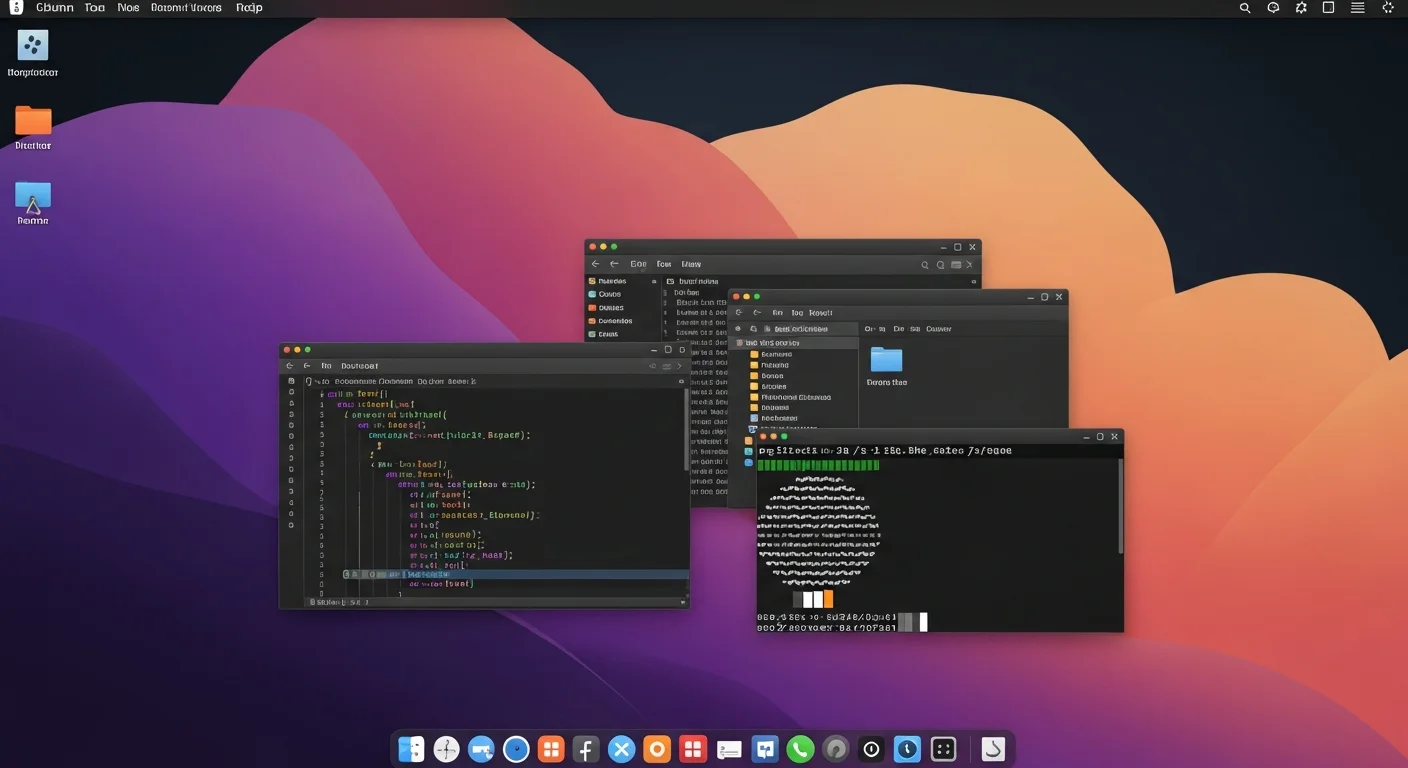
Ubuntu is a free, open-source Linux distribution based on Debian. It was created by Mark Shuttleworth and his company Canonical with a clear mission: make Linux accessible to everyone. The name "Ubuntu" comes from a Southern African philosophy meaning "humanity to others."
Ubuntu follows a predictable release cycle: a new version every 6 months (April and October), with Long Term Support (LTS) releases every 2 years that receive security updates for 5 years (or 12 years with Ubuntu Pro). The current LTS is Ubuntu 24.04 LTS "Noble Numbat", and Ubuntu 26.04 LTS "Quirky Quokka" is in development.
Key Facts About Ubuntu
| Feature | Detail |
|---|---|
| First Release | October 2004 |
| Based On | Debian GNU/Linux |
| Package Format | .deb (APT) + Snap |
| Desktop Environment | GNOME (default) |
| Init System | systemd |
| Default Shell | Bash |
| License | Free (mix of open-source licenses) |
| LTS Support | 5 years (12 years with Ubuntu Pro) |
| Market Share | #1 Linux distribution on servers and desktops |
Why Choose Ubuntu?
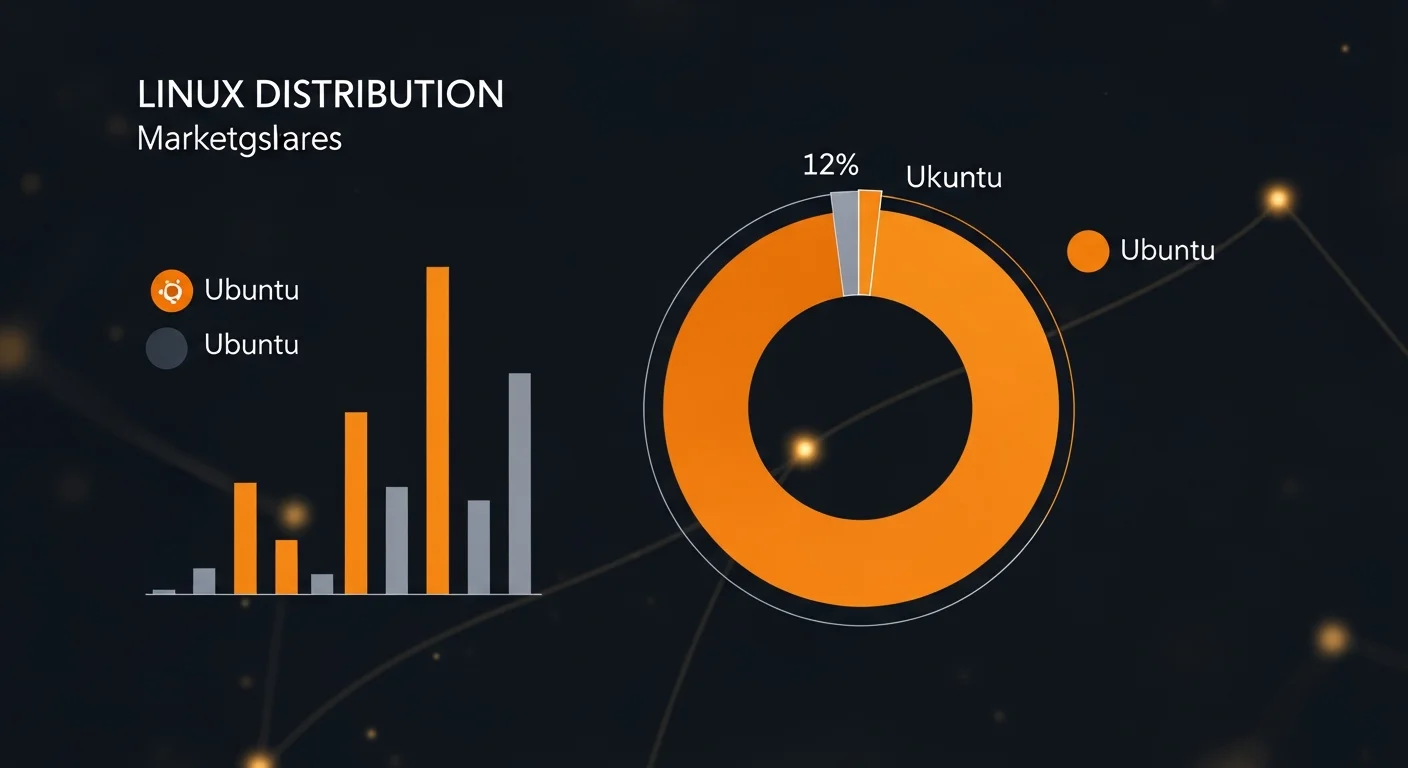
Ubuntu dominates the Linux ecosystem for compelling reasons:
1. Massive Community & Documentation
Ubuntu has the largest community of any Linux distribution. Ask Ubuntu on Stack Exchange has millions of questions and answers. Nearly every tutorial, guide, and course uses Ubuntu as the reference platform.
2. Enterprise Support
Canonical provides commercial support, making Ubuntu a safe choice for enterprises. Ubuntu Pro offers extended security maintenance, compliance tooling (FIPS, CIS), and kernel live patching.
3. Cloud Dominance
Ubuntu is the #1 operating system on public clouds. AWS, Azure, and Google Cloud all offer optimized Ubuntu images. Most cloud tutorials and documentation assume Ubuntu.
4. Hardware Compatibility
Ubuntu has the best hardware support of any Linux distribution. Canonical works directly with Dell, Lenovo, and HP to certify Ubuntu on their hardware. WiFi, Bluetooth, and GPUs generally work out of the box.
5. Predictable Releases
The LTS release cycle gives stability-focused users a reliable upgrade path every 2 years, while cutting-edge users can follow the 6-month releases.
Ubuntu Editions & Flavors
Official Editions
| Edition | Desktop | Best For |
|---|---|---|
| Ubuntu Desktop | GNOME | General use, development, office |
| Ubuntu Server | None (CLI) | Web servers, databases, cloud |
| Ubuntu Core | None | IoT devices, embedded systems |
| Ubuntu Cloud | None | Cloud instances (AWS, Azure, GCP) |
Official Flavors
| Flavor | Desktop | Best For |
|---|---|---|
| Kubuntu | KDE Plasma | Windows-like experience, customization |
| Xubuntu | Xfce | Older hardware, lightweight |
| Lubuntu | LXQt | Minimal resources, very old hardware |
| Ubuntu MATE | MATE | Traditional desktop, Raspberry Pi |
| Ubuntu Budgie | Budgie | Modern, elegant desktop |
| Ubuntu Studio | KDE Plasma | Audio/video production, creative work |
Installation & Setup
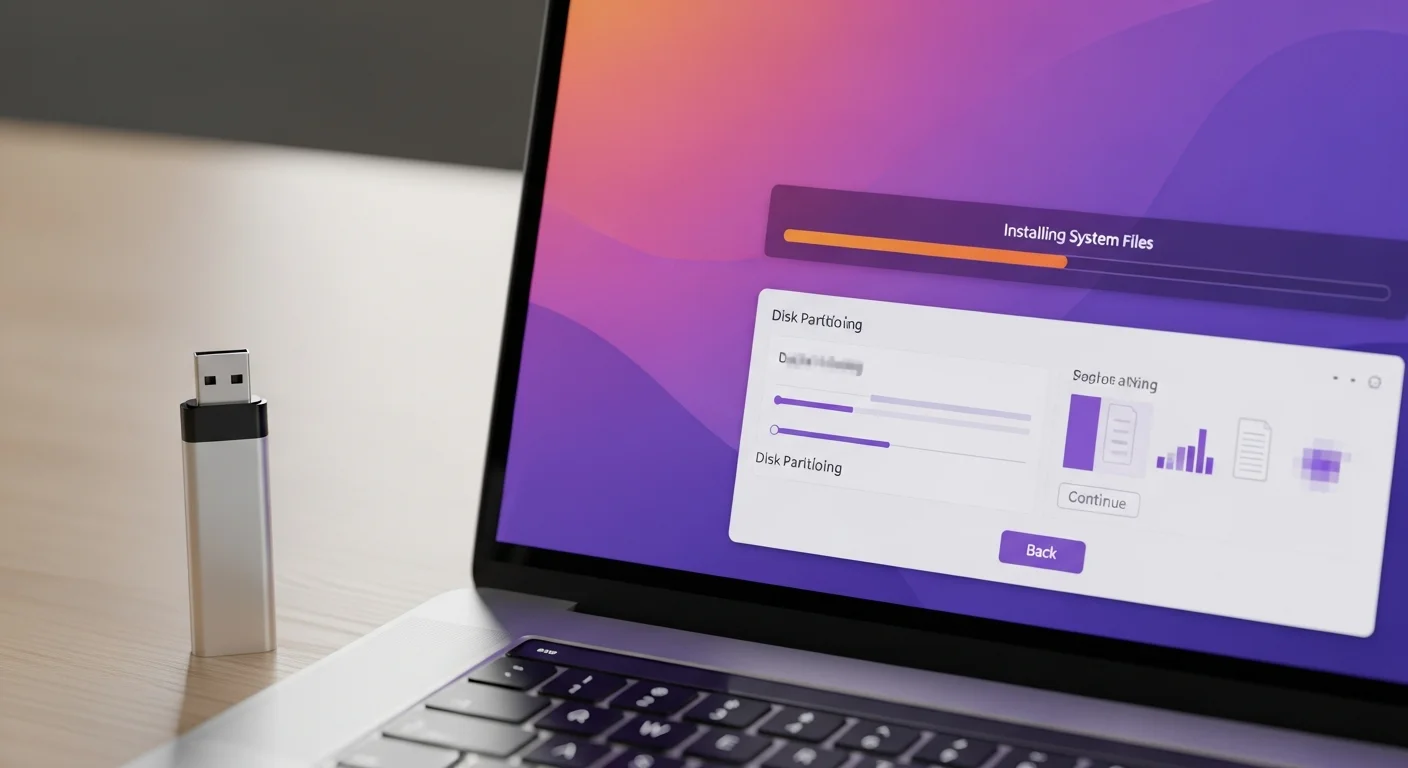
System Requirements (Ubuntu 24.04 LTS)
- Desktop: 4 GB RAM, 25 GB disk, 2 GHz dual-core CPU
- Server: 1 GB RAM, 2.5 GB disk, 1 GHz CPU
Installation Steps
Step 1: Download the ISO
# Download from ubuntu.com or via command line
wget https://releases.ubuntu.com/24.04/ubuntu-24.04-desktop-amd64.iso

# Verify the checksum
sha256sum ubuntu-24.04-desktop-amd64.iso
Step 2: Create bootable USB
# On Linux (replace /dev/sdX with your USB device)
sudo dd if=ubuntu-24.04-desktop-amd64.iso of=/dev/sdX bs=4M status=progress

# On Windows: use Rufus or balenaEtcher
# On macOS: use balenaEtcher
Step 3: Install
- Boot from USB (F12/F2/Del during startup)
- Choose "Install Ubuntu"
- Select language, keyboard, and timezone
- Choose disk partitioning (guided or manual)
- Create user account and set password
- Wait for installation to complete, then reboot
Post-Installation Setup
# Update the system immediately
sudo apt update && sudo apt upgrade -y

# Install essential tools
sudo apt install -y build-essential curl wget git vim htop net-tools

# Enable firewall
sudo ufw enable
sudo ufw allow ssh

# Set timezone
sudo timedatectl set-timezone Europe/Budapest

# Enable automatic security updates
sudo apt install -y unattended-upgrades
sudo dpkg-reconfigure -plow unattended-upgradesDesktop Environment
Ubuntu Desktop uses GNOME, a modern, clean desktop environment. Key features:
Essential Keyboard Shortcuts
| Shortcut | Action |
|---|---|
Super | Open Activities overview / search |
Super + A | Show all applications |
Super + L | Lock screen |
Ctrl + Alt + T | Open terminal |
Super + Left/Right | Snap window to half screen |
Super + Up | Maximize window |
Alt + Tab | Switch between applications |
Ctrl + Super + D | Show desktop |
GNOME Extensions
# Install GNOME Extension Manager
sudo apt install gnome-shell-extension-manager

# Popular extensions:
# - Dash to Panel (Windows-like taskbar)
# - AppIndicator (system tray icons)
# - Clipboard Indicator (clipboard history)
# - Caffeine (prevent screen lock)
Package Management (APT & Snap)
Ubuntu uses two package management systems: APT (Advanced Package Tool) for traditional .deb packages and Snap for universal, sandboxed applications.
APT — The Core Package Manager
# Update package lists
sudo apt update

# Upgrade all packages
sudo apt upgrade -y

# Full upgrade (handles dependency changes)
sudo apt full-upgrade -y

# Search for packages
apt search nginx

# Show package information
apt show nginx

# Install a package
sudo apt install nginx

# Install specific version
sudo apt install nginx=1.24.0-1ubuntu1

# Remove a package (keep config)
sudo apt remove nginx

# Remove package + config
sudo apt purge nginx

# Remove unused dependencies
sudo apt autoremove -y

# List installed packages
dpkg -l | grep nginx

# Show which package owns a file
dpkg -S /usr/bin/curl
Adding Repositories (PPAs)
# Add a PPA (Personal Package Archive)
sudo add-apt-repository ppa:ondrej/php
sudo apt update

# Remove a PPA
sudo add-apt-repository --remove ppa:ondrej/php

# List configured repositories
grep -r "^deb " /etc/apt/sources.list /etc/apt/sources.list.d/
Snap — Universal Packages
# Search for snap packages
snap find "visual studio"

# Install a snap
sudo snap install code --classic

# List installed snaps
snap list

# Update all snaps
sudo snap refresh

# Remove a snap
sudo snap remove code

# Show snap info
snap info code
APT vs Snap Comparison
| Feature | APT (.deb) | Snap |
|---|---|---|
| Speed | Fast startup | Slower cold start |
| Updates | Manual (apt upgrade) | Automatic background |
| Isolation | Shared libraries | Sandboxed (AppArmor) |
| Size | Smaller | Larger (bundled deps) |
| Best For | System packages, servers | Desktop apps, GUI tools |
File System & Navigation
Ubuntu Directory Structure
/               # Root of the entire file system
├── /home       # User home directories (/home/username)
├── /etc        # System configuration files
├── /var        # Variable data (logs, databases, web files)
├── /usr        # User programs and libraries
├── /tmp        # Temporary files (cleared on reboot)
├── /opt        # Optional/third-party software
├── /srv        # Server data (web roots, FTP)
├── /boot       # Boot loader files, kernel
├── /dev        # Device files
├── /proc       # Process and kernel information
└── /snap       # Snap package mount points
Essential File Commands
# Navigate
cd /var/log        # Change directory
pwd                # Print current directory
ls -la             # List with details and hidden files

# Disk usage
df -h              # Disk space usage
du -sh /var/log    # Directory size
ncdu /             # Interactive disk usage (install: apt install ncdu)

# Find files
find / -name "*.conf" -type f 2>/dev/null
locate nginx.conf  # Fast search (install: apt install mlocate)
User Management & Permissions
# Create a new user
sudo adduser john

# Add user to sudo group
sudo usermod -aG sudo john

# Create a system user (for services)
sudo useradd -r -s /usr/sbin/nologin appuser

# Delete a user
sudo deluser --remove-home john

# Switch to another user
su - john

# Change password
sudo passwd john

# List all users
getent passwd

# Check user groups
groups john
id john
File Permissions
# Change file owner
sudo chown user:group file.txt

# Change permissions (rwxr-xr-x)
chmod 755 script.sh

# Recursive ownership change
sudo chown -R www-data:www-data /var/www/html

# Set default permissions for new files
umask 022
Networking Configuration

Ubuntu uses Netplan for network configuration, which generates backend configs for NetworkManager (desktop) or systemd-networkd (server).
Netplan Configuration
# View current network config
cat /etc/netplan/*.yaml

# Static IP configuration
sudo nano /etc/netplan/01-netcfg.yaml
# Example: Static IP
network:
version: 2
renderer: networkd
ethernets:
ens33:
addresses:
- 192.168.1.100/24
routes:
- to: default
via: 192.168.1.1
nameservers:
addresses:
- 8.8.8.8
- 1.1.1.1# Apply network changes
sudo netplan apply
# Test before applying
sudo netplan try
# Network diagnostics
ip addr show # Show IP addresses
ip route show # Show routing table
ss -tulpn # Show listening ports
ping -c 4 google.com # Test connectivity
dig example.com # DNS lookup
traceroute example.com # Trace network pathServices & Systemd
# Service management
sudo systemctl start nginx      # Start service
sudo systemctl stop nginx       # Stop service
sudo systemctl restart nginx    # Restart service
sudo systemctl reload nginx     # Reload config without restart
sudo systemctl enable nginx     # Start on boot
sudo systemctl disable nginx    # Don't start on boot
sudo systemctl status nginx     # Check status

# View service logs
sudo journalctl -u nginx -f          # Follow logs
sudo journalctl -u nginx --since today # Today's logs
sudo journalctl -u nginx -n 50       # Last 50 lines

# List all services
systemctl list-units --type=service --state=running

# Check boot time
systemd-analyze blame
Ubuntu Server Administration

Essential Server Setup
# Set hostname
sudo hostnamectl set-hostname myserver

# Configure timezone
sudo timedatectl set-timezone UTC

# Enable NTP time sync
sudo timedatectl set-ntp true

# Configure SSH
sudo nano /etc/ssh/sshd_config
# PermitRootLogin no
# PasswordAuthentication no
# Port 2222
sudo systemctl restart sshd

# Create swap file (if needed)
sudo fallocate -l 4G /swapfile
sudo chmod 600 /swapfile
sudo mkswap /swapfile
sudo swapon /swapfile
echo '/swapfile none swap sw 0 0' | sudo tee -a /etc/fstab
LAMP Stack Setup
# Install Apache, MySQL, PHP
sudo apt install -y apache2 mysql-server php libapache2-mod-php php-mysql

# Or LEMP (Nginx instead of Apache)
sudo apt install -y nginx mysql-server php-fpm php-mysql

# Secure MySQL
sudo mysql_secure_installation

# Test PHP
echo "" | sudo tee /var/www/html/info.php
Automatic Updates
# Configure unattended upgrades
sudo nano /etc/apt/apt.conf.d/50unattended-upgrades

# Enable automatic reboot if needed
Unattended-Upgrade::Automatic-Reboot "true";
Unattended-Upgrade::Automatic-Reboot-Time "04:00";

# Check status
sudo unattended-upgrades --dry-run
Security Hardening
UFW Firewall
# Enable firewall
sudo ufw enable

# Default policies
sudo ufw default deny incoming
sudo ufw default allow outgoing

# Allow specific services
sudo ufw allow ssh          # Port 22
sudo ufw allow http         # Port 80
sudo ufw allow https        # Port 443
sudo ufw allow 8080/tcp     # Custom port

# Allow from specific IP
sudo ufw allow from 192.168.1.0/24 to any port 22

# Delete a rule
sudo ufw delete allow 8080/tcp

# Check status
sudo ufw status verbose
Fail2Ban — Brute Force Protection
# Install
sudo apt install -y fail2ban

# Configure
sudo cp /etc/fail2ban/jail.conf /etc/fail2ban/jail.local
sudo nano /etc/fail2ban/jail.local

# Important settings:
[sshd]
enabled = true
port = ssh
maxretry = 3
bantime = 3600
findtime = 600

# Start and enable
sudo systemctl enable --now fail2ban

# Check banned IPs
sudo fail2ban-client status sshd
AppArmor — Mandatory Access Control
# Check AppArmor status
sudo aa-status

# List profiles
sudo apparmor_status

# Put profile in enforce mode
sudo aa-enforce /etc/apparmor.d/usr.sbin.nginx

# Put profile in complain mode (log only)
sudo aa-complain /etc/apparmor.d/usr.sbin.nginx
Cloud & Ubuntu Pro
Ubuntu Pro
Ubuntu Pro is Canonical's enterprise subscription (free for personal use up to 5 machines):
- 12-year security maintenance (vs 5 years standard)
- Kernel livepatch — patch kernel without rebooting
- FIPS 140-2 compliance — for government/regulated industries
- CIS Hardening — automated security benchmarks
- Extended Security Maintenance — covers 30,000+ packages
# Attach Ubuntu Pro token
sudo pro attach YOUR_TOKEN

# Check Pro status
pro status

# Enable livepatch
sudo pro enable livepatch

# Enable FIPS
sudo pro enable fips
Cloud Images
# Launch Ubuntu on AWS
aws ec2 run-instances \
  --image-id ami-0123456789abcdef0 \
  --instance-type t3.micro \
  --key-name my-key

# Azure
az vm create \
  --resource-group myGroup \
  --name myVM \
  --image Ubuntu2204 \
  --admin-username azureuser

# Google Cloud
gcloud compute instances create myvm \
  --image-family ubuntu-2404-lts-amd64 \
  --image-project ubuntu-os-cloud
Ubuntu & Containers
# Install Docker on Ubuntu
sudo apt install -y docker.io
sudo systemctl enable --now docker
sudo usermod -aG docker $USER

# Or install Docker CE (latest)
curl -fsSL https://get.docker.com | sudo sh

# Use Ubuntu as Docker base image
# Dockerfile
FROM ubuntu:24.04
RUN apt update && apt install -y python3 python3-pip
COPY app.py /app/
CMD ["python3", "/app/app.py"]

# LXD containers (system containers)
sudo snap install lxd
sudo lxd init
lxc launch ubuntu:24.04 mycontainer
lxc exec mycontainer bash
Troubleshooting
Common Issues & Solutions
# Boot problems
# Hold Shift during boot to access GRUB menu
# Select "Advanced options" → "Recovery mode"

# Fix broken packages
sudo apt --fix-broken install
sudo dpkg --configure -a

# Clear APT cache
sudo apt clean
sudo apt autoclean

# Check disk space
df -h
sudo du -sh /var/cache/apt/archives/

# Check system logs
sudo journalctl -xe              # Recent errors
sudo dmesg | tail -50            # Kernel messages
cat /var/log/syslog | tail -100  # System log

# Check memory usage
free -h
vmstat 1 5

# Check CPU usage
top
htop    # Install: apt install htop

# Network debugging
sudo netstat -tulpn    # Listening ports
sudo tcpdump -i any port 80  # Packet capture
curl -v https://example.com  # HTTP debugging
Ubuntu vs Alternatives
| Feature | Ubuntu | Debian | Fedora | Rocky/Alma |
|---|---|---|---|---|
| Release Cycle | 6 months + LTS | ~2 years | 6 months | ~RHEL cycle |
| LTS Support | 5y (12y Pro) | 5 years | 13 months | 10 years |
| Package Manager | APT + Snap | APT | DNF | DNF |
| Package Freshness | Moderate | Conservative | Cutting-edge | Conservative |
| Cloud Support | Excellent | Good | Good | Very Good |
| Enterprise Support | Canonical | Community | Red Hat | Community |
| Best For | All-purpose | Stability | Latest tech | Enterprise |
| Difficulty | Beginner | Intermediate | Intermediate | Advanced |
When to Choose Ubuntu
- First Linux experience — Best documentation and community
- Cloud servers — #1 OS on AWS, Azure, GCP
- Development workstations — Wide tool and IDE support
- Container hosts — Excellent Docker and Kubernetes support
When to Choose Something Else
- Maximum stability → Debian (fewer changes, pure open source)
- Latest packages → Fedora or Arch (bleeding edge)
- RHEL compatibility → Rocky Linux or AlmaLinux (enterprise)
- Minimal overhead → Alpine Linux (containers)
Best Practices
Security
- Keep updated — Enable unattended-upgrades for security patches
- Use SSH keys — Disable password authentication
- Enable UFW — Allow only necessary ports
- Install Fail2Ban — Protect against brute force attacks
- Use non-root user — Use sudo instead of root login
Server Administration
- Use LTS releases — 5 years of security updates guaranteed
- Monitor resources — Set up monitoring for CPU, RAM, disk
- Backup regularly — Use rsync, borgbackup, or cloud snapshots
- Document changes — Keep a changelog for server modifications
- Test updates — Test in staging before applying to production
Development
- Use version managers — nvm for Node.js, pyenv for Python
- Prefer APT for system packages — Snap for desktop apps
- Set up dotfiles — Version control your .bashrc, .vimrc, etc.
- Use Docker — Isolate project dependencies in containers
Quick Reference
| Task | Command |
|---|---|
| Update system | sudo apt update && sudo apt upgrade -y |
| Install package | sudo apt install package-name |
| Remove package | sudo apt remove package-name |
| Search packages | apt search keyword |
| Check disk space | df -h |
| Check memory | free -h |
| Check services | systemctl list-units --type=service |
| View logs | journalctl -u service-name -f |
| Firewall status | sudo ufw status |
| System info | lsb_release -a |
| Restart service | sudo systemctl restart service-name |
| Check Ubuntu version | cat /etc/os-release |
📚 Continue Your Ubuntu Journey
Ready to go deeper? Check out our recommended books on Linux administration, server management, and DevOps to take your Ubuntu skills to the next level.
Browse Linux Books → | Explore Learning Paths → | Download Free Cheat Sheets →