Cron is the time-based job scheduler that has powered Linux automation since 1975. From rotating log files and creating backups to sending reports and cleaning temporary files, cron handles the repetitive tasks that keep servers running smoothly. Despite the rise of systemd timers, cron remains the most widely used and understood scheduling tool in the Unix world — and understanding it is essential for every system administrator.
This comprehensive guide covers everything from basic crontab syntax to advanced scheduling patterns, environment configuration, logging, security, and a detailed comparison with systemd timers. Every example is production-ready and tested.
What is Cron?
Cron is a daemon (background service) that reads scheduling instructions from configuration files called crontabs (cron tables) and executes commands at specified times. The cron daemon checks crontab files every minute and runs any commands whose scheduled time matches the current time.
Each user can have their own crontab, and there's a system-wide crontab at /etc/crontab. Cron is available on every Unix-like operating system and is one of the oldest and most reliable automation tools in computing.
Why Learn Cron?
- Universal — Available on every Linux distribution, macOS, and BSD system. It just works, everywhere.
- Simple — Five-field syntax is easy to learn and remember. No complex configuration files needed.
- Reliable — Cron has been running production systems since the 1970s. It's battle-tested at the highest scale.
- Essential Skill — Every sysadmin job description expects cron knowledge. It's a non-negotiable fundamental.
- Automation Foundation — Backups, monitoring, cleanup, reports, deployments — cron automates the repetitive work.
Crontab Syntax Explained
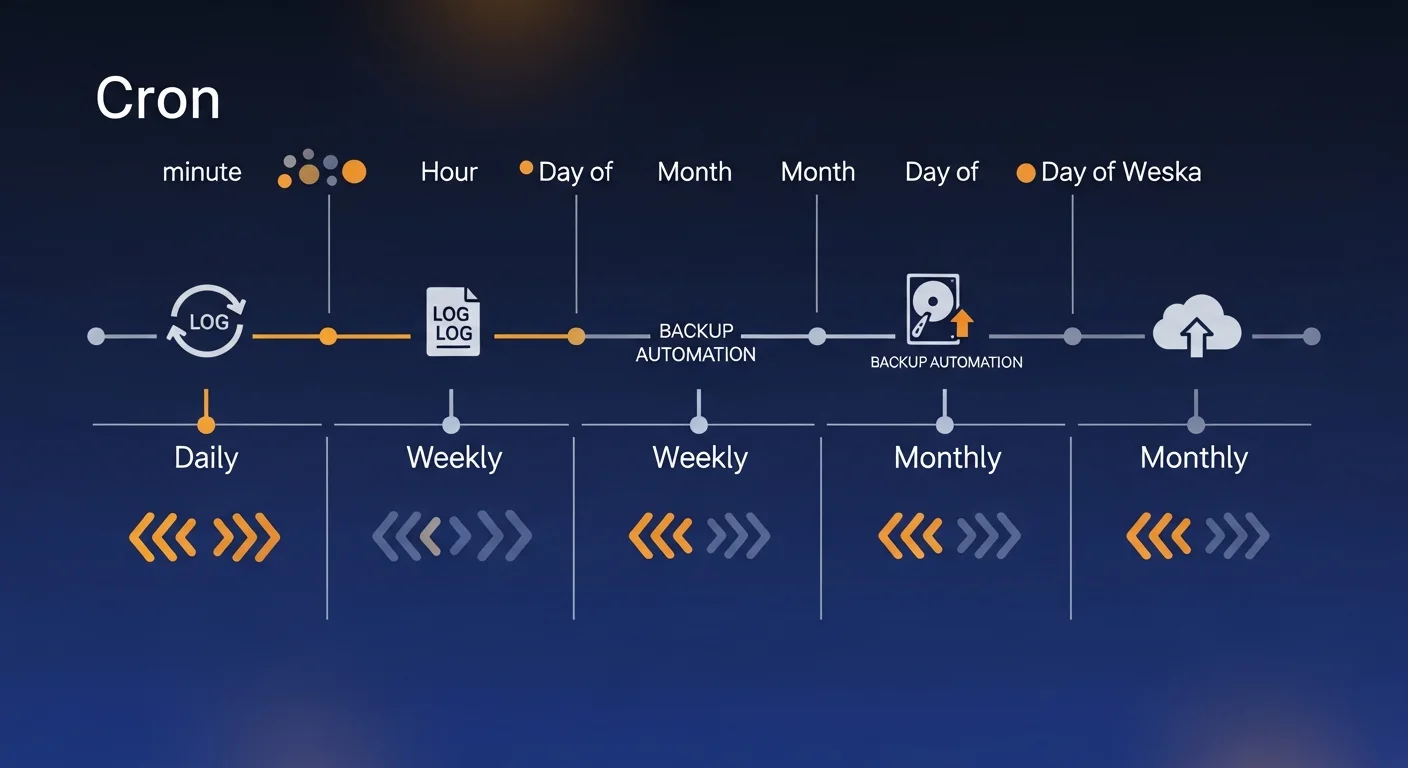
A crontab entry consists of five time fields followed by the command to execute:
┌───────────── minute (0 - 59)
│ ┌───────────── hour (0 - 23)
│ │ ┌───────────── day of month (1 - 31)
│ │ │ ┌───────────── month (1 - 12)
│ │ │ │ ┌───────────── day of week (0 - 7, 0 and 7 = Sunday)
│ │ │ │ │
* * * * * command_to_execute
Special Characters
| Character | Meaning | Example |
|---|---|---|
* | Every value | * * * * * = every minute |
, | List of values | 1,15,30 = at 1, 15, and 30 |
- | Range | 1-5 = Monday to Friday |
/ | Step/interval | */5 = every 5 units |
Managing Crontab
# Edit your crontab
crontab -e

# List your cron jobs
crontab -l

# Remove all your cron jobs (careful!)
crontab -r

# Edit another user's crontab (as root)
sudo crontab -u username -e

# List another user's crontab
sudo crontab -u username -lCommon Scheduling Patterns
# Every minute
* * * * * /opt/scripts/check-health.sh

# Every 5 minutes
*/5 * * * * /opt/scripts/monitor.sh

# Every hour at minute 0
0 * * * * /opt/scripts/hourly-task.sh

# Every day at 2:30 AM
30 2 * * * /opt/scripts/daily-backup.sh

# Every Monday at 9:00 AM
0 9 * * 1 /opt/scripts/weekly-report.sh

# First day of every month at midnight
0 0 1 * * /opt/scripts/monthly-cleanup.sh

# Every weekday (Mon-Fri) at 6:00 PM
0 18 * * 1-5 /opt/scripts/end-of-day.sh

# Every 15 minutes during business hours
*/15 9-17 * * 1-5 /opt/scripts/business-check.sh

# Twice a day at 8 AM and 8 PM
0 8,20 * * * /opt/scripts/twice-daily.sh

# Every Sunday at 3 AM
0 3 * * 0 /opt/scripts/sunday-maintenance.sh
Special Strings
@reboot     → Run once at startup
@yearly     → 0 0 1 1 * (once a year, Jan 1)
@monthly    → 0 0 1 * * (first day of month)
@weekly     → 0 0 * * 0 (every Sunday)
@daily      → 0 0 * * * (every day at midnight)
@hourly     → 0 * * * * (every hour)
Environment & Variables
Cron runs with a minimal environment. Always set variables explicitly:
# Set environment variables at the top of crontab
SHELL=/bin/bash
PATH=/usr/local/sbin:/usr/local/bin:/usr/sbin:/usr/bin:/sbin:/bin
MAILTO=admin@example.com
HOME=/home/user

# Use full paths in commands
0 2 * * * /usr/bin/pg_dump -U postgres mydb > /opt/backups/db-$(date +\%Y\%m\%d).sql
Important: In crontab, the % character is special (it becomes a newline). Escape it with \% when using in commands like date +\%Y\%m\%d.
Practical Examples
Database Backup
# Daily PostgreSQL backup at 2 AM with 7-day retention
0 2 * * * /usr/bin/pg_dump -U postgres -Fc mydb > /opt/backups/mydb-$(date +\%Y\%m\%d).dump && find /opt/backups -name "mydb-*.dump" -mtime +7 -delete
Log Rotation
# Compress and rotate app logs daily at midnight
0 0 * * * /usr/bin/gzip /var/log/myapp/app.log && /usr/bin/touch /var/log/myapp/app.log && /bin/systemctl reload myapp
SSL Certificate Renewal
# Attempt Let's Encrypt renewal twice daily
0 0,12 * * * /usr/bin/certbot renew --quiet --deploy-hook "systemctl reload nginx"
System Health Check
# Check disk usage every hour, alert if above 90%
0 * * * * /bin/df -h / | /usr/bin/awk 'NR==2{if($5+0 > 90) print "DISK ALERT: "$5" used on "$6}' | /usr/bin/mail -s "Disk Alert" admin@example.com
Cleanup Temporary Files
# Clean files older than 30 days from /tmp every Sunday at 4 AM
0 4 * * 0 /usr/bin/find /tmp -type f -mtime +30 -delete 2>/dev/null
Logging & Output Handling
# Redirect output to a log file
0 2 * * * /opt/scripts/backup.sh >> /var/log/backup.log 2>&1

# Discard all output (silent)
*/5 * * * * /opt/scripts/check.sh > /dev/null 2>&1

# Log only errors
0 3 * * * /opt/scripts/cleanup.sh > /dev/null 2>> /var/log/cleanup-errors.log

# Add timestamps to logs
0 * * * * echo "$(date '+\%Y-\%m-\%d \%H:\%M:\%S') - Starting hourly task" >> /var/log/hourly.log && /opt/scripts/hourly.sh >> /var/log/hourly.log 2>&1
Special Directories
For system-wide tasks, place executable scripts in these directories:
/etc/cron.d/         → Custom crontab files (with user field)
/etc/cron.hourly/    → Scripts run every hour
/etc/cron.daily/     → Scripts run every day
/etc/cron.weekly/    → Scripts run every week
/etc/cron.monthly/   → Scripts run every month
Scripts in these directories must be executable and should NOT have a file extension (no .sh).
Security Considerations
# Allow/deny cron access per user
/etc/cron.allow     → Only listed users can use cron
/etc/cron.deny      → Listed users are blocked from cron

# If cron.allow exists, only users listed in it can use cron
# If only cron.deny exists, everyone except listed users can use cron
# If neither exists, only root can use cron (on most systems)

# View all users' crontabs (as root)
for user in $(cut -f1 -d: /etc/passwd); do
    crontab_content=$(crontab -u $user -l 2>/dev/null)
    if [ -n "$crontab_content" ]; then
        echo "=== $user ==="
        echo "$crontab_content"
    fi
done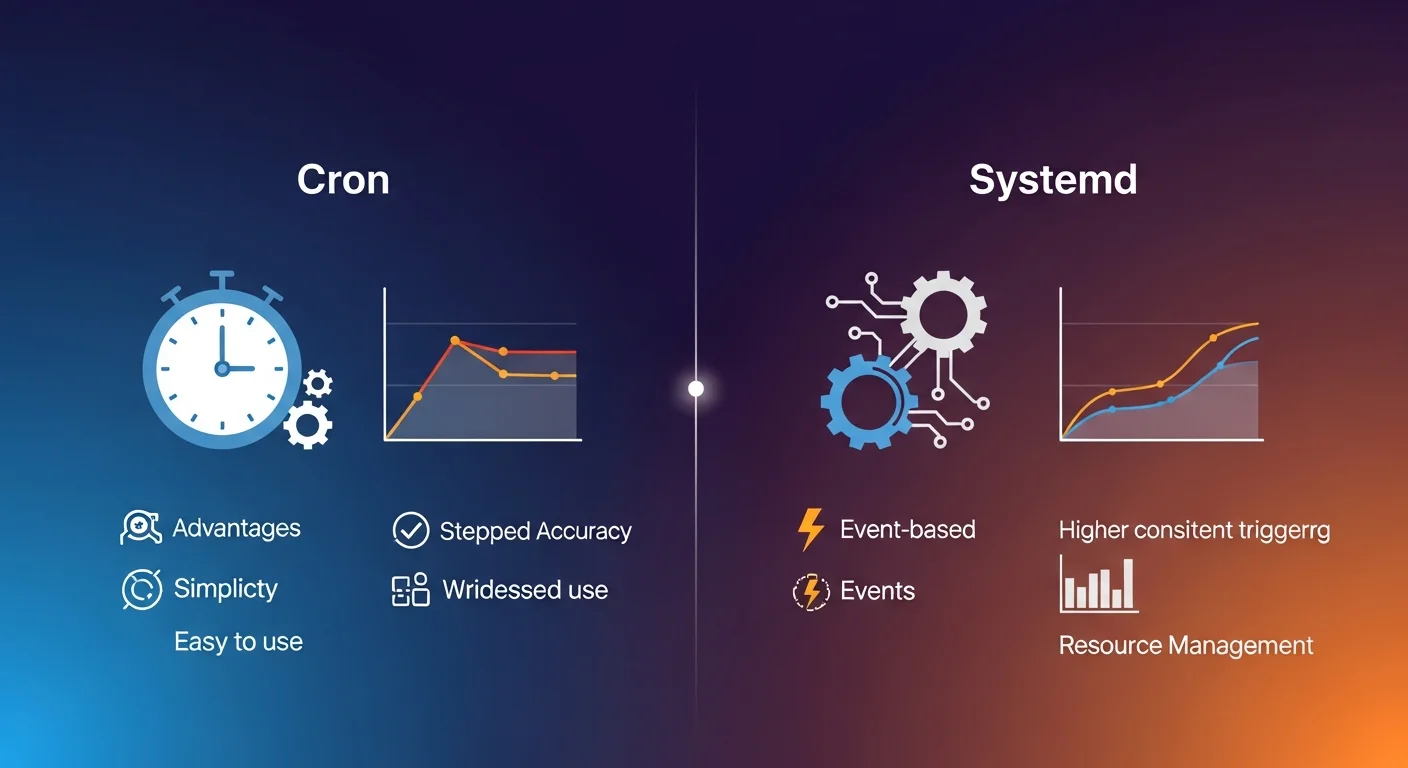
Cron vs Systemd Timers
| Feature | Cron | Systemd Timers |
|---|---|---|
| Syntax | Simple 5-field | Unit files (more verbose) |
| Logging | Manual (redirect) | Automatic (journalctl) |
| Dependencies | None | Full dependency support |
| Missed Runs | Lost (no catch-up) | Persistent=true catches up |
| Resource Limits | None | CPU/Memory/IO limits |
| Random Delay | Manual | RandomizedDelaySec |
| Status Check | Limited | systemctl status |
| Universality | Every Unix system | Systemd-based only |
| Learning Curve | Very Low | Moderate |
When to use Cron: Simple recurring tasks, maximum portability, quick one-liner scheduling.
When to use Systemd Timers: Production services needing logging, dependency management, resource limits, and missed-run recovery.
Troubleshooting
# Check if cron is running
systemctl status cron          # Debian/Ubuntu
systemctl status crond         # RHEL/CentOS

# Check cron logs
grep CRON /var/log/syslog      # Debian/Ubuntu
grep CRON /var/log/cron        # RHEL/CentOS
journalctl -u cron             # Systemd-based systems

# Common issues:
# 1. PATH not set → Use full paths: /usr/bin/python3 instead of python3
# 2. % not escaped → Use \% in date commands
# 3. No MAILTO → Output goes to local mail (/var/mail/username)
# 4. Permission denied → Check script is executable (chmod +x)
# 5. Wrong shell → Set SHELL=/bin/bash at top of crontab
Best Practices
- Always use absolute paths — Never rely on PATH. Use
/usr/bin/python3instead ofpython3. - Redirect output — Always redirect stdout and stderr to prevent mail buildup:
> /var/log/job.log 2>&1 - Set MAILTO — Configure email alerts for failures, or set
MAILTO=""to disable. - Use lock files — Prevent overlapping runs with
flock:flock -n /tmp/job.lock /opt/scripts/job.sh - Test commands first — Run the exact command in your shell before adding it to crontab.
- Add comments — Document every entry:
# Daily database backup at 2 AM - Monitor execution — Check logs regularly to ensure jobs are actually running.
- Escape percent signs — Use
\%instead of%in commands.
Recommended Resources
Deepen your Linux automation knowledge:
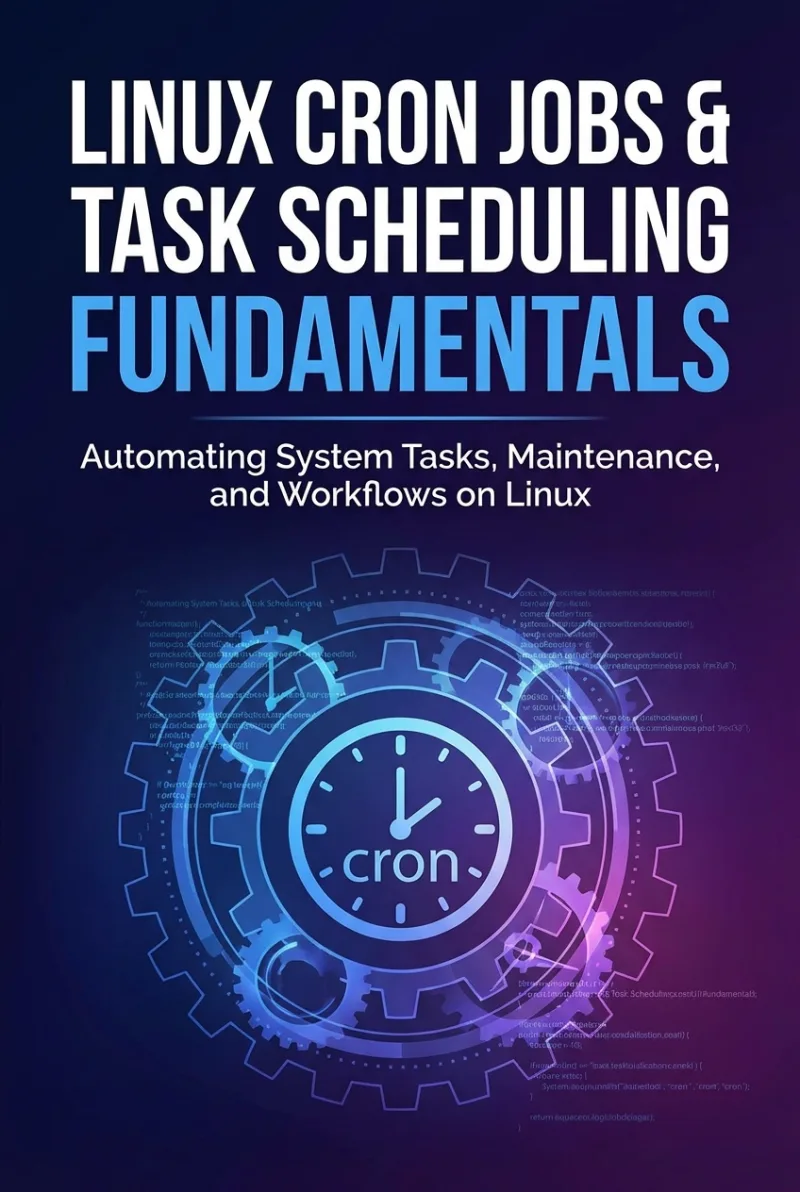
- Linux Cron Jobs & Task Scheduling Fundamentals — Dedicated deep-dive into cron and scheduling
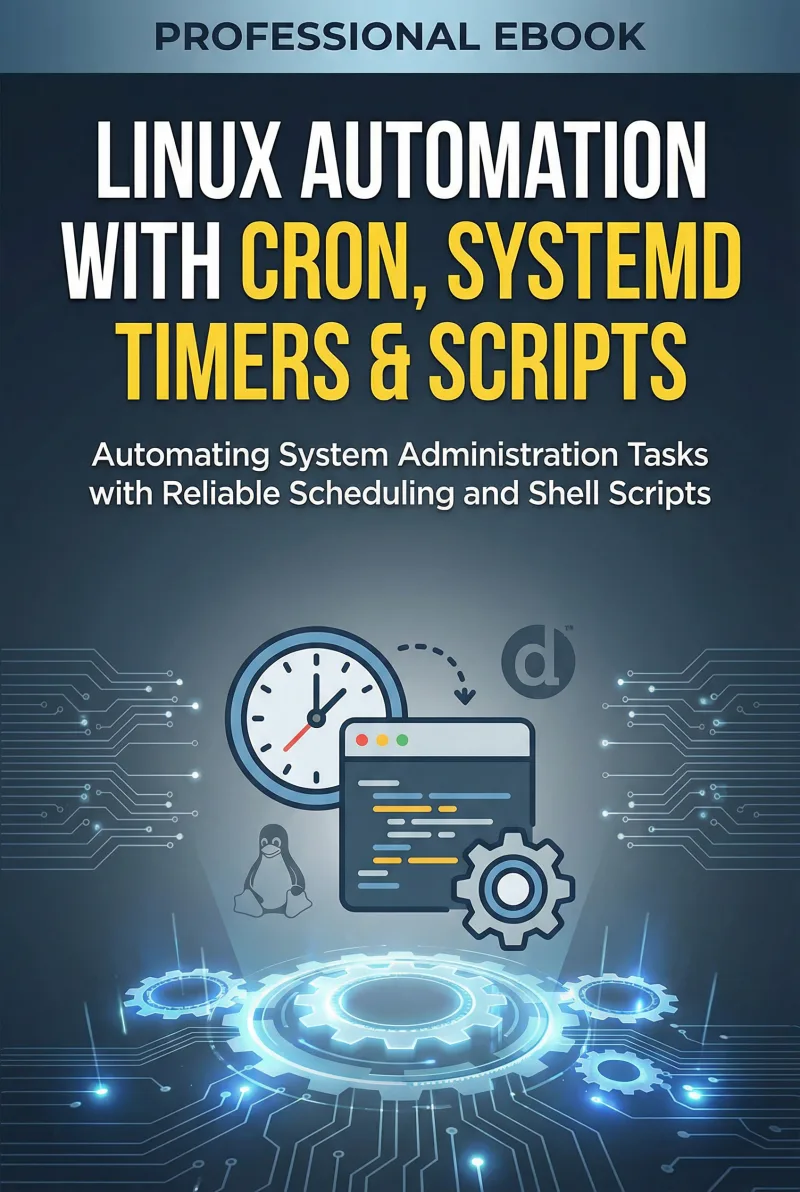
- Linux Automation with Cron, Systemd Timers & Scripts — Complete automation toolkit
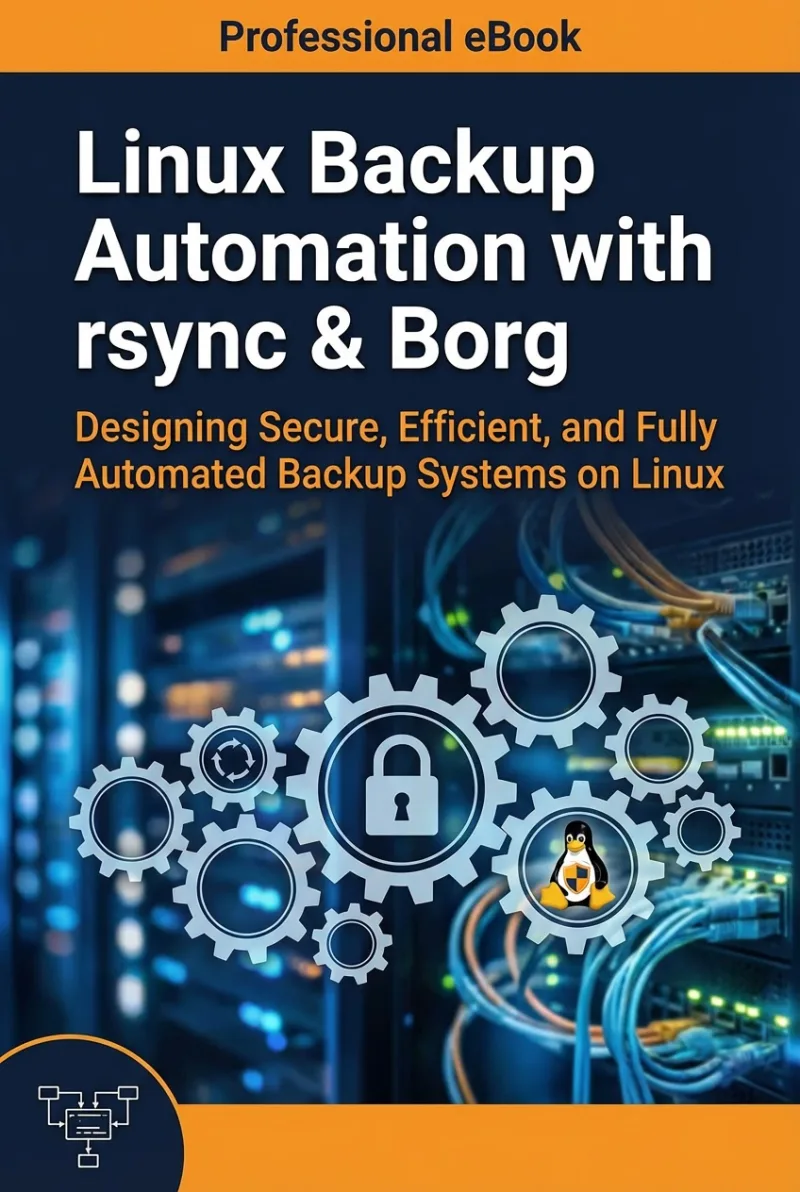
- Linux Backup Automation with rsync & Borg — Automated backup strategies with cron
- Linux Backup Strategies — Comprehensive backup planning and scheduling
- Linux Administration Fundamentals — Foundation for all sysadmin tasks
Also explore our interactive quizzes to test your Linux knowledge, and visit the Learning Hub for structured learning paths.
Automate Your Linux Infrastructure
Browse our collection of automation and scheduling books to master Linux task management.
Browse Automation Books