Quick summary: A 3-node Proxmox cluster on Intel N100/N305 or Ryzen 7 mini PCs hits a sweet spot for serious home labs in 2026: enough CPU and RAM to run dozens of VMs and containers, low enough power draw (60-90 watts total) to run 24/7 without guilt, and enough nodes for real HA. This guide covers the hardware shortlist that actually works, the networking decisions that matter (2.5GbE is the new baseline, 10GbE is increasingly affordable), and the storage architecture that keeps things simple — which usually means "not Ceph" for clusters this small.
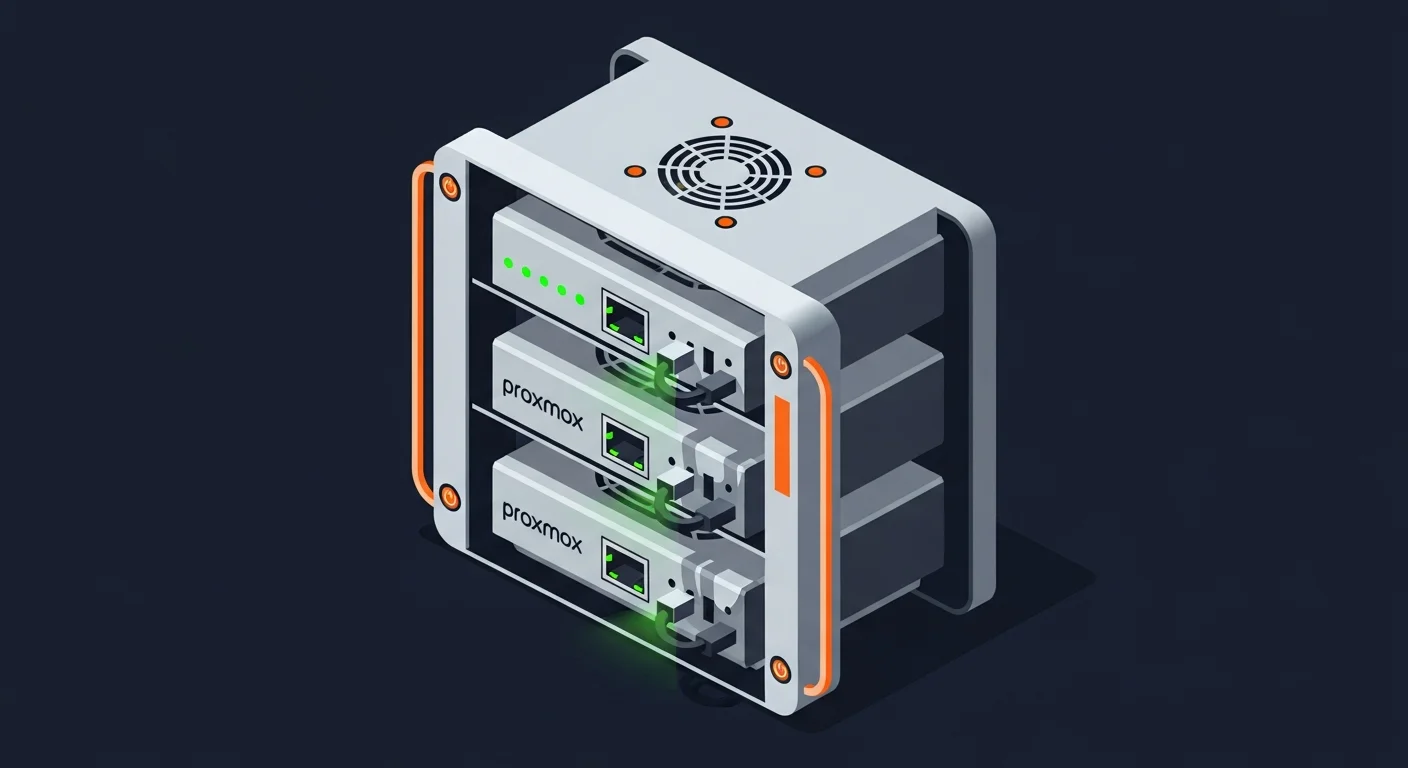
Why a Three-Node Cluster Beats a Single Box
The instinct for most homelab beginners is to buy one big box and stuff it with everything. That works until the day it does not — kernel panic during a workload, failed disk, accidentally typed shutdown in the wrong SSH session — and suddenly your DNS, your home automation, your media server, and your password manager are all offline.
Three nodes solve this. With Proxmox HA enabled, when one node dies, the others restart its VMs within 60 seconds. With shared storage, those VMs come back with their data intact. With a quorum of three, you can lose any single node without the cluster going read-only (which is what happens to two-node clusters). For a homelab that hosts your actual home infrastructure, three nodes change the operational math from "I hope nothing breaks" to "things break and nobody notices."
The cost has dropped enough that this is genuinely accessible in 2026. Three Intel N100 mini PCs with 16 GB RAM and 500 GB NVMe each run roughly €450 total — well under the price of one decent tower server.
Hardware Shortlist: What to Actually Buy
Tier 1: Budget — Intel N100/N150 mini PCs
The Intel N100 (and the N150 refresh) is the workhorse of the budget mini-PC world. Quad-core Alder Lake-N at 6W TDP, hardware video encoding, two memory slots (some boards), one or two NVMe slots. Common models: Beelink S12 Pro, GMKtec NucBox, Acemagic AD03.
- ~€150-180 each, ships with 16 GB RAM and 500 GB NVMe
- 2.5GbE NIC standard
- Idle power: 6-8W; loaded: 18-22W
- Trade-off: max 16 GB RAM, single NIC, no IPMI
Three N100s give you 12 cores, 48 GB RAM total. Enough for a dozen Linux VMs, a few Windows VMs for testing, and a Kubernetes cluster of LXC containers. For most homelab workloads, this is plenty.
Tier 2: Sweet spot — Ryzen 7 mini PCs
The AMD Ryzen 7 5825U / 7735HS / 8845HS class of mini PC — Beelink SER series, Minisforum UM series, GMKtec K-series — sit in the €350-500 range and add real punch.
- 8 cores / 16 threads
- 32-64 GB RAM (DDR5 on the newer models)
- Two NVMe slots, sometimes a 2.5" SATA bay
- 2.5GbE on most; 10GbE on a few high-end models (e.g., Minisforum MS-01)
- Idle power: 12-18W; loaded: 35-55W
Three SER7s with 32 GB RAM each gives you 24 cores and 96 GB RAM total. Now you can comfortably run a real Kubernetes cluster, a few databases, an entire ELK stack, and still have headroom.
Tier 3: Stretching the "mini" definition — Minisforum MS-01
The MS-01 is a unique product: a slightly-larger-than-NUC chassis with up to 96 GB RAM, three NVMe slots, dual 10GbE SFP+, and dual 2.5GbE. It is a real 1U-class server in a desktop form factor.
- ~€700-900 each (Core i9 variants)
- Up to 96 GB DDR5 RAM
- Three NVMe slots — perfect for Ceph OSDs
- Dual 10GbE SFP+ — Ceph public/cluster networks separated
- Idle power: 25-30W; loaded: 80-110W
If your budget allows, three MS-01s make for a borderline-overkill but extremely capable homelab cluster. The 10GbE SFP+ alone justifies the price for serious storage workloads.
Networking: Where Newcomers Underspend
The single most-regretted decision in homelab clusters is going cheap on networking. A Proxmox cluster with shared storage has three traffic classes — VM traffic, cluster heartbeat (Corosync), and storage replication — and they fight for bandwidth on the same pipe.
Minimum: 2.5GbE everywhere
Every modern mini PC ships with at least one 2.5GbE NIC. Pair with a 2.5GbE switch (TP-Link TL-SG108-M2 or similar, around €120-180). This handles VM traffic and modest storage replication for clusters that do not run high-IO workloads.
Better: 10GbE for storage, 2.5GbE for everything else
Add a USB or PCIe 10GbE adapter to each node (for mini PCs without a built-in 10GbE port, USB-C 10GbE adapters cost €100-150 each). Dedicate the 10GbE link to storage replication; keep VM and management traffic on the 2.5GbE network. A small managed 10GbE switch (Mikrotik CRS305-1G-4S+IN, around €170) gives you four 10GbE SFP+ ports — perfect for a 3-node cluster.
Best: Dual 10GbE on each node, separate cluster network
The MS-01 ships with dual 10GbE built in. Use one for storage, one for VM/management. Run Corosync on its own VLAN with QoS prioritization. This is the architecture of small enterprise deployments.
Why Corosync needs care
Proxmox uses Corosync for cluster membership and quorum. Corosync is sensitive to latency — sustained >5ms round-trip times cause membership flapping, which causes the cluster to think nodes are down, which causes HA to start migrating VMs unnecessarily. On a single physical switch with a clean topology, this is not a concern; the moment you start running Corosync over WiFi, VPN, or a congested network, you will have problems.
Storage: The Boring Answer Is Often Right
The Ceph Question
Proxmox makes Ceph look easy in the GUI. It is not. Ceph wants:
- At least three nodes with at least one dedicated SSD each (replication factor 3)
- At least 10GbE between nodes for the cluster network
- 16+ GB RAM per node available for OSD daemons
- Stable network with sub-millisecond latency
If your cluster hits all of those, Ceph is genuinely excellent — built-in replication, HA storage that survives any single node failure, snapshots, thin provisioning. If your cluster does not (e.g., 2.5GbE only, single SSD per node, 16 GB RAM total per node), Ceph will be slow, painful, and a frequent source of "why is my cluster sad" support questions in the Proxmox forums.
The simpler alternative: ZFS local storage + ZFS replication
Proxmox has built-in ZFS replication. You install ZFS on each node, create local pools, and configure replication for VMs that need HA. The VM runs on Node A; ZFS sends incremental snapshots to Node B every few minutes. If Node A dies, Node B promotes its copy and starts the VM (with at most a few minutes of data loss).
For homelab workloads, this is almost always the right answer. It is simple, fast, and survives the failure scenarios you actually care about. The data-loss window is configurable (down to one minute) and acceptable for everything except databases doing heavy writes.
The simplest alternative: NFS from a fourth box
Run a small NAS (TrueNAS Core on a separate mini PC, or a Synology, or a self-built ZFS NAS) and export NFS to the cluster. All three Proxmox nodes mount the same NFS share; VM disks live there; HA failover Just Works because the data is shared.
Trade-off: the NAS is now a single point of failure. Mitigate with regular backups; do not pretend it is HA.
Step-by-Step: Building the Cluster
Step 1: Install Proxmox VE 9 on each node
Download the ISO, write to USB, install. During install, set a unique hostname (proxmox-1, proxmox-2, proxmox-3), correct timezone, and a strong root password. After first boot:
# Disable enterprise repo (you do not have a subscription)
sed -i 's|^deb|#deb|' /etc/apt/sources.list.d/pve-enterprise.list

# Add no-subscription repo
echo "deb http://download.proxmox.com/debian/pve bookworm pve-no-subscription" > /etc/apt/sources.list.d/pve-community.list

apt update && apt full-upgrade -y
Step 2: Form the cluster
On node 1: pvecm create lab-cluster
On nodes 2 and 3: pvecm add 192.168.1.10 (replace IP with node 1's address)
Verify with pvecm status — should show three nodes, quorum yes.
Step 3: Configure shared storage
Whichever you chose (Ceph, ZFS replication, or NFS), set it up via Datacenter → Storage in the GUI. Make sure the storage type is configured to be available on all nodes that should be able to run VMs from it.
Step 4: Set up HA
For each VM that should be HA: Datacenter → HA → Add. Set the resource (your VM ID), restart policy, and which node is preferred. Test by hard-powering off the node currently running the VM; the other nodes should restart it within 60 seconds.
Step 5: Set up backups
Proxmox Backup Server is free and runs perfectly on a separate mini PC or even a Raspberry Pi 5 with an external SSD. Schedule daily incremental backups to it; verify monthly that the backups can actually be restored.
Operational Lessons from a Year of Production Use
Lesson 1: Memory ballooning is not your friend
Proxmox enables memory ballooning by default for Linux guests. In a tight cluster, this causes VMs to fight for RAM, leading to swap thrashing on the host. Set explicit memory limits per VM and disable ballooning unless you specifically need it.
Lesson 2: SSD wear is real
Consumer NVMe drives in mini PCs are not designed for 24/7 server workloads. After a year of running ~30 VMs across three nodes with ZFS, our consumer drives showed roughly 8% wear (per SMART). Sustainable, but plan for replacement at the 5-year mark. For Ceph OSDs, use enterprise-grade drives or accept faster wear.
Lesson 3: UPS or it did not happen
Power blips are a guaranteed source of data corruption on consumer hardware. A small UPS (CyberPower CP1500EPFCLCD or equivalent, ~€200) gives you 10 minutes of runtime — enough to gracefully shut down the cluster on a real outage. Wire it to a node via USB and configure NUT for automatic shutdown.
Lesson 4: Monitor everything from outside the cluster
If your monitoring runs inside the cluster, when the cluster has a problem, you have no visibility. Run Prometheus + Grafana on a separate Raspberry Pi or VPS. Scrape Proxmox's built-in metrics, your VMs' node_exporter, and your switch's SNMP. You want to know about issues before HA tries to fix them.
Lesson 5: Plan the rebuild before you need it
Document your network configuration, your storage layout, your VM IDs, your backup schedule, your firewall rules. Test restoring a VM from backup quarterly. The day a node dies and needs replacement is not the day to discover your runbook is incomplete.
Frequently Asked Questions
Can I use a 2-node cluster?
Technically yes, with a QDevice (small ARM SBC running corosync-qdevice as a tiebreaker). Practically not recommended — three real nodes is cleaner and barely more expensive.
What about Proxmox VE 9 versus 8?
Use Proxmox VE 9 for any new installation in 2026. It ships with Debian 13 base, kernel 6.8+, and the latest Ceph. Existing 8.x clusters can upgrade in-place via the official guide.
Can I run Proxmox on a single mini PC?
Yes — for learning and tinkering, this is fine. You will not have HA, your storage is whatever the box has, and downtime equals total outage. Fine for non-critical workloads; not what this article is about.
How loud is a mini-PC cluster?
Mostly silent under typical homelab loads. The Beelink and GMKtec models have small fans that are inaudible from a few feet away at idle. Under sustained load (compiling, transcoding) the fans become audible but never loud. Three N100s in a closet are completely livable.
What about Raspberry Pi 5 instead of mini PCs?
Proxmox does not support ARM as a primary platform. K3s on Raspberry Pis is a different (and excellent) project, but for Proxmox specifically you want x86_64 mini PCs.
Further Reading from the Dargslan Library
- Home Lab category — practical guides for building reliable home infrastructure.
- DevOps & Cloud category — patterns from cloud that translate to homelab deployments.
- Free cheat sheet library — printable references for Proxmox CLI, ZFS commands, and Ceph operations.
- Dargslan eBook library — comprehensive courses on virtualization, storage, and Linux administration.
The Bottom Line
A three-node mini-PC Proxmox cluster is the most cost-effective way in 2026 to run a real, HA home lab. Buy three identical units, spend a little extra on networking, pick a storage architecture you can actually maintain (probably ZFS replication, not Ceph), and you have a setup that survives node failures, runs your real services, and consumes less power than a gaming PC. The big-box-with-everything school of homelabbing is fun until your big box dies; the cluster school is boring in exactly the right way.