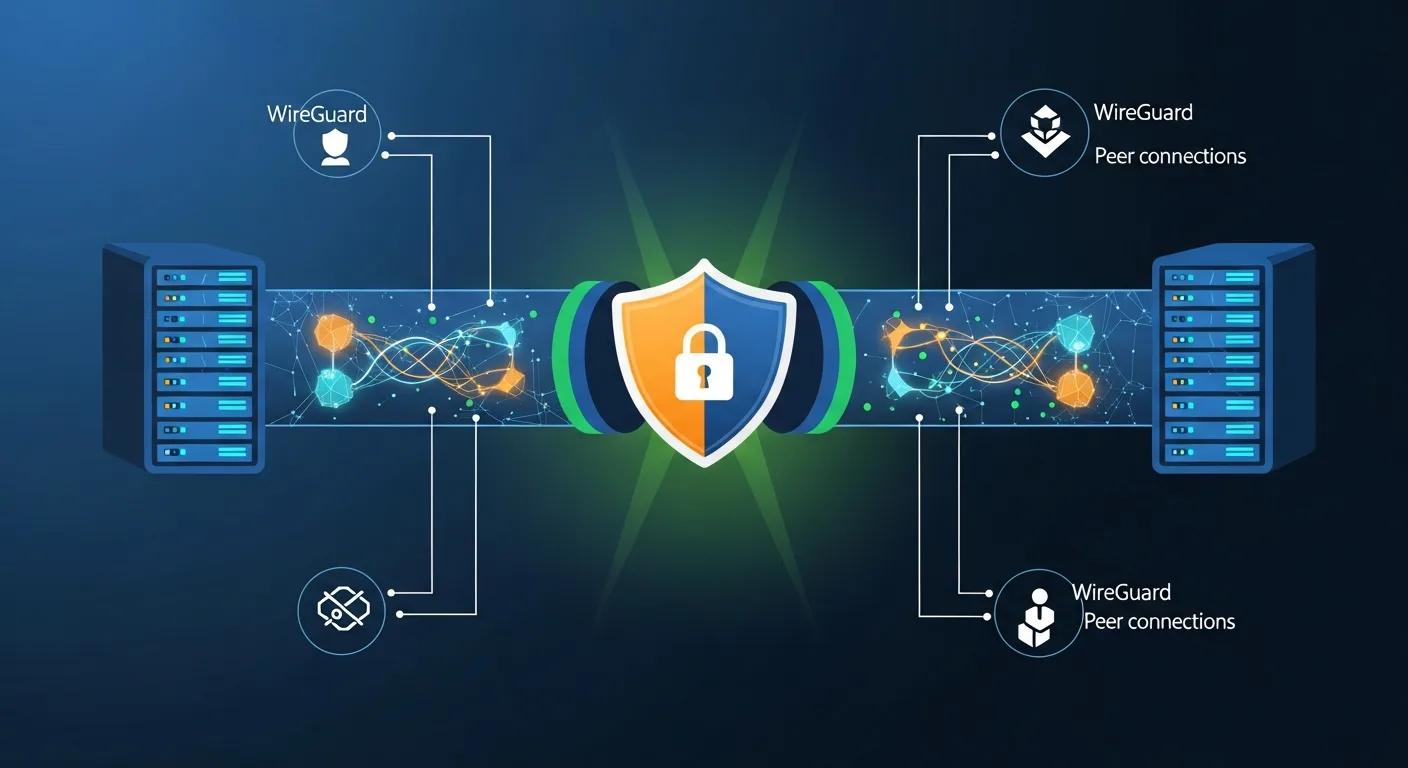
WireGuard is the modern VPN protocol that has revolutionized virtual private networking. Built directly into the Linux kernel since version 5.6, WireGuard delivers exceptional performance with just 4,000 lines of code — compared to OpenVPN's 600,000+ lines. Its simplicity, speed, and state-of-the-art cryptography make it the clear choice for secure point-to-point connections, site-to-site tunnels, and remote access VPNs in 2026.
Whether you need to securely connect remote workers, link multiple office locations, protect traffic on public WiFi, or build a private mesh network — WireGuard provides enterprise-grade encryption with consumer-grade simplicity. This comprehensive guide takes you from first installation to advanced multi-peer production deployments.
What is WireGuard?
WireGuard is a modern, high-performance VPN protocol designed by Jason A. Donenfeld. Unlike traditional VPN solutions that evolved over decades with layers of complexity, WireGuard was built from scratch with a clean cryptographic design. It operates at the kernel level as a network interface (like eth0 or wlan0), making it faster and more efficient than userspace VPN implementations.
Since its inclusion in the Linux kernel 5.6 (March 2020), WireGuard has become a first-class citizen on Linux. It is also available on Windows, macOS, iOS, Android, FreeBSD, and OpenBSD. Major VPN providers including Mullvad, NordVPN (NordLynx), and Private Internet Access have adopted WireGuard as their primary protocol.
WireGuard uses a fixed set of modern cryptographic primitives: Curve25519 for key exchange, ChaCha20 for symmetric encryption, Poly1305 for authentication, BLAKE2s for hashing, and SipHash24 for hashtable keys. This opinionated approach eliminates cipher negotiation vulnerabilities that plague older protocols.
Why WireGuard in 2026?
WireGuard has become the default VPN choice for Linux administrators and DevOps engineers. Here are the compelling reasons:
Extreme Simplicity: A complete WireGuard configuration is typically 10-15 lines. Compare this to OpenVPN which requires certificates, certificate authorities, complex configuration files, and dozens of parameters.
Superior Performance: WireGuard operates in kernel space and uses highly optimized cryptographic routines. Benchmarks consistently show 3-4x higher throughput than OpenVPN and significantly lower latency. On a modern server, WireGuard can saturate a 10 Gbps link.
Minimal Attack Surface: With approximately 4,000 lines of code, WireGuard is small enough for comprehensive security audit. OpenVPN has 600,000+ lines, and IPsec implementations typically exceed 400,000 lines. Fewer lines of code mean fewer potential vulnerabilities.
Seamless Roaming: WireGuard handles IP changes transparently. A mobile device can switch from WiFi to cellular and back without dropping the VPN connection — the tunnel reconnects automatically within milliseconds.
Stealth: WireGuard does not respond to unauthenticated packets. If a scanner probes a WireGuard port, it receives no response — the server appears completely silent, making it nearly invisible to network scanners.
How WireGuard Works
WireGuard operates fundamentally differently from traditional VPNs. Instead of complex certificate hierarchies, WireGuard uses a simple public/private key pair model — similar to SSH. Each peer has a keypair, and peers authenticate each other by exchanging public keys.
The core concepts are:
Interface: A virtual network interface (e.g., wg0) that encrypts and decrypts packets. Each interface has a private key and a listening port.
Peer: A remote endpoint identified by its public key. Each peer configuration specifies which IP addresses are allowed to send/receive through the tunnel (AllowedIPs).
Cryptokey Routing: WireGuard routes packets based on the peer's public key and AllowedIPs. When sending, it encrypts the packet with the peer's key whose AllowedIPs matches the destination. When receiving, it decrypts with the interface's private key and verifies the source against the peer's AllowedIPs.
The handshake occurs automatically when traffic needs to flow. WireGuard uses the Noise Protocol Framework (specifically Noise_IKpsk2) for its handshake, providing mutual authentication and forward secrecy in a single round trip.
Installation on All Platforms
WireGuard is available in the default repositories of most modern Linux distributions:
# Ubuntu / Debian
sudo apt update
sudo apt install wireguard

# Fedora / RHEL 9+ / AlmaLinux 9+
sudo dnf install wireguard-tools

# Arch Linux
sudo pacman -S wireguard-tools

# Alpine Linux
sudo apk add wireguard-tools

# CentOS 7/8 (via ELRepo)
sudo yum install epel-release elrepo-release
sudo yum install kmod-wireguard wireguard-tools

# macOS
brew install wireguard-tools

# Verify kernel module
sudo modprobe wireguard
lsmod | grep wireguard
On Windows, download the official WireGuard client from wireguard.com/install. On iOS and Android, install the WireGuard app from the respective app stores.
Key Generation & Management
WireGuard uses Curve25519 key pairs. Generate them on each machine that will participate in the VPN:
# Generate private key
wg genkey > /etc/wireguard/private.key
chmod 600 /etc/wireguard/private.key

# Derive public key from private key
cat /etc/wireguard/private.key | wg pubkey > /etc/wireguard/public.key

# Generate both in one line
wg genkey | tee /etc/wireguard/private.key | wg pubkey > /etc/wireguard/public.key

# Generate a preshared key (optional, adds quantum-resistant layer)
wg genpsk > /etc/wireguard/preshared.key
chmod 600 /etc/wireguard/preshared.key

# View keys
cat /etc/wireguard/private.key
cat /etc/wireguard/public.key
Important: Never share private keys. Only exchange public keys between peers. Treat private keys like SSH private keys — they should be readable only by root.

Server Configuration
The server (also called the "hub" or "endpoint") accepts connections from clients. Create the configuration file:
# /etc/wireguard/wg0.conf (Server)
[Interface]
Address = 10.0.0.1/24
ListenPort = 51820
PrivateKey = SERVER_PRIVATE_KEY_HERE

# Enable IP forwarding and NAT
PostUp = iptables -A FORWARD -i wg0 -j ACCEPT; iptables -t nat -A POSTROUTING -o eth0 -j MASQUERADE
PostDown = iptables -D FORWARD -i wg0 -j ACCEPT; iptables -t nat -D POSTROUTING -o eth0 -j MASQUERADE

# Client 1
[Peer]
PublicKey = CLIENT1_PUBLIC_KEY_HERE
AllowedIPs = 10.0.0.2/32

# Client 2
[Peer]
PublicKey = CLIENT2_PUBLIC_KEY_HERE
AllowedIPs = 10.0.0.3/32
PresharedKey = OPTIONAL_PSK_HERE
# Enable IP forwarding (persistent)
echo "net.ipv4.ip_forward = 1" | sudo tee -a /etc/sysctl.d/99-wireguard.conf
echo "net.ipv6.conf.all.forwarding = 1" | sudo tee -a /etc/sysctl.d/99-wireguard.conf
sudo sysctl -p /etc/sysctl.d/99-wireguard.conf
# Start WireGuard
sudo wg-quick up wg0
# Enable at boot
sudo systemctl enable wg-quick@wg0
# Check status
sudo wg showClient Configuration
Clients connect to the server to tunnel their traffic. Create the client configuration:
# /etc/wireguard/wg0.conf (Client)
[Interface]
Address = 10.0.0.2/24
PrivateKey = CLIENT_PRIVATE_KEY_HERE
DNS = 1.1.1.1, 9.9.9.9

[Peer]
PublicKey = SERVER_PUBLIC_KEY_HERE
Endpoint = server.example.com:51820
AllowedIPs = 0.0.0.0/0, ::/0
PersistentKeepalive = 25
AllowedIPs explained:
0.0.0.0/0, ::/0— Route ALL traffic through the VPN (full tunnel)10.0.0.0/24— Route only VPN subnet traffic (split tunnel)10.0.0.0/24, 192.168.1.0/24— Route VPN + specific remote subnets
PersistentKeepalive: Set to 25 seconds when the client is behind NAT. This sends a keepalive packet every 25 seconds to maintain the NAT mapping and keep the tunnel alive.
# Start on client
sudo wg-quick up wg0

# Verify connection
sudo wg show
ping 10.0.0.1

# Generate QR code for mobile clients
sudo apt install qrencode
qrencode -t ansiutf8 < /etc/wireguard/wg0.conf
Site-to-Site VPN
WireGuard excels at connecting two networks (office-to-office, office-to-cloud). In a site-to-site setup, both sides act as peers and route their local subnets through the tunnel:
# Site A (Office - 192.168.1.0/24)
[Interface]
Address = 10.0.0.1/24
PrivateKey = SITE_A_PRIVATE_KEY
ListenPort = 51820
PostUp = iptables -A FORWARD -i wg0 -j ACCEPT; iptables -A FORWARD -o wg0 -j ACCEPT
PostDown = iptables -D FORWARD -i wg0 -j ACCEPT; iptables -D FORWARD -o wg0 -j ACCEPT

[Peer]
PublicKey = SITE_B_PUBLIC_KEY
Endpoint = site-b.example.com:51820
AllowedIPs = 10.0.0.2/32, 192.168.2.0/24
PersistentKeepalive = 25

# Site B (Data Center - 192.168.2.0/24)
[Interface]
Address = 10.0.0.2/24
PrivateKey = SITE_B_PRIVATE_KEY
ListenPort = 51820
PostUp = iptables -A FORWARD -i wg0 -j ACCEPT; iptables -A FORWARD -o wg0 -j ACCEPT
PostDown = iptables -D FORWARD -i wg0 -j ACCEPT; iptables -D FORWARD -o wg0 -j ACCEPT

[Peer]
PublicKey = SITE_A_PUBLIC_KEY
Endpoint = site-a.example.com:51820
AllowedIPs = 10.0.0.1/32, 192.168.1.0/24
PersistentKeepalive = 25
Both sites need IP forwarding enabled. Machines on each network need a route to the remote subnet via the WireGuard gateway.
Multi-Peer & Mesh Networks
WireGuard supports multiple peers on a single interface, enabling hub-and-spoke or full mesh topologies. For a hub-and-spoke model, all clients connect to a central server. For a full mesh, every node has every other node as a peer.
For larger deployments, consider tools like Netmaker, Tailscale, or Headscale (open-source Tailscale control server) that automate WireGuard mesh management, key distribution, and NAT traversal.
# Hub server with multiple peers
[Interface]
Address = 10.0.0.1/24
ListenPort = 51820
PrivateKey = HUB_PRIVATE_KEY
PostUp = iptables -A FORWARD -i wg0 -j ACCEPT; iptables -t nat -A POSTROUTING -o eth0 -j MASQUERADE
PostDown = iptables -D FORWARD -i wg0 -j ACCEPT; iptables -t nat -D POSTROUTING -o eth0 -j MASQUERADE

[Peer]  # Office workstation
PublicKey = PEER1_PUBLIC_KEY
AllowedIPs = 10.0.0.2/32

[Peer]  # Remote developer
PublicKey = PEER2_PUBLIC_KEY
AllowedIPs = 10.0.0.3/32

[Peer]  # Cloud server
PublicKey = PEER3_PUBLIC_KEY
AllowedIPs = 10.0.0.4/32, 172.16.0.0/16
Endpoint = cloud.example.com:51820
DNS Leak Prevention
When using WireGuard as a full tunnel VPN, DNS leak prevention is critical. Without proper configuration, DNS queries may bypass the tunnel and reveal your browsing activity to your ISP.
# Option 1: Set DNS in WireGuard config
[Interface]
DNS = 10.0.0.1      # Use WireGuard server as DNS
# Or use public DNS:
# DNS = 1.1.1.1, 9.9.9.9

# Option 2: Run a DNS resolver on the WireGuard server
sudo apt install unbound
# Configure Unbound to listen on 10.0.0.1
# Clients use DNS = 10.0.0.1

# Verify no DNS leak
# After connecting, visit dnsleaktest.com or run:
dig +short whoami.akamai.net @ns1-1.akamaitech.net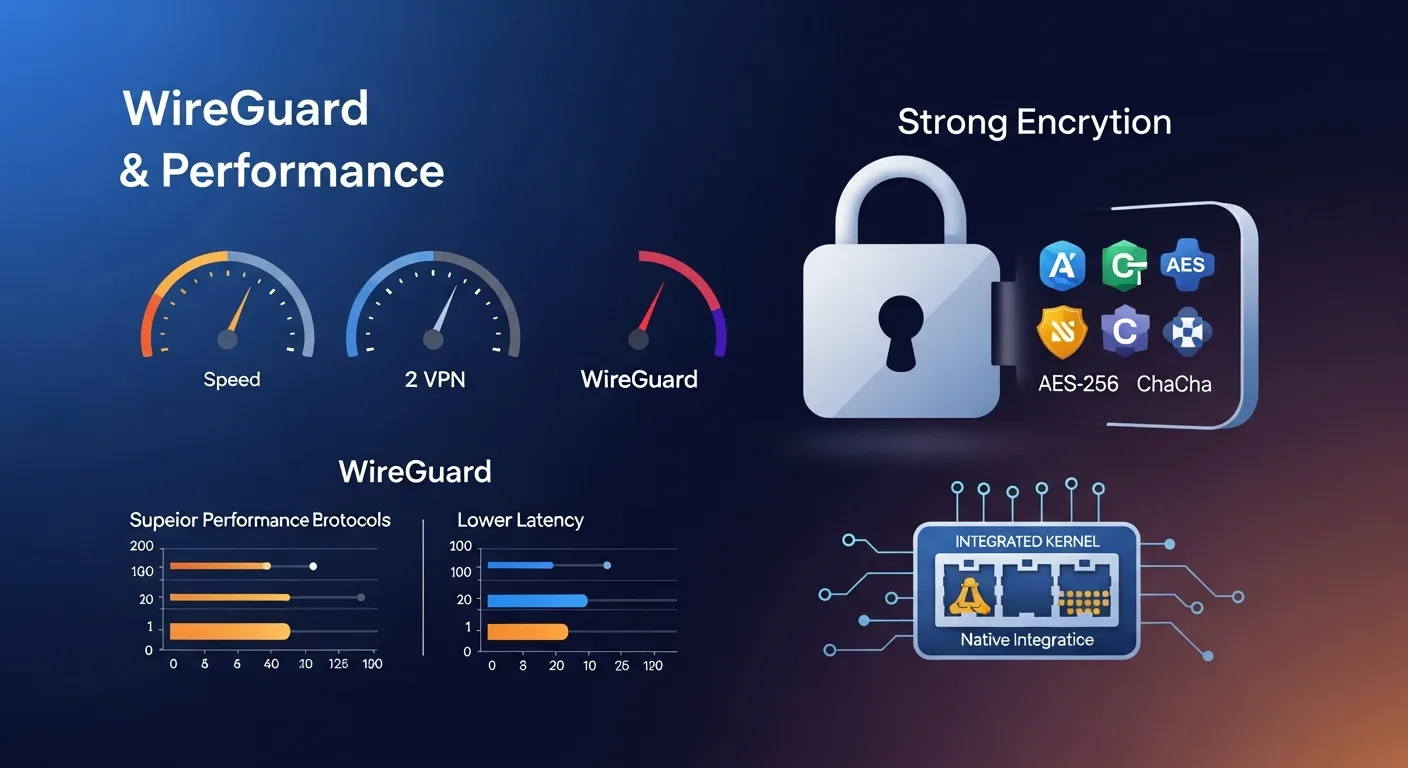
Firewall & NAT Configuration
Proper firewall configuration is essential for a secure WireGuard deployment:
# Allow WireGuard port
sudo ufw allow 51820/udp

# Or with iptables
sudo iptables -A INPUT -p udp --dport 51820 -j ACCEPT

# Or with firewalld (RHEL/Fedora)
sudo firewall-cmd --permanent --add-port=51820/udp
sudo firewall-cmd --permanent --add-masquerade
sudo firewall-cmd --reload

# NAT/Masquerade for internet access through VPN
sudo iptables -t nat -A POSTROUTING -s 10.0.0.0/24 -o eth0 -j MASQUERADE

# Forward traffic between WireGuard and physical interface
sudo iptables -A FORWARD -i wg0 -o eth0 -j ACCEPT
sudo iptables -A FORWARD -i eth0 -o wg0 -m state --state RELATED,ESTABLISHED -j ACCEPT
Performance Tuning
WireGuard is already extremely fast out of the box, but you can optimize it further:
# Increase UDP buffer sizes
echo "net.core.rmem_max = 26214400" | sudo tee -a /etc/sysctl.d/99-wireguard-perf.conf
echo "net.core.wmem_max = 26214400" | sudo tee -a /etc/sysctl.d/99-wireguard-perf.conf
sudo sysctl -p /etc/sysctl.d/99-wireguard-perf.conf

# Set MTU (default 1420, optimize for your network)
# /etc/wireguard/wg0.conf
[Interface]
MTU = 1420    # Default, good for most networks
# MTU = 1380  # Behind PPPoE
# MTU = 1340  # Double encapsulation

# Monitor performance
sudo wg show wg0
# Shows: latest handshake, transfer bytes, endpoint for each peer

# Benchmark (between two WireGuard peers)
iperf3 -s              # On server
iperf3 -c 10.0.0.1     # On client
Security Considerations
WireGuard's security model is fundamentally sound, but deployment security matters:
Key Management: Rotate keys periodically. While WireGuard performs handshake rekeying every 2 minutes automatically (providing forward secrecy), rotating the static keys adds an extra layer. Use wg set wg0 peer OLD_KEY remove and add the new key.
Preshared Keys: For quantum-resistant encryption, add a preshared key to each peer. This adds a symmetric key layer on top of the Curve25519 key exchange, protecting against future quantum computing attacks.
No User Authentication: WireGuard authenticates by key, not by username/password. For user-level access control, combine WireGuard with a management tool like Headscale, or implement application-level authentication.
Logging: WireGuard is intentionally minimal in its logging. It does not log connection times or IP addresses by default. For auditing, use system-level tools (tcpdump, conntrack) or enable kernel debug logging.
Troubleshooting
# Check interface status
sudo wg show

# Verify interface is up
ip link show wg0
ip addr show wg0

# Test connectivity
ping -c 3 10.0.0.1

# Check for handshake (should show "latest handshake" timestamp)
sudo wg show wg0

# Enable kernel debug logging
echo module wireguard +p | sudo tee /sys/kernel/debug/dynamic_debug/control
sudo dmesg -w | grep wireguard

# Common issues:
# 1. No handshake: Check firewall, verify port is open (UDP!)
# 2. Handshake but no traffic: Check AllowedIPs and routing
# 3. DNS not working: Verify DNS setting in [Interface]
# 4. Performance issues: Check MTU, try lower value
# 5. Connection drops: Add PersistentKeepalive = 25
WireGuard vs OpenVPN vs IPsec
| Feature | WireGuard | OpenVPN | IPsec/IKEv2 |
|---|---|---|---|
| Codebase | ~4,000 lines | ~600,000 lines | ~400,000 lines |
| Protocol | UDP only | UDP or TCP | UDP (ESP) |
| Encryption | ChaCha20-Poly1305 | Configurable (AES, etc.) | Configurable (AES, etc.) |
| Key Exchange | Curve25519 (Noise) | TLS/SSL certificates | IKEv2 + certificates |
| Performance | Excellent (kernel) | Good (userspace) | Very Good (kernel) |
| Throughput | ~8-10 Gbps | ~1-2 Gbps | ~5-8 Gbps |
| Latency | Lowest | Higher | Low |
| Connection Time | ~100ms | ~5-10 seconds | ~1-2 seconds |
| Roaming | Seamless | Reconnect needed | MOBIKE support |
| Configuration | Very Simple | Complex | Complex |
| Authentication | Public keys | Certificates/passwords | Certificates/PSK |
| Stealth/DPI | Silent to scans | Can use TCP 443 | Identifiable |
| Linux Kernel | Built-in (5.6+) | No (userspace) | Built-in |
| Mobile Support | Excellent | Good | Good |
Advanced Configurations
Split Tunneling with Multiple DNS: Route only specific traffic through the VPN while keeping local traffic direct:
[Interface]
Address = 10.0.0.2/24
PrivateKey = CLIENT_PRIVATE_KEY
DNS = 10.0.0.1

[Peer]
PublicKey = SERVER_PUBLIC_KEY
Endpoint = vpn.example.com:51820
AllowedIPs = 10.0.0.0/24, 192.168.100.0/24, 172.16.0.0/12
# Only VPN subnet + office networks — internet traffic stays direct
WireGuard with Docker:
# Run WireGuard in Docker
docker run -d \
  --name wireguard \
  --cap-add NET_ADMIN \
  --cap-add SYS_MODULE \
  -e PUID=1000 -e PGID=1000 \
  -p 51820:51820/udp \
  -v /opt/wireguard:/config \
  --sysctl net.ipv4.ip_forward=1 \
  linuxserver/wireguard
Dynamic Peer Management:
# Add peer without restarting
sudo wg set wg0 peer NEW_PUBLIC_KEY allowed-ips 10.0.0.10/32

# Remove peer without restarting
sudo wg set wg0 peer OLD_PUBLIC_KEY remove

# Save running config
sudo wg-quick save wg0
Best Practices
1. Use preshared keys for quantum resistance — Add a PSK to every peer relationship for post-quantum security.
2. Restrict AllowedIPs — Never use 0.0.0.0/0 on the server side. Only allow the specific client IP (/32).
3. Set proper file permissions — Private keys and config files should be chmod 600, owned by root.
4. Use wg-quick for management — Let wg-quick handle interface creation, routing, and DNS rather than manual setup.
5. Enable PersistentKeepalive behind NAT — Set to 25 seconds for peers behind NAT or firewalls.
6. Monitor with wg show — Check handshake timestamps regularly. A stale handshake indicates connectivity issues.
7. Separate VPN subnet — Use a dedicated subnet (e.g., 10.0.0.0/24) that does not overlap with existing networks.
8. Firewall the WireGuard port — Only allow UDP traffic on the WireGuard port, block everything else.
9. Use systemd for persistence — Enable wg-quick@wg0 as a systemd service for automatic startup.
10. Document your peer list — Maintain a spreadsheet of peer public keys, IP assignments, and purposes for easy management.
Recommended Resources
Continue your WireGuard and networking learning with these professional eBooks from the Dargslan store, each designed with real-world examples and production-ready configurations.