
GitHub Copilot has evolved from a simple autocomplete tool into a full-featured AI pair programmer. In 2026, it offers inline code completion, conversational chat, CLI integration, code review, custom instructions, and enterprise-grade security. Whether you are a solo developer or part of a large engineering team, mastering Copilot can dramatically boost your productivity.
According to GitHub's own research, developers using Copilot complete tasks up to 55% faster and report higher job satisfaction. But most developers only scratch the surface of what Copilot can do. This guide covers everything from basic setup to advanced techniques that separate power users from casual users.
What is GitHub Copilot?
GitHub Copilot is an AI-powered coding assistant developed by GitHub (Microsoft) in partnership with OpenAI. It runs as an extension in your code editor and uses large language models to understand your code context and generate suggestions in real-time.
Unlike traditional autocomplete that matches variable names and function signatures, Copilot understands the intent behind your code. It reads your comments, function names, open files, and even your project structure to generate multi-line code suggestions, complete functions, write tests, explain code, and help debug issues.
Key Capabilities in 2026
- Inline Code Completion: Real-time suggestions as you type, from single lines to entire functions
- Copilot Chat: Conversational AI for code explanations, debugging, and generation
- Copilot CLI: Natural language to shell commands via
gh copilot - Code Review: AI-powered pull request review on GitHub.com
- Copilot Edits: Multi-file editing through natural language instructions
- Extensions: Third-party integrations via chat participants (@docker, @azure, etc.)
- MCP Support: Model Context Protocol for connecting external data sources
- Custom Instructions: Project-specific rules via
.github/copilot-instructions.md
Installation and Setup
VS Code (Primary Editor)
VS Code provides the richest Copilot experience with all features including Chat, Edits, and Extensions. Install both the Copilot and Copilot Chat extensions:
code --install-extension GitHub.copilot
code --install-extension GitHub.copilot-chat
After installation, click the Copilot icon in the status bar and sign in with your GitHub account. You will be redirected to your browser to authenticate. Once connected, Copilot starts suggesting code immediately.
JetBrains IDEs
Copilot works across all JetBrains IDEs including IntelliJ IDEA, PyCharm, WebStorm, GoLand, and PhpStorm. Navigate to Settings > Plugins > Marketplace, search for "GitHub Copilot", and install. After restarting the IDE, go to Tools > GitHub Copilot > Login to GitHub.
Neovim
For Neovim users, install the official github/copilot.vim plugin using your preferred plugin manager (vim-plug, lazy.nvim, packer). Run :Copilot setup to authenticate and :Copilot enable to start receiving suggestions.
Copilot CLI
The CLI extension works through the GitHub CLI (gh). Install the CLI first, then add the Copilot extension:
# Install GitHub CLI
brew install gh           # macOS
sudo apt install gh       # Ubuntu/Debian
winget install GitHub.cli # Windows

# Add Copilot extension
gh extension install github/gh-copilot

# Start using it
gh copilot suggest "list all running docker containers"
Code Completion: The Basics
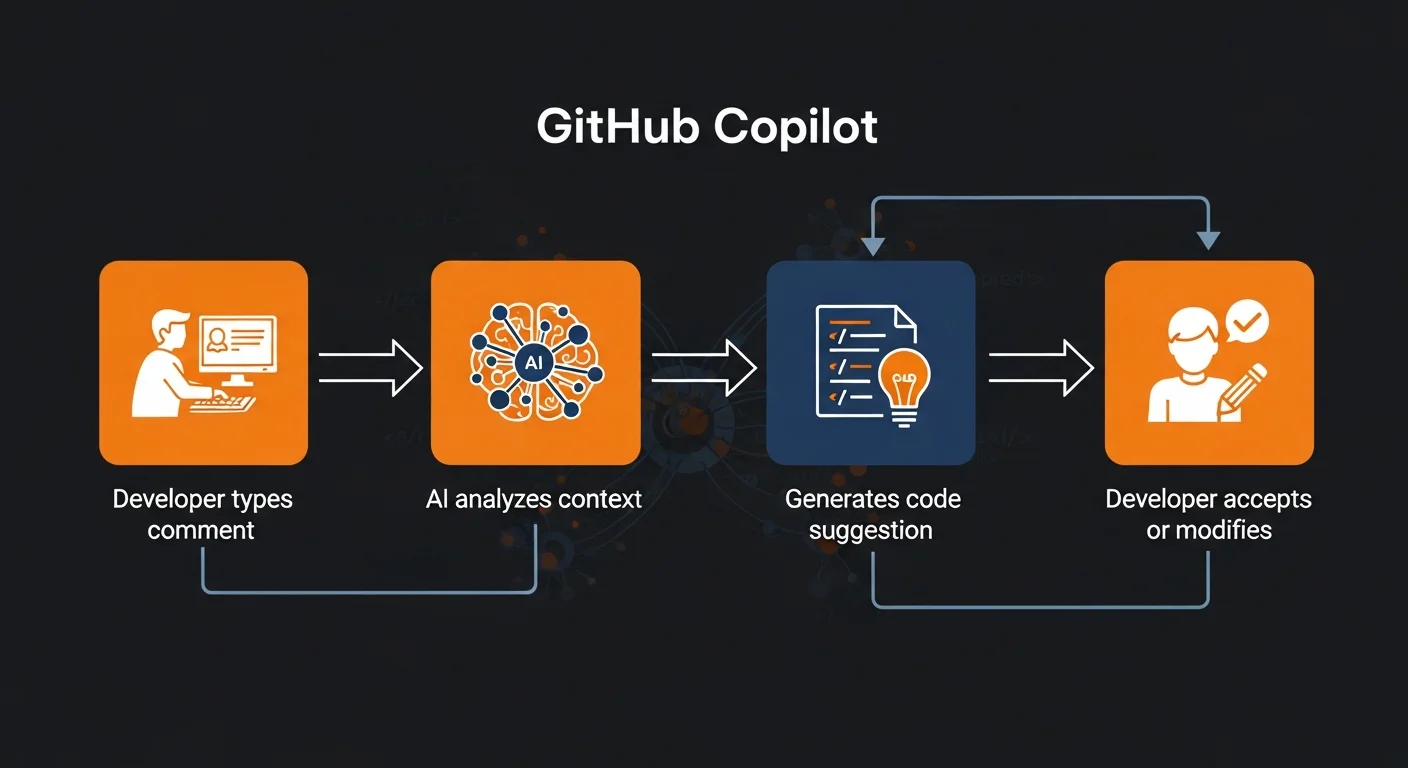
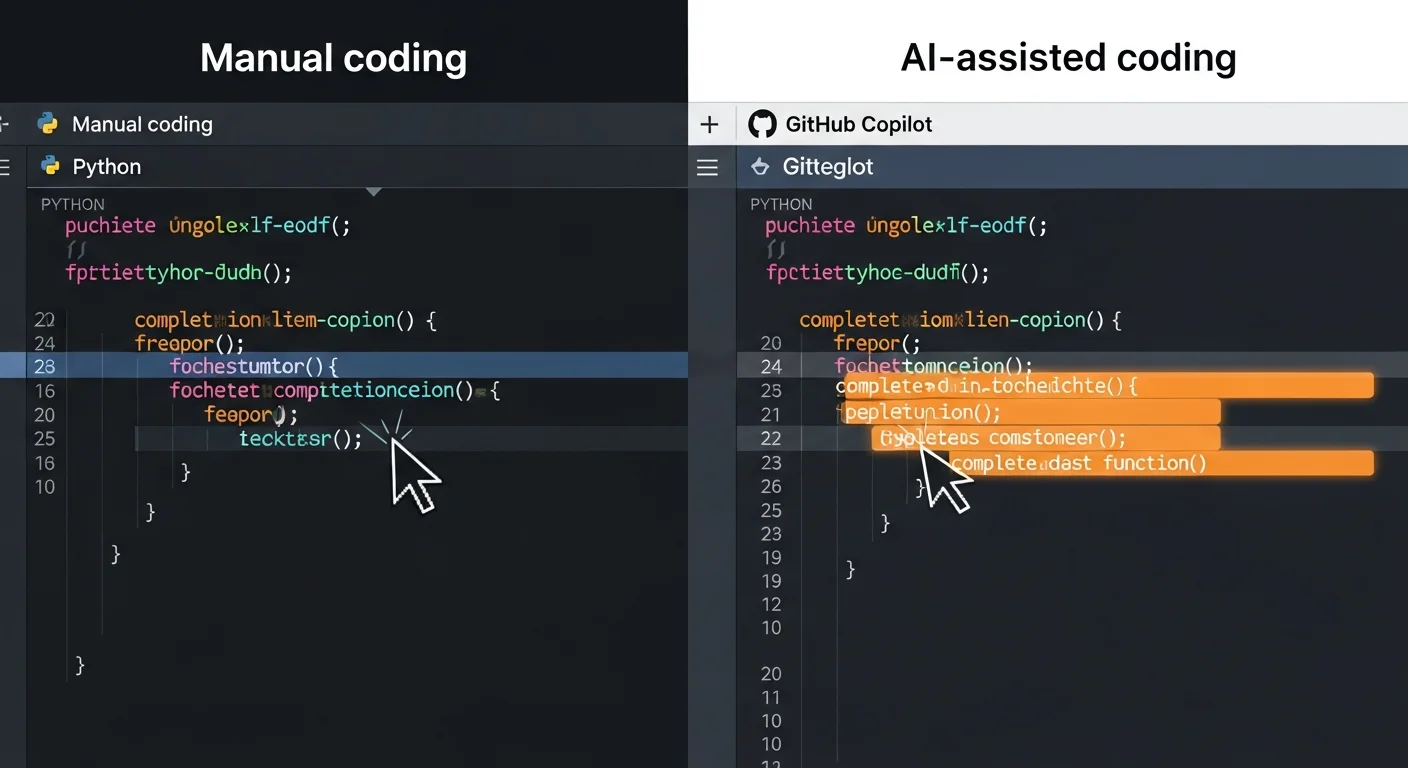
Code completion is Copilot's core feature. As you type, Copilot analyzes your current file, open tabs, and project context to generate inline suggestions shown as "ghost text" — dimmed text appearing after your cursor.
How to Navigate Suggestions
- Tab: Accept the entire suggestion
- Ctrl + Right Arrow: Accept word by word (partial accept)
- Alt + ]: Cycle to the next alternative suggestion
- Alt + [: Go to the previous suggestion
- Escape: Dismiss the current suggestion
- Ctrl + Enter: Open the completions panel showing up to 10 alternatives
Maximizing Suggestion Quality
The quality of Copilot's suggestions depends heavily on the context you provide. Here are proven techniques:
- Write descriptive comments: A comment like "Parse CSV file, skip header, return list of dicts with keys: name, email, age" generates much better code than "process file"
- Use clear naming:
calculate_monthly_revenue(orders: list[Order]) -> Decimaltells Copilot exactly what to generate - Open related files: If you are writing a controller, open the model file too. Copilot reads your open tabs
- Start the pattern: Type the first line of a function and let Copilot complete the rest
- Iterate: If the first suggestion is wrong, dismiss it and add more context
Copilot Chat: Your AI Pair Programmer
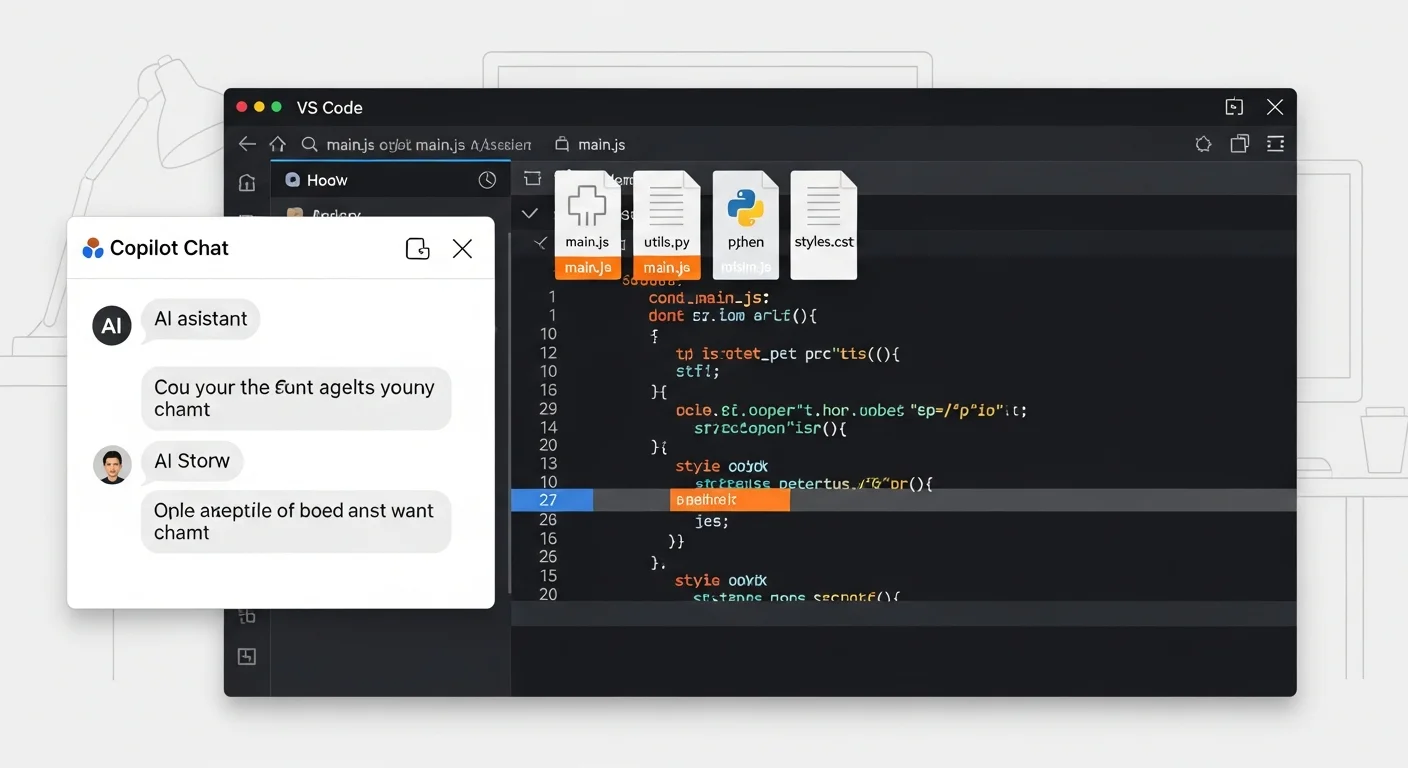
Copilot Chat goes beyond autocomplete. It is a conversational interface where you can ask questions, request explanations, generate tests, debug errors, and refactor code through natural language.
Chat Modes
- Chat Panel (Ctrl+Shift+Alt+C): Side panel for longer conversations with history
- Inline Chat (Ctrl+I): Quick chat at cursor position that edits code in-place
- Quick Chat (Ctrl+Shift+I): Floating overlay for rapid questions
- Terminal Chat: Help with shell commands and terminal errors
- Copilot Edits: Multi-file editing mode where Copilot proposes changes you review
Slash Commands
Slash commands are shortcuts for common tasks:
| Command | What It Does |
|---|---|
/explain | Explain the selected code in detail |
/fix | Find and fix bugs in the selection |
/tests | Generate unit tests for the code |
/doc | Generate documentation comments |
/optimize | Suggest performance improvements |
/new | Scaffold a new file or project |
Chat Participants
Chat participants are specialized AI assistants for different contexts:
- @workspace: Searches your entire project. Use for architecture questions, finding code, project-wide tasks
- @vscode: Helps with editor configuration, keybindings, extensions
- @terminal: Assists with shell commands, explains errors, writes scripts
- @github: Accesses GitHub platform features — issues, PRs, Actions, code search
You can also reference specific context using #file:path/to/file.py to point Copilot to a particular file, or #selection to reference your current text selection.
Prompt Engineering for Developers
The difference between getting mediocre and excellent results from Copilot often comes down to how you frame your requests. Here is a framework that works:
The CRAFT Framework
- Context: Tell Copilot about your project, stack, and constraints
- Requirements: Be specific about inputs, outputs, and edge cases
- Architecture: Mention the pattern or framework to follow
- Format: Describe the desired output (function, class, test, etc.)
- Tests: Include expected behavior and verification criteria
Comment-Driven Development
The most effective technique for inline completions is writing detailed comments before your code:
# Bad: too vague
# process data

# Good: specific and detailed
# Read CSV file from path, skip header row,
# parse each row into a dict with keys: name, email, age.
# Filter out rows where age < 18.
# Return list of dicts sorted by name alphabetically.
def process_csv(filepath: str) -> list[dict]:
    # Copilot generates accurate implementation here
Copilot CLI: Natural Language to Shell
Copilot CLI converts your natural language descriptions into shell commands. It supports bash, PowerShell, git, docker, kubectl, and hundreds of other CLI tools.
# Suggest commands
gh copilot suggest "list all running docker containers"
gh copilot suggest "find files modified in last 24 hours"
gh copilot suggest "compress folder to tar.gz"
gh copilot suggest "kill process on port 3000"
gh copilot suggest "squash last 5 git commits into one"

# Explain commands
gh copilot explain "awk '{print $1}' file.txt"
gh copilot explain "find . -name '*.log' -exec rm {} \;"
Copilot CLI never runs commands automatically — it shows the suggestion and waits for you to confirm. This makes it safe for learning unfamiliar commands.
Custom Instructions
One of Copilot's most powerful but underused features is custom instructions. Create a file at .github/copilot-instructions.md in your repository root, and Copilot Chat will use it as context for every conversation in that project.
# .github/copilot-instructions.md

## Project Context
This is a Python FastAPI backend for an e-commerce platform.
We use PostgreSQL with SQLAlchemy ORM.

## Coding Standards
- Use type hints for all function parameters and returns
- Follow PEP 8 naming conventions
- Write docstrings in Google style format
- All API endpoints must have Pydantic input validation
- Use dependency injection for database sessions

## Security
- Never log sensitive data (passwords, tokens, PII)
- Use parameterized queries only
- All endpoints require authentication except /health
This is the single most impactful Copilot configuration for teams. Every team member gets project-specific guidance automatically.
Security and Privacy
Understanding how Copilot handles your code is critical for making informed decisions about adoption:
- Individual plans: Code snippets may be used for model improvement, but you can opt out in settings
- Business and Enterprise plans: Your code is never retained or used for training. Zero data retention.
- Code referencing: Copilot can show you when suggestions match public code, including license information
- Enterprise features: Content exclusion, audit logs, policy controls, SSO/SAML, proxy support, and IP indemnity
Security Best Practices
- Never paste API keys, passwords, or tokens into Copilot Chat
- Always review generated code for SQL injection, XSS, and authentication bypass
- Run security scanners (Snyk, CodeQL, Semgrep) on Copilot-generated code
- Use content exclusions for sensitive directories in enterprise setups
- Treat all AI-generated code as untrusted code that needs review
Copilot Extensions and MCP
Copilot Extensions are third-party integrations that add specialized capabilities. They appear as chat participants like @docker, @azure, @sentry, and @mongodb.
The Model Context Protocol (MCP) takes this further by allowing Copilot to connect to external data sources. Configure MCP servers in .vscode/mcp.json to give Copilot access to your databases, file systems, and APIs.
For a deep dive into MCP configuration, check our AI MCP Server Configuration Guide.
Pricing and Plans
GitHub Copilot offers four tiers in 2026:
| Plan | Price | Key Features |
|---|---|---|
| Free | $0 | 2,000 completions/mo, 50 chat messages/mo |
| Pro | $10/mo | Unlimited completions, chat, CLI, code review |
| Business | $19/user/mo | Admin controls, audit logs, content exclusion |
| Enterprise | $39/user/mo | IP indemnity, fine-tuned models, zero retention |
The free tier is an excellent way to try Copilot for personal projects. For professional use, the Pro plan at $10/month pays for itself within the first day of productivity gains.
Recommended Books for AI-Assisted Development
To go deeper into AI-powered coding, explore these comprehensive guides:
- AI-Assisted Coding Foundations — Build your foundation for working effectively with AI coding tools
- Building Production-Ready Apps with AI Pair Programming — Real-world techniques for shipping quality code with AI assistance
- Debugging & Refactoring with AI — Advanced strategies for using AI to find and fix bugs, refactor legacy code
- Secure Coding in the Age of AI — Essential security practices when working with AI-generated code
- VS Code Mastery — Master the editor where Copilot delivers its best experience



