Build Your Own Practice Machine
Install Ubuntu Server 24.04 LTS in a virtual machine on your own computer and log in to it for the first time.
Lesson 1. About 25 GB free disk space and at least 4 GB RAM (8 GB recommended) on your computer.
Why a virtual machine?
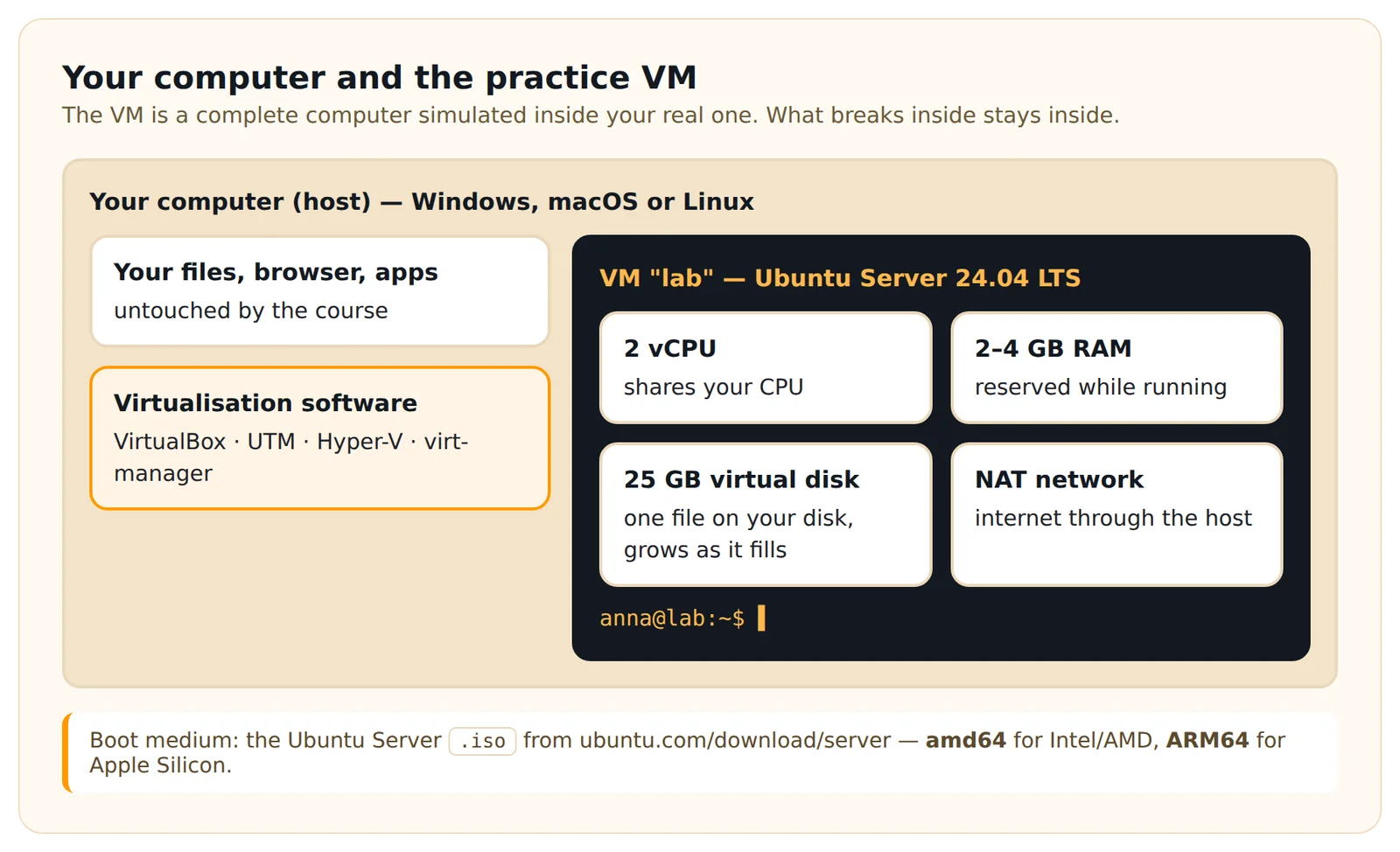
A virtual machine (VM) is a complete computer simulated by software on your real computer. It has its own virtual disk, memory and network card. Whatever you break inside it stays inside it - and in Lesson 3 you will learn to undo any mistake with a snapshot.
We install Ubuntu Server 24.04 LTS, the version without a graphical desktop. That sounds harder, but it is exactly what real servers look like, it needs far fewer resources, and this course is about the terminal anyway.
Pick your virtualisation software
| Your computer | Recommended | Ubuntu image to download |
|---|---|---|
| Windows 10/11 | VirtualBox (free) - or Hyper-V on Pro/Enterprise editions | Ubuntu Server 24.04 LTS, amd64 |
| Mac with Intel CPU | VirtualBox (free) | Ubuntu Server 24.04 LTS, amd64 |
| Mac with Apple Silicon (M1–M4) | UTM (free) | Ubuntu Server 24.04 LTS, ARM64 |
| Linux | virt-manager (KVM) or VirtualBox | Ubuntu Server 24.04 LTS, amd64 |
Download Ubuntu only from the official site, ubuntu.com/download/server (for ARM: the "ARM" section of the same page). An .iso file is a disk image the VM boots from, like an installation DVD.
Recommended VM settings
- Name:
lab - CPU: 2 virtual CPUs
- Memory: 2048 MB minimum, 4096 MB if you have 8 GB or more in total
- Disk: 25 GB, dynamically allocated (it only uses real space as it fills)
- Network: the default NAT setting
- Boot medium: the Ubuntu Server
.isoyou downloaded
Every program words these settings a little differently, but you will find all six in the "New virtual machine" wizard.
Installing Ubuntu Server
Start the VM. The installer is keyboard-driven: arrow keys move, Space ticks a box, Enter confirms, Tab jumps between fields.
- Language and keyboard layout - choose yours. A wrong keyboard layout causes confusing password problems later.
- Type of install - keep Ubuntu Server.
- Network - keep the default; it should show an address obtained by DHCP.
- Proxy - leave empty. Mirror - keep the default and let it test.
- Storage - Use an entire disk. This is the virtual 25 GB disk, not your real one. Confirm with Continue.
- Profile - your name, server name
lab, a username (lowercase, e.g.anna) and a password you will remember. You will type this password often. - Ubuntu Pro - Skip for now.
- SSH - leave Install OpenSSH server unticked for now. We set up SSH properly in Module 7.
- Featured server snaps - select nothing, choose Done.
The installation takes 5–15 minutes. When you see Reboot now, choose it. If the VM complains about the installation medium, remove the .iso from the VM's virtual drive and press Enter.
First login
After the reboot you see a text login prompt:
lab login:Type your username, press Enter, then your password. Nothing appears while you type the password - no dots, no stars. That is normal on Linux. Press Enter.
You are in when you see a prompt like this:
anna@lab:~$Ask the system who and what it is:
whoami
cat /etc/os-release
uname -m
whoami prints your username, cat /etc/os-release shows the distribution and version, and uname -m shows the CPU architecture (x86_64 on Intel/AMD, aarch64 on Apple Silicon).
To shut the machine down cleanly at the end of a session:
sudo poweroffsudo asks for your password because shutting down is an administrator action. We cover sudo properly in Module 4.
Practice task
- Create the VM with the recommended settings and install Ubuntu Server 24.04 LTS.
- Log in with your own user.
- Run
whoami,cat /etc/os-releaseanduname -mand note the results. - Shut the VM down with
sudo poweroff, start it again and log in a second time.
Check your work
cat /etc/os-releasecontainsVERSION="24.04andNAME="Ubuntu".whoamiprints your username, notroot.- You can shut down and log in again without problems.
Common problems:
- "Login incorrect" although the password is right: check the keyboard layout (y/z, special characters). Try a password with plain letters and digits.
- The VM does not start, or says virtualisation is disabled: enable "Intel VT-x" / "AMD-V" (sometimes called "SVM") in your computer's BIOS/UEFI settings.
- Apple Silicon Mac and an amd64 image: it will not boot or will be extremely slow. Use the ARM64 image with UTM.
Show the solution - try the task first
Typical output on an Intel/AMD machine:
anna@lab:~$ whoami
anna
anna@lab:~$ cat /etc/os-release
PRETTY_NAME="Ubuntu 24.04.1 LTS"
NAME="Ubuntu"
VERSION_ID="24.04"
VERSION="24.04.1 LTS (Noble Numbat)"
...
anna@lab:~$ uname -m
x86_64
The point release (24.04.1, 24.04.2, …) may differ; that is fine. On Apple Silicon uname -m prints aarch64.
In short
You now have your own Ubuntu Server 24.04 LTS practice machine running in a VM. You can log in, check the system version with cat /etc/os-release, and shut down cleanly with sudo poweroff. In the next lesson you make it impossible to break permanently: snapshots.
Look it up later
Reference pages for what this lesson uses - handy when you need a reminder.
Quick quiz
3 questions · pass mark 80% · every answer is explained
Go deeper
Dargslan books that cover this topic in more depth.
Create a free account to track which lessons you have finished.
Log in or sign up